Home
Shop
Free Mods
Tools
Bundles
Full Servers
  1. Home
  2. Blog

How to Set Up a Discord Whitelist for Your FiveM Server (2026 Guide)

Published on August 17, 2025·by Lars Miller(Founder & Lead Editor)·Credentials·8 min read·Updated on April 17, 2026
discord whitelist fivem

Gate access to your FiveM server with a Discord role-based whitelist. Covers three implementation approaches (pure Discord, identifier-based, hybrid), step-by-step bot setup, working QBCore and ESX examples, common mistakes that break auth, and security hardening.

How to Set Up a Discord Whitelist for Your FiveM Server (2026 Guide)

A Discord whitelist gates access to your FiveM server using Discord roles. Players without the right role can't join, moderators can grant or revoke access from their phone via a role toggle, and every grant is logged in Discord's audit trail.

This guide covers three implementation approaches, step-by-step bot setup, working configurations for both QBCore and ESX, common mistakes that silently break auth, and security hardening for production servers.

Note on versions: The open-source FAXES/DiscordWhitelist repo is community-maintained and last updated in 2022. It still works for most servers. Several commercial forks exist with active maintenance and SLA support. This guide covers the free GitHub version and the patterns apply to any Discord-based whitelist.

TL;DR

FiveM Discord Whitelist System Setup

  1. Create a Discord Bot in the Developer Portal → enable Server Members Intent → invite to your guild.
  2. Copy your Guild (Server) ID and Role ID(s).
  3. Download FAXES/DiscordWhitelist into resources/ and configure server.js.
  4. Add ensure DiscordWhitelist to server.cfg.
  5. Test: join without the role (blocked), grant the role, rejoin (allowed).

Three Whitelist Approaches: Which One Fits Your Server?

Before picking an implementation, decide which of these three approaches matches your operational reality:

ApproachHow it worksProsConsBest for
Pure Discord rolePlayer's Discord role determines accessSimplest setup, dynamic via role assignment, audit trail in DiscordHard dependency on Discord being up, players must run Discord desktopSmall-to-medium RP servers (under 500 concurrent)
Identifier-based (SQL)Whitelist table of Steam/license/citizenidNo Discord dependency, most secureManual list management, no dynamic role-based funnelsHigh-security servers, VIP-only, invite-only
Hybrid (recommended)Discord role default + identifier allow-list fallbackDiscord convenience + break-glass for adminsMore complexity, two systems to maintainSerious RP servers, any server with paying staff

Most guides only cover the pure Discord approach because it's easiest. For a serious server, the hybrid approach is worth the extra setup — it means a Discord API outage doesn't lock your admins out of their own server.

Why Discord-Based Whitelisting?

  • Dynamic: Grant or deny access by adding or removing a Discord role — no ACE or database edits.
  • Scalable: Moderators manage access from mobile Discord without server-side tools.
  • Auditable: Discord role history and audit logs show who granted whom.
  • Community-friendly: Applicants see their status change immediately in Discord.

The trade-off: players must have the Discord desktop app running when they launch FiveM. Without it, FiveM doesn't expose a discord: identifier, and the whitelist check has nothing to match against.

Prerequisites

  • A Discord server where you're admin or owner
  • A FiveM server with txAdmin or CLI access
  • Players will need the Discord desktop app running when connecting
  • A Discord Bot you'll create in the next step

Step 1 — Create a Discord Bot and Enable Intents

  1. Go to the Discord Developer Portal → New Application → name it (e.g., FiveMX Whitelist Bot).
  2. Open the Bot tab → Reset Token → copy the token and store it securely.
  3. Under Privileged Gateway Intents, enable Server Members Intent. Presence Intent is not required.
  4. Invite the bot: OAuth2 → URL Generator → scopes: bot; permissions: minimal (none beyond joining is fine). Visit the generated URL, add the bot to your guild.

Security note: Treat the bot token like a password. Never commit it to Git, never share in screenshots, rotate immediately if leaked. Use an environment variable or a server convar rather than hardcoding.

Step 2 — Get Your Guild ID and Role IDs

  1. In Discord → User Settings → Advanced → Developer Mode: ON
  2. Right-click your server name → Copy Server ID → this is your guildId
  3. Server Settings → Roles → right-click the whitelist role → Copy Role ID
  4. Optionally, copy IDs for blacklist roles (e.g., Banned)

Keep these values handy — you'll paste them into the config next.

GUILD_ID = "123456789012345678"
WHITELIST_ROLE_IDS = ["111111111111111111", "222222222222222222"]
BLACKLIST_ROLE_IDS = ["333333333333333333"]

Step 3 — Download and Install the Resource

  1. Download the ZIP from FAXES/DiscordWhitelist on GitHub.
  2. Extract to resources/[discord]/DiscordWhitelist.
  3. Verify the folder contains fxmanifest.lua, server.js, and package.json.
  4. Add to server.cfg:
# Load after identifier providers, before anything that depends on whitelist
ensure DiscordWhitelist

Step 4 — Configure server.js

Open resources/[discord]/DiscordWhitelist/server.js and set the config:

const config = {
    botToken: process.env.DISCORD_BOT_TOKEN || "PASTE_TOKEN_HERE",
    guildId: "123456789012345678",

    // Access granted if player has ANY of these roles
    whitelistRoles: [
        "111111111111111111", // Whitelisted
        "222222222222222222", // Staff
        "333333333333333333", // Donator
    ],

    // Immediate block if player has ANY of these roles
    blacklistRoles: [
        "444444444444444444", // Banned
    ],

    // Cache role data to reduce Discord API calls (seconds)
    cacheMaxTime: 60,

    messages: {
        noDiscord: "Open Discord and rejoin. Your Discord app must be running.",
        notWhitelisted: "You are not whitelisted. Apply in #how-to-whitelist — discord.gg/yourinvite",
        blacklisted: "Access denied. Contact staff via ticket.",
        welcome: "Verified — loading city…",
    },
};

Prefer the process.env.DISCORD_BOT_TOKEN pattern so the token never hits Git.

Step 5 — Restart and Test

  1. Restart the resource: refresh then restart DiscordWhitelist in the server console.
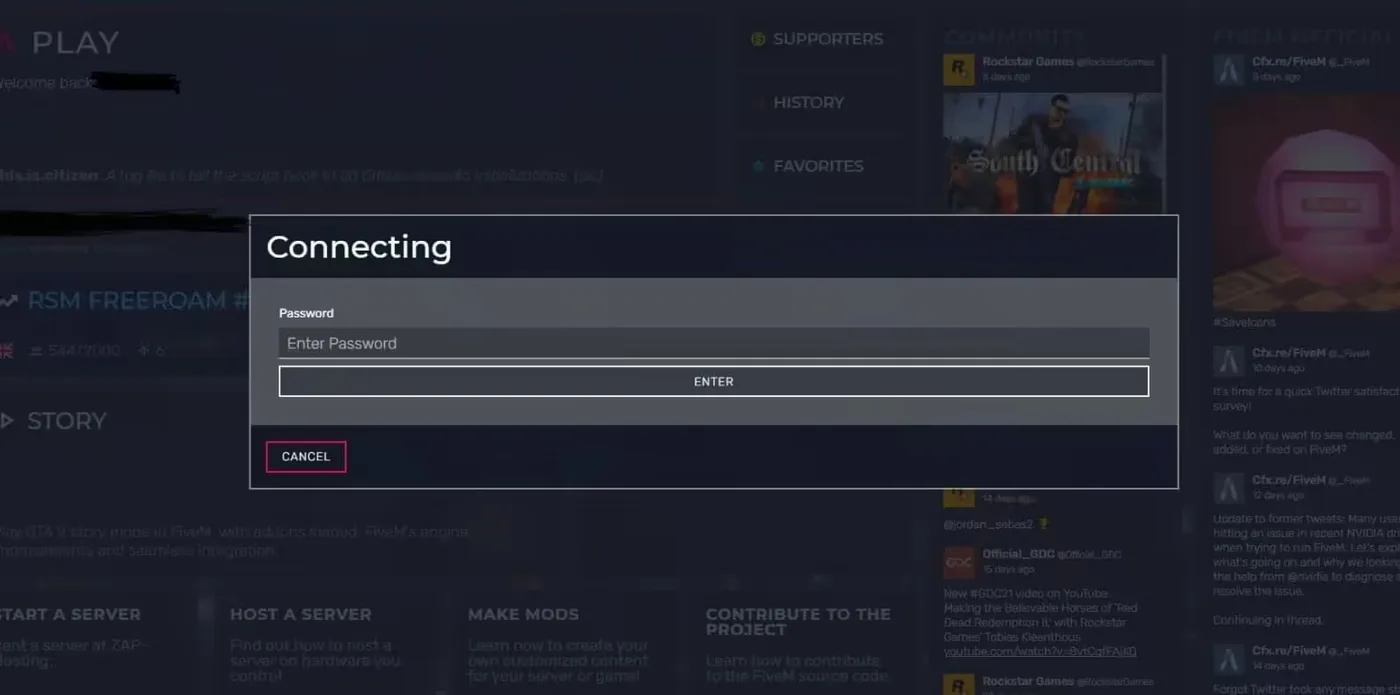
  2. Negative test — join without the whitelist role. You should see the deferral message and get kicked.
  3. Positive test — grant yourself the role, reconnect. You should be allowed in.

If either test fails, jump to the Common Mistakes section below.

Implementation Examples: QBCore vs. ESX

Both frameworks expose the Discord identifier the same way (via GetPlayerIdentifierByType), but you may want to add framework-specific follow-up actions after a whitelist check passes.

QBCore: block connection, log allowed players

-- resources/[qb]/qb-core/server/events.lua or your own bridge resource
AddEventHandler('playerConnecting', function(name, setKickReason, deferrals)
    local src = source
    deferrals.defer()
    Wait(0)

    local discordId = nil
    for _, id in ipairs(GetPlayerIdentifiers(src)) do
        if id:sub(1, 8) == 'discord:' then
            discordId = id:sub(9)
            break
        end
    end

    if not discordId then
        deferrals.done('No Discord identifier — run Discord desktop before joining.')
        return
    end

    local hasRole = exports['DiscordWhitelist']:HasWhitelistRole(discordId)

    if not hasRole then
        deferrals.done('You are not whitelisted. Apply at discord.gg/yourinvite')
        return
    end

    -- Log allowed connection
    MySQL.insert(
        'INSERT INTO connection_log (citizenid, discord_id, action) VALUES (?, ?, ?)',
        { 'unknown', discordId, 'whitelist_pass' }
    )

    deferrals.done()
end)

ESX: identifier whitelist fallback for admins

-- Hybrid approach: Discord first, identifier whitelist as fallback
local ADMIN_IDENTIFIERS = {
    ['license:abc123def456'] = true,
    ['license:xyz789...'] = true,
}

AddEventHandler('playerConnecting', function(name, setKickReason, deferrals)
    local src = source
    deferrals.defer()
    Wait(0)

    -- Extract both identifiers
    local license, discordId = nil, nil
    for _, id in ipairs(GetPlayerIdentifiers(src)) do
        if id:sub(1, 8) == 'license:' then license = id end
        if id:sub(1, 8) == 'discord:' then discordId = id:sub(9) end
    end

    -- Admin fallback: license whitelist always wins
    if license and ADMIN_IDENTIFIERS[license] then
        deferrals.done()
        return
    end

    -- Normal path: require Discord + role
    if not discordId then
        deferrals.done('Discord required. Start Discord desktop and rejoin.')
        return
    end

    local hasRole = exports['DiscordWhitelist']:HasWhitelistRole(discordId)
    if not hasRole then
        deferrals.done('Not whitelisted. Apply at discord.gg/yourinvite')
        return
    end

    deferrals.done()
end)

The identifier fallback is the break-glass mechanism — when Discord's API is down, your admins can still join.

Common Mistakes That Silently Break Auth

These are the bugs we see most often on FiveM support forums. Each one has a simple fix, but they look like different problems from inside:

1. Hardcoded token committed to Git

Symptom: Token stops working a few days after a public commit.

Cause: Someone scraped your public repo and revoked or abused the token.

Fix: Rotate the token immediately. Move it to an environment variable or setr whitelist_token "..." convar. Add your config file to .gitignore.

2. Blocking all non-allowlisted without fallback

Symptom: Admins locked out of their own server when Discord API is down.

Cause: Pure Discord whitelist with no identifier fallback. When Discord API returns 5xx, every whitelist check fails.

Fix: Implement the hybrid approach (ESX example above). Keep a tiny license-based allowlist of admins as break-glass.

3. Role-check race condition

Symptom: New applicants approved in Discord still get denied for a few minutes.

Cause: The bot's role cache hasn't refreshed yet.

Fix: Lower cacheMaxTime from the default 90 to 30-60 seconds. For instant updates, implement a webhook on Discord role-change events that invalidates the cache immediately.

4. Bot invited to wrong guild

Symptom: Bot appears online but says "not a member of guild" when checking roles.

Cause: The guildId in config doesn't match the guild the bot was invited to. Easy mistake when you have multiple Discord servers (main + staff + testing).

Fix: Verify the guild ID by right-clicking the server name in Discord with Developer Mode on.

5. Server Members Intent not enabled

Symptom: Bot shows as online but returns empty role lists.

Cause: The Privileged Gateway Intent is off. Discord introduced this requirement in 2022 and it catches new setups routinely.

Fix: Developer Portal → Bot tab → Privileged Gateway Intents → enable Server Members Intent → restart the bot.

6. Deferral done-callback never fires

Symptom: Players stuck on the connecting screen forever.

Cause: Your playerConnecting handler has an early return that skips deferrals.done().

Fix: Every code path in the connecting handler must end with either deferrals.done() (allow) or deferrals.done('reason') (reject). Never leave deferrals dangling.

7. Players report "Discord not found" despite having Discord open

Symptom: Valid Discord users getting blocked with no-identifier error.

Cause: FiveM sometimes misses the Discord identifier if Discord was launched after FiveM. Also, web-based Discord (browser) doesn't expose the identifier.

Fix: Document the order in your #how-to-whitelist channel: Discord desktop first, wait for full load, then FiveM. Web Discord doesn't work.

Multiple Roles and Staff Bypass

The pattern most servers converge on:

RolePurposeBypass priority
StaffAlways-on access for mods + admins1 (always allowed)
DonatorPaid supporters2
WhitelistedApproved applicants3
GuestEvent/trial access4
BannedImmediate blockBlacklist

Any role in the whitelistRoles array grants access. Any role in the blacklistRoles array immediately blocks, regardless of whitelist status.

Operational Tips

  • Automate role assignment — connect your application form (Google Form + Zapier, or a Discord bot like MEE6) to auto-grant the Whitelisted role on approval.
  • Player UX — pin a #how-to-whitelist post with the role requirements, the Discord invite, and clear instructions (Discord desktop first, then FiveM).
  • Moderation — log role changes in a private #mod-logs channel via a webhook. Audit who added whom on a monthly rotation.
  • Application tickets — integrate with a ticket bot (Ticket Tool, TicketsBot) so applications become structured threads instead of DMs.

Security Best Practices

  • Store the bot token outside version control — environment variable, server convar, or a secrets manager. Never commit.
  • Rotate the token on a quarterly basis and immediately after any suspected leak.
  • Restrict who has write access to the resources/[discord]/DiscordWhitelist folder — only your sysadmin/devops should be able to edit server.js.
  • Disable the allowNotifications setting if your bot supports it (some forks DM players on denial, which creates a DDoS amplification vector).
  • Monitor the bot's Discord audit log for unexpected role grants — a compromised moderator account can backdoor your whitelist invisibly.

Uninstall or Disable

  • Remove ensure DiscordWhitelist from server.cfg or disable in txAdmin → Resources.
  • Remove the folder from resources/ if decommissioning.
  • If migrating to a different whitelist system, export your current allowed role members first (Discord bot command, or bot audit log export).

Appendix — Example server.cfg Block

# Discord integrations (load order matters)
ensure discord_perms
ensure DiscordWhitelist

# Optional: role-synced jobs (load after core framework)
# ensure discordrolesync

Appendix — Deferral Messages That Convert

Short, actionable messages reduce support tickets:

messages: {
    noDiscord: "Open Discord desktop and rejoin. Web Discord does not work.",
    notWhitelisted: "Not whitelisted. Apply in #how-to-whitelist → discord.gg/yourinvite",
    blacklisted: "Access denied. Contact staff via ticket bot in #support.",
    welcome: "Verified — loading city…",
}

Related Guides

  • FiveM Whitelist — Complete Guide (txAdmin, Scripts, DB) — alternative approaches and when to use each
  • txAdmin Discord Setup — wire your mod team's Discord into txAdmin for admin access
  • How to Create Discord Donation Tiers — pair whitelisting with role-based monetization
  • FiveM server.cfg reference — secure config for the resource
  • How to grow your FiveM player base — what to do after the whitelist is live

Frequently Asked Questions

Why use Discord for whitelisting a FiveM server?

Discord whitelisting is dynamic (grant access by adding a role, no ACE or DB edits), scalable (moderators can manage access from mobile Discord), and auditable (Discord role history + audit logs show who granted what). The main trade-off vs identifier-based whitelisting is that players must have the Discord desktop app running when connecting, which makes Discord the hard dependency for joining your server.

Which whitelist approach should I pick: pure Discord, identifier-based, or hybrid?

Pure Discord role check is simplest and best for servers under 500 concurrent players — one Discord role controls everything. Identifier-based (SQL table of allowed Steam/license IDs) is most secure and independent of Discord, at the cost of manual list management. Hybrid combines both: Discord role for most players, identifier whitelist as break-glass for VIPs/admins when Discord API is down. Hybrid is the right answer for serious servers.

What do I need to set up a Discord whitelist?

Four things: (1) a Discord server where you're admin, (2) a FiveM server with txAdmin or CLI access, (3) players running the Discord desktop app before launching FiveM (so FiveM exposes the discord: identifier), and (4) a bot created in the Discord Developer Portal with the Server Members Intent enabled.

How do I fix the 'Bot offline' error?

Three causes: wrong bot token in config, bot not actually invited to the guild, or the Server Members Intent wasn't enabled in the Developer Portal. Verify the token starts with the correct prefix, check that the bot appears in your Discord member list (offline is fine, not-present is not), and confirm both Intents in the Bot tab of the Developer Portal: Server Members Intent ON, Presence Intent can stay OFF.

Players are blocked even when they have the whitelist role. What's wrong?

The most common cause is the Discord desktop app not running when the player launches FiveM — without it, FiveM can't expose a discord: identifier to the script. Have the player restart Discord, wait for it to fully load, then launch FiveM. If that doesn't fix it, the bot's guild-members cache is stale — reduce cacheMaxTime in the config from 90s to 30s.

Can I use multiple whitelist roles (Donator, Staff, Applied)?

Yes. Add every role ID to the whitelistRoles array in the config. Access is granted if the player has any one of the listed roles. This is how most servers handle funnel differentiation — one role for approved applicants, another for donators, a third for staff with automatic access.

How do I prevent race conditions where role changes take minutes to apply?

Two things: lower cacheMaxTime to 30-60 seconds so the bot refreshes role data more often, and if you need instant updates, implement a webhook on the Discord role-change event that invalidates the cache immediately. Without the webhook, players who just received a role will be denied until the next cache refresh — annoying but usually not worth the implementation effort unless you have high applicant churn.

Is Discord whitelisting secure against bypass attempts?

The weak link is the bot token. If it leaks, attackers can impersonate the bot, read your guild member list, and potentially inject themselves into the whitelist. Store the token outside version control (env var or convar), rotate if leaked, and restrict who has write access to the resource folder. For high-value servers, pair Discord whitelisting with an identifier-based fallback — that way even a complete Discord compromise doesn't grant server access.
Previous Article

How to Evaluate, Test, and Maintain FiveM Scripts

Next Article

How to Connect txAdmin to Discord (2026 Guide)

More on This Topic

How to Set Up a FiveM GTA RP Server (2026) — Complete Step-by-Step GuideFiveM Server Management: The Complete Guide from Setup to ScaleFiveM Full Server Download: Complete Server Packs Explained (2026)How to Run a FiveM Server Using Docker: Complete Setup GuideUltimate Drift Server Guide: Top Cars, Mods & Setups for FiveM

Turn framework research into a launch-ready script stack

Use this guide to narrow the framework decision, then move into the core commercial hubs for verified scripts, curated bundles, and a faster server launch path.

Framework hub

Browse QBCore-ready scripts

Move into the QBCore landing page to compare verified scripts, framework fit, and install-ready products built for modern FiveM servers.

Open QBCore hub

Framework hub

Review the ESX script path

Use the ESX landing page to compare framework-specific resources, launch guidance, and premium products that fit ESX-first servers.

Open ESX hub

Premium catalog

Browse premium FiveM scripts

Move from research into the main shop to compare real products, framework labels, screenshots, and production-ready quality signals.

Open premium shop

Launch faster

Compare curated bundles

Bundles shorten the path from planning to launch by grouping the highest-leverage scripts into a cleaner commercial starting point.

View bundles

Disclosure: Some links below are affiliate links to FiveMX products. We may earn a commission at no extra cost to you.

Related Articles

Eliminate Annoying Delays: Optimize FiveM Server Loading ...

Eliminate Annoying Delays: Optimize FiveM Server Loading ...

Learn how to optimize FiveM server loading times by managing resources, using efficient mods, and choosing the right server host to eliminate annoying delays.

September 3, 2024
How To Grow your FiveM Server Player Base

How To Grow your FiveM Server Player Base

Want to boost your FiveM server population? Let's get you there! So, you've got your FiveM server up and running, that's awesome! But now you're wondering...

March 24, 2025
Best FiveM Server Hosting 2025: Performance Guide

Best FiveM Server Hosting 2025: Performance Guide

Ready to get your FiveM server running like a champ? Dive into our 2025 comparison to find the perfect host that balances unbeatable uptime, lightning‑fast performance, and pocket‑friendly pricing, al

March 24, 2025
Secure CheckoutInstant AccessMoney-Back GuaranteeLifetime Updates
FiveMX

Premium FiveM scripts and mods for serious server owners.

Shop

  • Shop
  • QBCore Scripts
  • ESX Scripts
  • FiveM Scripts
  • Free Mods
  • Best Scripts & Mods

Help

  • About
  • FAQ
  • Support
  • Contact
  • Account
  • Affiliate Program

Legal

  • Privacy Policy
  • Terms of Service
  • Refund Policy
  • Cookie Policy
  • GDPR Compliance
  • DMCA
  • Imprint
  • Editorial Policy
© 2026 FiveMX. All rights reserved.·support@fivemx.com

FiveMX is not affiliated with Rockstar Games, Take-Two Interactive, or CFX.re. All trademarks are property of their respective owners.

Flash Sale — Up to 19% off!Flash Sale — 19% off!Shop Now