
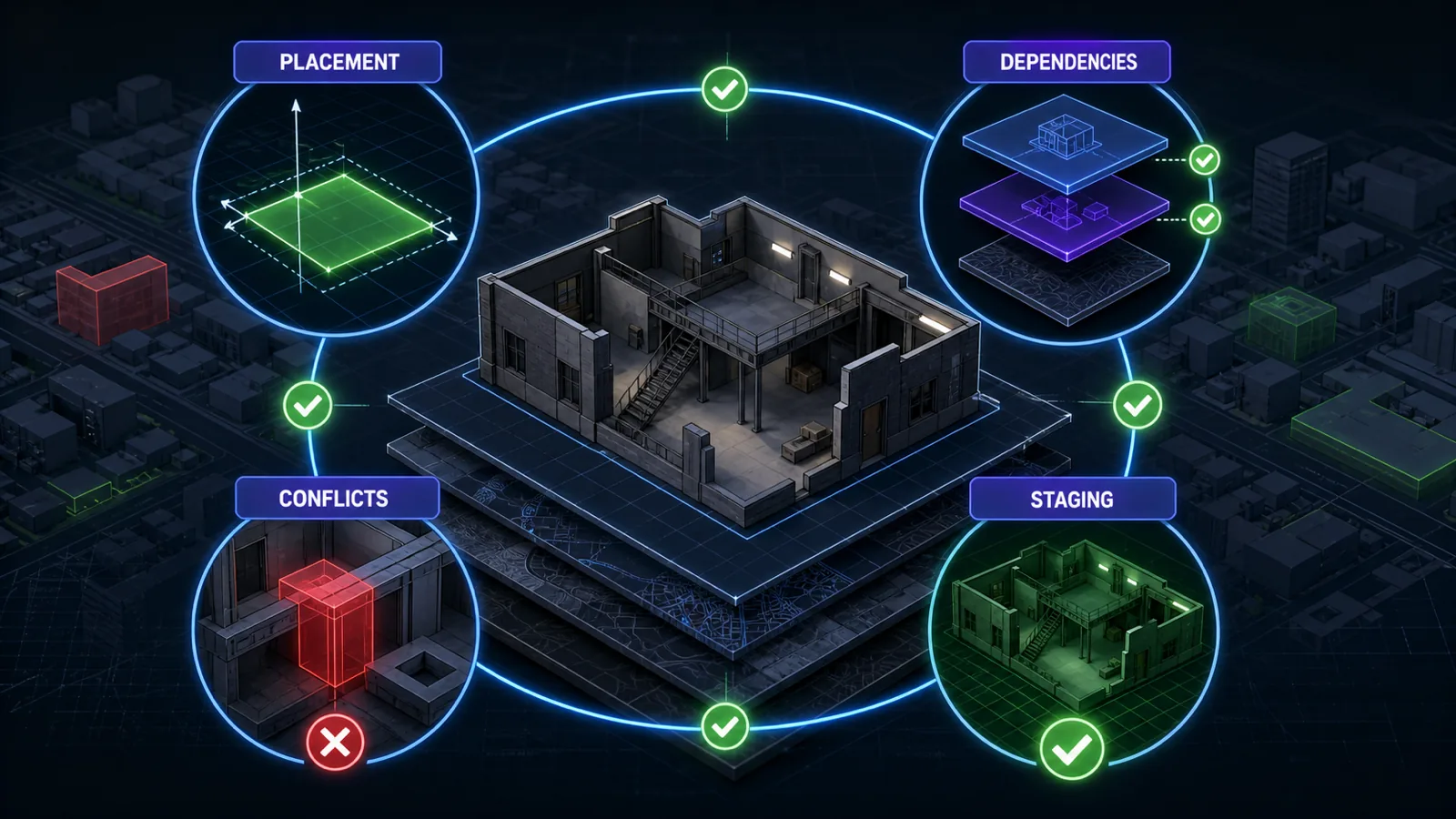
Most FiveM MLOs are map resources rather than framework scripts, but that does not make every map automatically compatible with every server. Conflicts usually come from overlapping world edits, duplicate IPLs, door systems, teleporters, routing buckets or interaction scripts. This guide explains the checks to run before adding a paid interior or large map to an ESX, QBCore or QBOX server.
Separate map compatibility from script compatibility
An interior can often stream on any framework because the map files themselves do not need ESX, QBCore or QBOX. The gameplay around it may still depend on a framework. Door locks, garages, elevators, stashes, shops, jobs and target zones are usually configured by separate scripts. Treat the map and its optional integration files as two layers and verify each layer independently.
| Area | What to inspect | Common conflict |
|---|---|---|
| World placement | Coordinates, exterior changes and nearby map resources | Two resources edit the same building or terrain. |
| Map assets | YMAP, YTYP, models, textures and manifest declarations | Duplicate assets or a missing type definition. |
| IPLs | Required or removed interiors and loader resources | Another resource enables a conflicting interior. |
| Doors | Door hashes, coordinates and lock configuration | Duplicate door entries or a framework-specific lock script. |
| Interactions | Targets, zones, garages, stashes and teleporters | Coordinates or exports do not match the installed scripts. |
Build a map inventory first
Before installing a new MLO, list the existing maps that touch the same area. Include large city overhauls, road packs, vegetation changes and shell or IPL loaders, not only interiors with similar names. Two maps can conflict even when they serve different roleplay purposes. Keep the resource names and source locations in the inventory so a conflict can be traced and rolled back.
For a complete server pack, review which maps are already bundled before adding another. The FiveM server packs category is useful for comparing bases, but a pack still needs an inventory of its included resources. Do not assume that a map is absent just because its name is not visible in the server list.
Check framework-specific integrations
If the product includes job, garage, door or target configuration, confirm which version it supports. Use the ESX, QBCore and QBOX paths to identify compatible surrounding systems. A map can load correctly while its doors or interaction points remain unusable, so test the integration as a separate acceptance step.
Coordinate-based integrations need special attention when the MLO has multiple versions. A door or stash configuration created for one layout may point to the wrong location in another. Match the configuration to the exact product version and keep custom coordinate changes documented outside the vendor resource when possible.
Use a repeatable staging test
- Back up the server configuration and map resources.
- Start the MLO alone with its declared dependencies.
- Walk the exterior and every room while checking the client and server consoles.
- Test doors, collisions, textures, lighting and teleporters.
- Enable nearby maps and large world edits one at a time.
- Add framework interactions, then test each permitted and non-permitted role.
Repeat the test after a clean reconnect and a server restart. Check from more than one graphics preset if the community uses varied hardware, but avoid treating one local frame-rate result as a universal product claim. The purpose is to identify missing assets, visual conflicts and integration failures in your own stack.
Choose by location and operational fit
Browse the current FiveM MLO catalog by the role the location serves, then verify the exact map footprint and integration requirements. Police stations, hospitals, businesses, mansions and large city expansions have different operational needs. The dynamic shortlist attached to this guide gives representative starting points; it does not replace the current screenshots, documentation and dependency details on each product page.
Use a repeatable MLO staging checklist
Cfx.re documents map resources through an fxmanifest.lua and the this_is_a_map directive. That proves how the resource is loaded, but compatibility still depends on the rest of your map stack. Test the exact production resource order on staging rather than opening the MLO by itself.
- Verify the intended coordinates and inspect the exterior, interior, doors and collision from several approaches.
- Check the manifest, streamed files and any required IPL, shell, doorlock or target dependencies.
- Disable nearby map resources one at a time to identify overlapping geometry, duplicate props or collision.
- Restart the resource and server, then reconnect with a clean client cache before accepting the result.
Keep a list of every production map and its covered area. That inventory makes the next compatibility review faster and gives you a clean rollback path.
Use representative map types to compare footprint and integration needs, then verify the exact product documentation and media.


