How to Change Your Field of View (FOV) in FiveM
85-90 FOV
Recommended competitive range
Best balance between peripheral vision and distortion in most FiveM first-person setups.
3 quick checks
Test routine
Run, drive, and ADS in one session before locking in your final value.
80 FOV
Rollback point
If mirrors, weapon hands, or dashboards look stretched, step back to 80 and retest.
A complete guide to adjusting FOV in FiveM: the console command, permanent config setup, per-playstyle recommendations by monitor size, vehicle and ADS camera tweaks, and a full troubleshooting section for every common failure mode.

Changing the Field of View (FOV) in FiveM is one of the fastest ways to improve your first-person gameplay. The default GTA V camera is notoriously tight, locking you into a narrow tunnel-vision perspective that limits situational awareness during gunfights, high-speed driving, and complex roleplay scenarios.
This guide covers the console command, permanent config setup, what the different FOV values actually look and feel like, how to handle vehicle and ADS cameras, and a full troubleshooting section for every failure mode you are likely to hit.
For a complete overview of client-side optimization, see our guide on best FiveM settings for high FPS.
Step 1: Switch to the Canary Update Channel
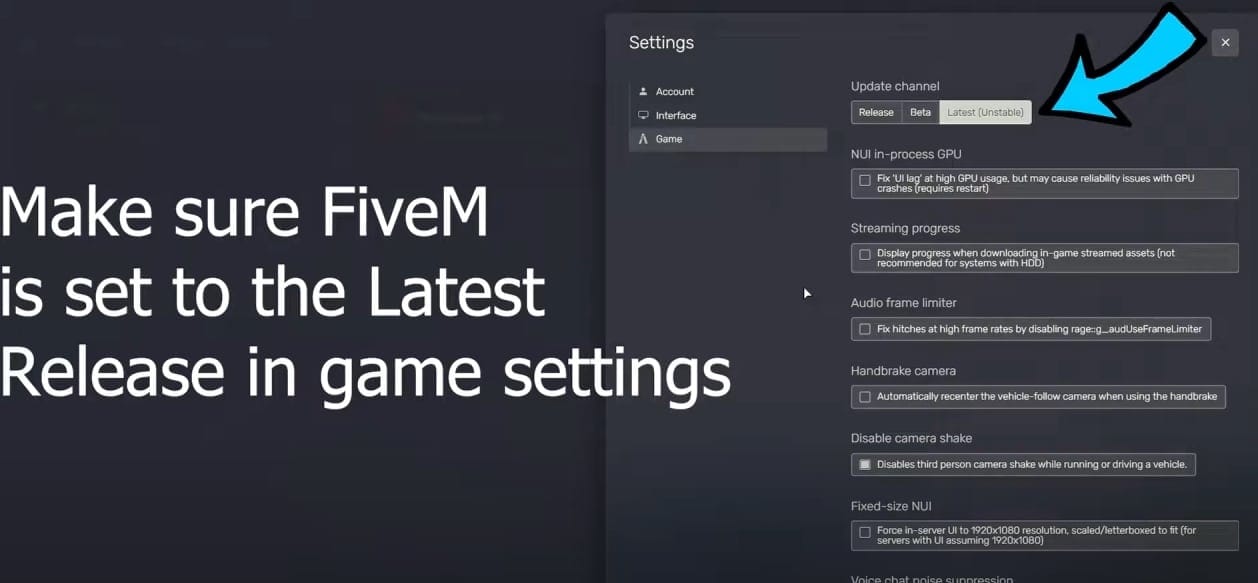
The FOV command relies on features available in the Canary (Latest) branch of FiveM. On the Release branch, the command is either silently ignored or the settings slider appears grayed out.
How to switch:
- Open FiveM and go to Settings (gear icon, top-right corner).
- Find the Update Channel option.
- Change it from "Release" to "Latest" (Canary).
- Restart the client to download the update.
If you are already on Canary, skip this step. You can verify your branch in the FiveM settings panel.
Step 2: Open the Developer Console
Once loaded into a server or sitting at the main menu:
- Press
F8to open the FiveM Developer Console. - A dark overlay appears at the top of your screen with a text input at the bottom.
Step 3: Enter the FOV Command
Type the following command into the console input line:
profile_fpsFieldOfView 90
Replace 90 with your target value and press Enter. The change applies immediately — you do not need to restart the game.
Quick reference values:
- 60–70: Default GTA V first-person range. Tight, restrictive, prone to motion sickness for long sessions.
- 80–85: Conservative but clear improvement. Dashboards and weapon models stay proportional.
- 85–90: The recommended sweet spot for most players. Peripheral vision opens noticeably without distorting centers or interiors.
- 95–100: High-performance range. Better for racing and ultrawide monitors; some stretching in tight vehicle interiors.
- 100+: Fishbowl territory. Maximum peripheral awareness but visible geometric distortion at screen edges.
What FOV Actually Looks and Feels Like: 70°, 90°, and 110°
Numbers alone do not tell the full story. Here is what each major setting looks like in practice:
70° FOV (near-default)
Standing on a sidewalk in Los Santos, you see roughly the width of a two-lane road ahead of you. Your character's gun fills a large portion of the lower screen. During a chase scene, the environment rushes toward you in a narrow column — disorienting if you have played modern FPS games, which default to 90+. In a vehicle, the A-pillars of most cars take up significant screen real estate and side traffic is largely invisible until it appears in your direct forward view.
90° FOV (recommended range)
The same sidewalk now reveals both kerbs, the full bonnet of a parked car to your left, and the beginning of a side alley to your right — all without moving the camera. The gun model is smaller relative to the screen but still clearly readable. Vehicle interiors feel appropriately proportioned: dashboards are visible, side mirrors are usable, and the road ahead feels natural rather than zoomed in. This is the setting that most competitive FPS games target, and your muscle memory will transfer cleanly.
110° FOV (aggressive/ultrawide)
You can see nearly 60% of a full street width in a single frame. The gun barrel curves noticeably at the edges of screen due to perspective projection — a side effect of pushing FOV beyond the point your monitor geometry compensates for naturally. Buildings look slightly curved at the periphery. Driving becomes easier for tracking side traffic, but vehicle interiors warp: dashboards stretch, steering wheels look misshapen, and passenger-side detail clips. Most players find this setting only usable for racing or open-world traversal, not for close-quarters combat where weapon model distortion is distracting.
Recommended FOV by Monitor Size and Playstyle
FOV that feels balanced on one monitor can feel wrong on another because field of view perception changes with the physical angle your monitor occupies in your vision. A 32" monitor at a close seating distance already fills more of your field of vision than a 24" at the same distance.
| Monitor | Roleplay / Patrol | General Mixed | Heavy PvP / Combat | Racing / Driving |
|---|---|---|---|---|
| 24" (1080p) | 83–87 | 88–92 | 90–95 | 92–100 |
| 27" (1440p) | 82–86 | 87–91 | 89–93 | 90–98 |
| 32" (1440p / 4K) | 80–84 | 85–90 | 88–92 | 88–96 |
| Ultrawide (21:9) | 78–82 | 82–87 | 85–90 | 86–94 |
How to read this table: The ranges are starting points, not hard limits. Start at the middle of your monitor's recommended range for your primary playstyle. Run the test loop in the next section, then nudge up or down by 2–3 points until it feels natural.
Ultrawide monitors already present a wider horizontal view than a standard 16:9 panel, so you need less FOV adjustment to achieve the same peripheral benefit. Starting above 90 on an ultrawide often produces more distortion than gain.
Safe Testing Routine Before You Lock In a Value
Do not pick a number and walk away after a five-minute session. FOV affects your comfort across multiple contexts, and a setting that feels perfect on foot often reveals problems the moment you get into a vehicle or raise a weapon.
Run these three checks in sequence:
- Sprint through a populated area — check whether camera shake or edge distortion draws your attention away from the center. If you find yourself reading screen edges instead of the action, the value is too high.
- Drive a standard sedan and a large SUV — dashboard readability, A-pillar clearance, and mirror visibility should feel natural. If the dashboard is clipping into the bonnet or steering wheel geometry looks wrong, drop back 3–5 points.
- Enter first-person combat or ADS — your weapon model should occupy a reasonable portion of the lower center without blocking your target view. A model that feels bloated at rest usually feels worse under fire.
If all three pass, you have found a solid value. Most players cycle through 3–4 values before settling. The most common mistake is testing only on foot and discovering the vehicle problem 20 minutes into a patrol.
Vehicle FOV and Interior Camera: What You Can and Cannot Control
This is the most misunderstood part of FiveM FOV. Here is the honest breakdown:
What profile_fpsFieldOfView does and does not affect:
The profile_fpsFieldOfView command controls your on-foot first-person camera — the perspective you get when pressing V while on foot. It does not directly control:
- The first-person view inside vehicles (the cockpit camera with dashboard visible)
- Aim-down-sights zoom level when scoped or using iron sights
- Cutscene cameras or scripted camera sequences
- Third-person follow camera
Vehicle interior camera:
In standard GTA V, the vehicle first-person camera FOV is governed by cameras.ymt and vehicle meta files. FiveM servers that want to expose this to players run a dedicated camera resource, typically with its own configuration commands or keybinds. The commands vary by script — ask your server admin whether a custom first-person vehicle camera resource is installed, and check its documentation for the config option.
If you want vehicle FOV control on your own server, resources like custom camera mods can expose additional settings. This is a server-side change, not a client-side profile flag.
Aim-down-sights (ADS) FOV:
ADS zoom is handled by weapon meta files and any server-installed weapon scripts. There is no universal client-side console command that adjusts ADS zoom independent of the base FOV. If your server uses a custom weapon resource, check whether it exposes an ADS multiplier setting.
Cutscene cameras:
Cutscene cameras use scripted perspectives that override all player camera settings for the duration of the scene. Your profile_fpsFieldOfView value has no effect during cutscenes by design — the game engine hands camera control to the script entirely.
For vehicle-specific configuration and handling tweaks, see our guide on how to change vehicle handling in FiveM.
Making the Change Permanent
If your FOV resets every session, you need to write the value to your client config file. Here is how:
- Press
Win + Ron your keyboard. - Type
%appdata%\CitizenFXand press Enter. If this folder does not exist, try%localappdata%\FiveM\FiveM.app. - Open
fivem.cfgorcitizenfx.iniusing Notepad or any text editor. - Add this line at the bottom:
seta profile_fpsFieldOfView "90"
- Save the file and close it. Restart FiveM completely.
If you have multiple FiveM installs or have switched between update channels, verify that you are editing the config file read by your active install. The safest check is to edit the file, restart FiveM, and immediately open the F8 console to confirm the value loaded correctly.
Troubleshooting: FOV Not Working or Not Saving
The following issues come up repeatedly. Work through them in order.
1. FOV resets after every FiveM update
Some FiveM updates write new defaults to the client profile, which can overwrite your saved FOV. After any major update, open F8 and verify your value is still active. If it reset, re-add the seta line to your config file and confirm the file was not replaced during the update.
2. The FOV command does nothing on Release branch
profile_fpsFieldOfView is most reliable on the Canary channel. If you are on Release and the command appears to do nothing, switch to the Latest (Canary) channel in FiveM settings and restart. The command will be accepted and applied on the next launch.
3. FOV not applying inside vehicles
This is expected behavior. The profile_fpsFieldOfView flag only affects the on-foot first-person camera. If you want different vehicle interior FOV, your server needs a camera resource that exposes this. Check with your server admin or look at the resource list in your server's server.cfg.
4. Config edits not persisting — wrong folder
Two different paths can contain FiveM config files depending on how and when you installed the client:
%appdata%\CitizenFX(older installs)%localappdata%\FiveM\FiveM.app(newer installs)
If your edits appear to do nothing, you are probably editing the wrong file. Check both locations and edit the one that contains a fivem.cfg or citizenfx.ini with content.
5. Duplicate entries in config file
If you have added the line manually multiple times across sessions, your config may contain several profile_fpsFieldOfView or seta profile_fpsFieldOfView lines. The last value wins, but the conflict can cause unpredictable behavior. Open the file, search for fpsFieldOfView, and delete all but one entry.
6. FOV works on one server but not another
Some servers run server-side camera resources that lock or override the player's first-person camera perspective. If your profile value applies correctly on most servers but not one specific server, that server is intentionally overriding it. This is common on immersive RP servers that ship a custom first-person system for consistency. Contact the server admin to ask whether there is a supported way to adjust it.
7. Higher FOV is causing motion sickness
Counterintuitively, this can happen when you raise FOV above 100 on a standard 16:9 monitor. At very high FOV values, the peripheral edge-warping creates a subtle fisheye effect that some players experience as vertigo or nausea — despite the expectation that wider FOV should help. Drop back to 90–95 and also check whether head bob is enabled in GTA V settings. Disabling or reducing head bob significantly reduces simulation sickness in first-person for many players.
Adding FOV Changes to Your FiveM Config (Permanent Fix)
This section is a quick reference if you skipped the walkthrough above:
- Press
Win + R, type%appdata%\CitizenFX, hit Enter. - If the folder is empty or missing, try
%localappdata%\FiveM\FiveM.app. - Open
fivem.cfgorcitizenfx.ini. - Add to the bottom:
seta profile_fpsFieldOfView "90" - Save and restart FiveM.
To test two values without editing the file each time: keep your preferred value in config, and override temporarily in F8 during a session. Once you confirm a different value feels better, update the config file.
Why FOV Matters for Competitive and Roleplay Servers
Beyond personal comfort, FOV has tangible effects on gameplay performance:
Close-quarters combat: A wider FOV makes it harder for opponents to run just outside your frame. At 70° FOV, an enemy directly to your left at 30 feet is invisible. At 90°, that same player is visible at the screen edge, giving you time to react before they reach melee range.
Driving and situational awareness: First-person driving at default FOV hides the front corners of most vehicles, making parking, tight turns, and traffic avoidance significantly harder. At 90°+, the bonnet edge is visible, side traffic appears earlier, and lane-change decisions become more accurate. For racing or drift servers, this is a meaningful competitive advantage.
Motion sickness prevention: The default GTA V first-person FOV of approximately 65–70° is narrower than nearly every competitive FPS shipped in the past decade. The resulting mismatch between visual motion and expected field of view is a direct contributor to simulator sickness. Most players who experience nausea in FiveM first-person find immediate relief by raising to 85–90.
For more server performance topics, see the FiveM server complete guide and our resource monitor optimization walkthrough.
Common Mistakes to Avoid
Three patterns cause the most wasted time:
Jumping straight to 100+. A 30-second demo always feels spectacular. An hour into a roleplay session at 110° FOV, the edge distortion and warped vehicle interiors compound into a genuinely unpleasant experience. Start at 88–92 and increment slowly.
Testing only on foot. Vehicle interiors, weapon ADS, and running all feel different at the same FOV value. Test all three before committing to a number.
Ignoring your server context. A 24/7 police RP server where you spend 80% of time in a cruiser rewards different FOV settings than a combat-focused deathmatch server where you rarely enter a vehicle. Match your FOV to what you actually spend the most time doing.
Treat FOV like mouse sensitivity: the best setting is the one you stop noticing because everything feels instinctively natural. Run the test routine, pick a number, play for a week, and only revisit if something specific feels wrong.
If you are optimizing your overall FiveM setup, the FiveM multicharacter setup guide and vehicle troubleshooting FAQ cover the next most common configuration pain points.
Frequently Asked Questions
What FOV should I use in FiveM?
For most players, 85–90 is the best starting point. It widens your peripheral vision noticeably compared to the default 70 without warping weapon models, dashboards, or door frames. Go higher (90–100) if you mainly race or play on an ultrawide; stay at 80–85 for heavy roleplay where interior readability matters more than edge-awareness.
What is the FiveM FOV command?
Open the F8 console and type: profile_fpsFieldOfView 90 (replace 90 with your value). To make it permanent, add seta profile_fpsFieldOfView "90" to your fivem.cfg or citizenfx.ini file.
Why does my FiveM FOV reset after restarting the client?
The most common causes are: editing the wrong config file, switching update channels (Release vs Canary), or having duplicate entries in your config. Save the setting to fivem.cfg or citizenfx.ini in %appdata%\CitizenFX or %localappdata%\FiveM\FiveM.app, restart the client completely, and verify there is only one profile_fpsFieldOfView line.
Why is my FOV slider grayed out or the command not working?
The profile_fpsFieldOfView command requires the Canary (Latest) update channel. On the Release branch, the command is accepted but has no effect on some builds, or the in-game settings slider appears inactive. Switch your update channel to Canary in FiveM settings, restart the client, and try the command again.
Can I change vehicle or ADS FOV in FiveM?
Not with a single client-side console command. The profile_fpsFieldOfView flag only affects the on-foot first-person camera. Vehicle interior FOV and aim-down-sights FOV are controlled by server-side camera scripts or vehicle meta files. If your server runs a custom camera resource, check its config or ask your server admin — the commands vary by script.
Why does my FOV feel different on one server but not another?
Many RP servers run custom first-person camera scripts that override or lock the camera perspective server-side. If your profile_fpsFieldOfView setting works on one server but not another, the second server is likely applying its own camera script. Your client setting still applies where no server-side override exists.
Does changing FOV affect FiveM performance or FPS?
Slightly. A higher FOV renders more of the scene, which can reduce FPS by a few percent on lower-end hardware. The difference is rarely noticeable above 60 FPS, but if you are bottlenecked by CPU or GPU, dropping from 100 to 90 can recover a small margin. See our best FiveM settings guide for the full optimization picture.
What FOV fixes motion sickness in FiveM?
Counterintuitively, a higher FOV often reduces motion sickness. The default GTA V first-person FOV (~65–70) is tighter than most FPS games, and the mismatch between visual motion and physical sensation is what causes nausea. Raising to 85–90 brings it in line with games like Call of Duty or Apex Legends, which most players tolerate well. If sickness persists, also reduce head bob in GTA settings.
![OP Gangs 3.0 — Most Advanced Gang Script [ESX/QB/QBOX]](https://forum-cfx-re.akamaized.net/optimized/5X/b/f/f/7/bff7df504e52cfbdc1341549ae4b21df7f4ed3ae_2_690x388.jpeg)
![[FREE][QBOX][QBCORE] Pawnshop Script + FREE MLO](https://forum-cfx-re.akamaized.net/optimized/5X/e/4/b/6/e4b60c31956879d738ca109ac1d6bfdad2ae9c5b_2_375x375.jpeg)