Home
Shop
Free Mods
Tools
Bundles
Full Servers
  1. Home
  2. Blog
  3. Tutorials & Guides

How To Backup Your FiveM Server

Published on October 11, 2024·by Lars Miller(Founder & Lead Editor)·Credentials·5 min read·Updated on December 24, 2025
Tutorials & Guides

Keeping a backup of your FiveM server is very important for safeguarding your game data, scripts, and configurations. Regular backups will help prevent...

How To Backup Your FiveM Server

Keeping a backup of your FiveM server is very important for safeguarding your game data, scripts, and configurations. Regular backups will help prevent data loss and ensure quick recovery in case of any mishap.

This comprehensive guide will walk you through the steps to back up your FiveM server, covering various backup methods and best practices.

  • 1. Why Backing Up Your FiveM Server is Important
  • 2. Understanding Your FiveM Server File Structure
  • 3. Manual Backup Process
    • 3.1. Identifying Important Files and Folders
    • 3.2. Copying Files Locally
    • 3.3. Creating Compressed Archives
  • 4. Automated Backup Solutions
    • 4.1. Using Windows Task Scheduler
    • 4.2. Linux Cron Jobs
    • 4.3. Backup Scripts for Automation
  • 5. Cloud Backup Options
    • 5.1. Google Drive
    • 5.2. Dropbox
    • 5.3. Amazon S3
  • 6. Using Hosting Providers with Built-in Backup Services
  • 7. Restoring Your FiveM Server from a Backup
  • 8. Best Practices for Backup and Recovery
  • 9. Conclusion

1. Why Backing Up Your FiveM Server is Important

Image of a Questionmark

Backups are crucial because they protect your server from data loss caused by accidental deletions, updates that go wrong, malware, hardware failures, or server migrations. Regularly backing up your server ensures you can quickly restore it to a working state, minimizing downtime and preventing the loss of important configurations or scripts.

2. Understanding Your FiveM Server File Structure

Before backing up your FiveM server, it’s important to know what files and folders are crucial:

  • Server.cfg: The main configuration file where server settings are stored.
  • Resources folder: Contains all scripts, MLOs (map mods), vehicles, textures, and other server assets.
  • Database files: If using a MySQL or SQLite database, backing up the database is essential as it stores player data, inventory, and other server information.
  • Logs: Helpful for troubleshooting after restoration.

3. Manual Backup Process

Manual backups are straightforward and do not require any additional tools. Here's how to create a manual backup:

3.1. Identifying Important Files and Folders

The primary files and directories you need to back up include:

  • server.cfg: Main configuration file.
  • resources directory: All scripts, maps, and assets.
  • database (e.g., MySQL or SQLite) files if applicable.
  • Any additional custom files or folders (e.g., custom scripts, additional configuration files).

3.2. Copying Files Locally

  1. Stop the Server: Before copying, stop the FiveM server to prevent data corruption.
  2. Create a Backup Folder: Make a directory where you will store the backup.
  3. Copy Files: Copy the important files and folders (server.cfg, resources folder, database) to the backup folder.

3.3. Creating Compressed Archives

To save disk space and make the backup easier to transfer:

  1. Compress the Backup Folder: Right-click on the folder and choose "Send to Compressed (zipped) folder" on Windows, or use tar -czvf backup.tar.gz /path/to/folder on Linux.
  2. Store Compressed Files Safely: Move the compressed file to a secure location, such as an external hard drive, cloud storage, or another server.

4. Automated Backup Solutions

Automating backups reduces the chance of missing a scheduled backup. Here are some ways to automate the process:

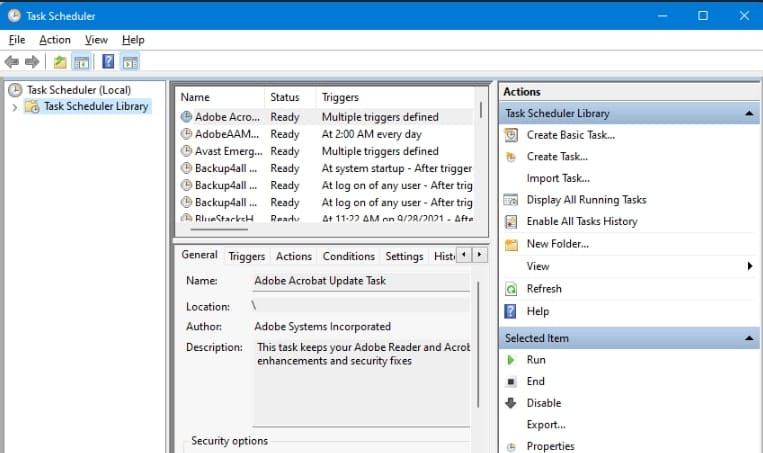
4.1. Using Windows Task Scheduler

Windows Task Scheduler

For Windows servers:

  1. Create a Batch Script: Write a script to copy important files and compress them.
  2. Schedule the Script: Use Task Scheduler to run the script daily, weekly, or as needed.

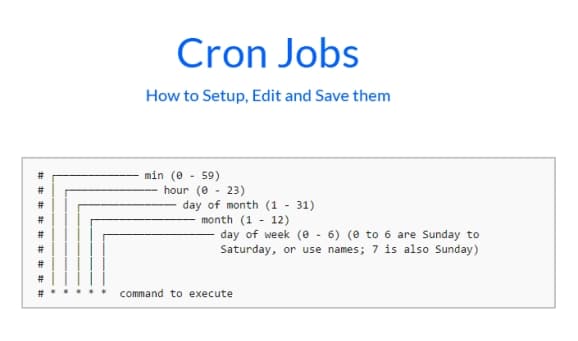
4.2. Linux Cron Jobs

For Linux servers:

  1. Create a Shell Script: Automate the backup using a bash script.
  2. Set Up a Cron Job: Add the script to your crontab (crontab -e) to run at a specified interval (e.g., daily at 2 AM).

4.3. Backup Scripts for Automation

Scripts can be written to automate tasks like copying files and dumping databases. Here’s an example shell script for Linux:

#!/bin/bash
# Backup directory
BACKUP_DIR="/path/to/backup"

# Date format for the backup file
DATE=$(date +"%Y-%m-%d")

# Create a backup
mkdir -p "$BACKUP_DIR/$DATE"
cp -r /path/to/fivem-server/* "$BACKUP_DIR/$DATE"

# Compress the backup
tar -czvf "$BACKUP_DIR/$DATE.tar.gz" -C "$BACKUP_DIR/$DATE" .
rm -rf "$BACKUP_DIR/$DATE"

echo "Backup completed on $DATE"

5. Cloud Backup Options

Storing backups in the cloud adds an extra layer of protection. Popular options include:

5.1. Google Drive

  1. Use Google Drive Backup Tools: Tools like rclone can automate uploads to Google Drive.
  2. Automate the Process: Schedule uploads using cron jobs or Task Scheduler.

5.2. Dropbox

  1. Set Up Dropbox CLI Tools: Tools like Dropbox-Uploader can automate uploads.
  2. Automate with Scripts: Integrate Dropbox-Uploader with your backup script.

5.3. Amazon S3

  1. Install AWS CLI: Configure the AWS command line tool.
  2. Upload Backups with Scripts: Use AWS CLI commands to automate backup uploads.

6. Using Hosting Providers with Built-in Backup Services

Some FiveM hosting providers offer built-in backup services:

  • Scheduled Backups: Many providers allow you to schedule automatic backups.
  • One-Click Restore: You can easily restore from backups if something goes wrong.

7. Restoring Your FiveM Server from a Backup

Restoring your server is straightforward:

  1. Stop the Server: Make sure the server is not running.
  2. Extract Backup Files: Decompress the backup files.
  3. Replace Existing Files: Replace the current server files with the backup files.
  4. Restore the Database: If using a database, import the latest backup.
  5. Start the Server: After the files are restored, start your FiveM server.

8. Best Practices for Backup and Recovery

  • Automate Backups: Use cron jobs or Task Scheduler to ensure consistent backups.
  • Use Multiple Backup Locations: Store backups on local disks, cloud storage, and external drives.
  • Version Your Backups: Keep multiple versions of backups for different days or weeks.
  • Regularly Test Backups: Periodically test your backups by restoring them to ensure they work as expected.

9. Conclusion

Backing up your FiveM server is a critical step in server management. Will you choose manual methods, automation scripts, or cloud-based solutions? Doesn't matter: Having a reliable backup strategy will ensure your server can recover from unexpected problems.

Again, backup your servers regulary!

Previous Article

How to Customize QBCore Scripts: Tips and Tricks

Next Article

FiveM Server Performance: Linux vs Windows Complete Techn...

More on This Topic

How to Run a FiveM Server Using Docker: Complete Setup GuideBest QBOX Scripts 2026: Essential Resources for Your ServerFiveM Server Management: The Complete Guide from Setup to ScaleUltimate Drift Server Guide: Top Cars, Mods & Setups for FiveMCFX Server List Ranking Guide: Settings & Listing Hygiene

Turn framework research into a launch-ready script stack

Use this guide to narrow the framework decision, then move into the core commercial hubs for verified scripts, curated bundles, and a faster server launch path.

Framework hub

Browse QBCore-ready scripts

Move into the QBCore landing page to compare verified scripts, framework fit, and install-ready products built for modern FiveM servers.

Open QBCore hub

Framework hub

Review the ESX script path

Use the ESX landing page to compare framework-specific resources, launch guidance, and premium products that fit ESX-first servers.

Open ESX hub

Premium catalog

Browse premium FiveM scripts

Move from research into the main shop to compare real products, framework labels, screenshots, and production-ready quality signals.

Open premium shop

Launch faster

Compare curated bundles

Bundles shorten the path from planning to launch by grouping the highest-leverage scripts into a cleaner commercial starting point.

View bundles

Disclosure: Some links below are affiliate links to FiveMX products. We may earn a commission at no extra cost to you.

Related Articles

How to Automate FiveM Server Backups

How to Automate FiveM Server Backups

In this tutorial, you will learn how to set up automated backups for your FiveM server using a PowerShell script and Windows Task Scheduler. Automating...

November 15, 2024
How to Create a Logo for Your Gaming Server or Community (2026 Guide)

How to Create a Logo for Your Gaming Server or Community (2026 Guide)

Your server logo is the first thing a potential player sees — before they read your description, check your player count, or visit your Discord.

April 4, 2026
FiveM Full Server Download: Complete Server Packs Explained (2026)

FiveM Full Server Download: Complete Server Packs Explained (2026)

Everything you need to know about FiveM full server downloads in 2026 — what they include, how to evaluate them, install them end-to-end, and what to fix after your first boot. Includes a comparison of ESX, QBCore, QBox, and vRP server packs.

April 1, 2026
Secure CheckoutInstant AccessMoney-Back GuaranteeLifetime Updates
FiveMX

Premium FiveM scripts and mods for serious server owners.

Shop

  • Shop
  • QBCore Scripts
  • ESX Scripts
  • FiveM Scripts
  • Free Mods
  • Best Scripts & Mods

Help

  • About
  • FAQ
  • Support
  • Contact
  • Account
  • Affiliate Program

Legal

  • Privacy Policy
  • Terms of Service
  • Refund Policy
  • Cookie Policy
  • GDPR Compliance
  • DMCA
  • Imprint
  • Editorial Policy
© 2026 FiveMX. All rights reserved.·support@fivemx.com

FiveMX is not affiliated with Rockstar Games, Take-Two Interactive, or CFX.re. All trademarks are property of their respective owners.

Flash Sale — Up to 19% off!Flash Sale — 19% off!Shop Now