FiveM Troubleshooting: Complete Error & Fix Guide
FiveM is a powerful platform, but with power comes complexity. Whether you're a player dealing with crashes and connection issues, or a server owner hunting down performance…

FiveM is a powerful platform, but with power comes complexity. Whether you're a player dealing with crashes and connection issues, or a server owner hunting down performance problems, this guide is your central hub for diagnosing and fixing every common FiveM issue. For official guidance, consult the FiveM client manual and server manual.
We've organized this guide by symptom: find your problem, follow the diagnosis steps, and apply the fix. Every section links to our detailed deep-dive guides where available.
Client-Side Issues (Players)
FiveM Won't Launch or Find Game Files
The most common barrier to playing FiveM is the launcher failing to locate your GTA V installation. This typically happens when GTA V was installed through a non-standard path, when the Rockstar Games Launcher has been updated, or when Steam/Epic moved the game directory.
Quick fixes:
- Verify your GTA V installation through Steam/Epic/Rockstar Launcher
- Run FiveM as administrator
- Check that GTA V launches correctly in single-player first
- Reinstall FiveM to the default directory (avoid Program Files)
For the complete walkthrough with screenshots, see our FiveM Could Not Find Game Executable fix guide.
Crashes and Freezes
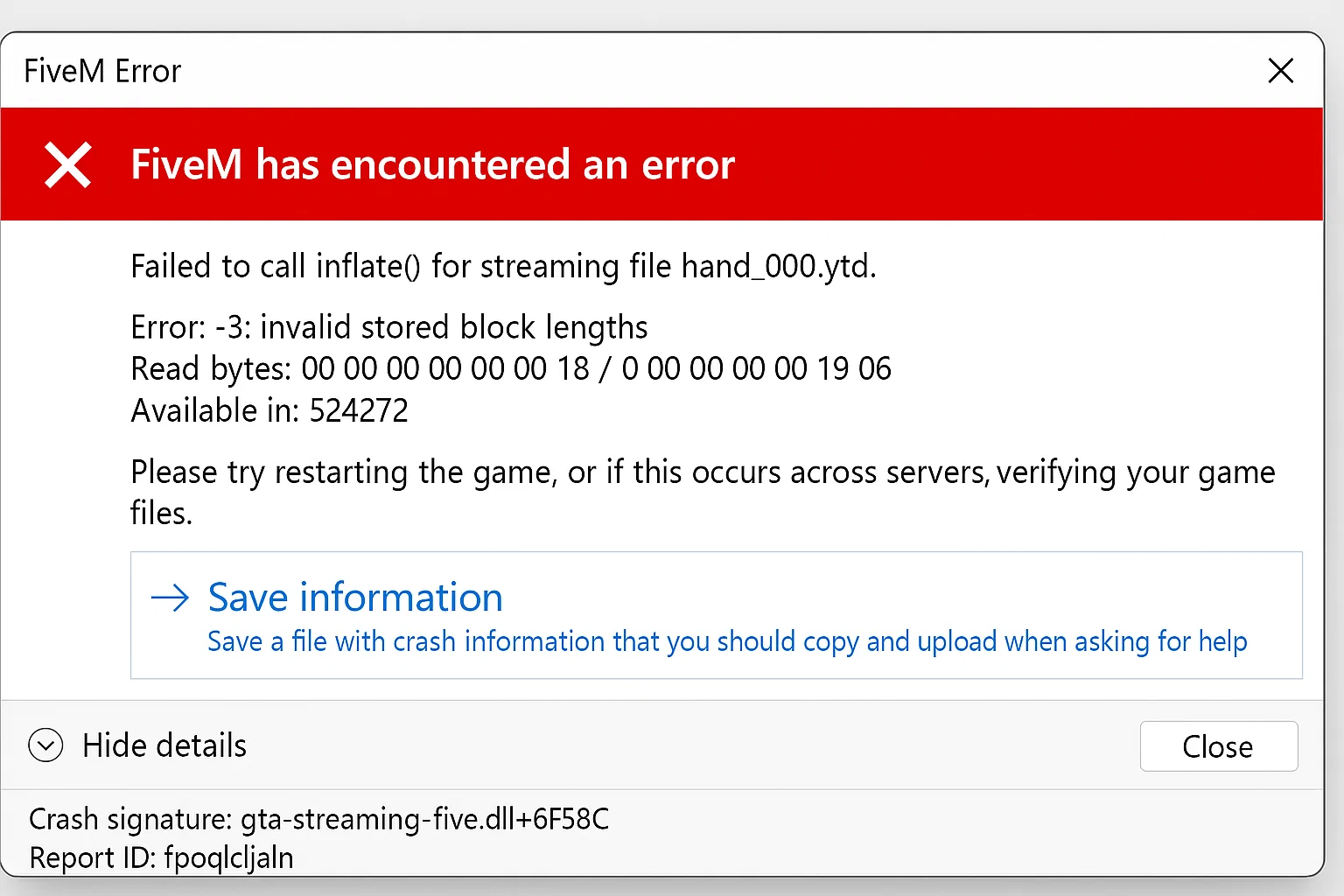
FiveM crashes fall into three categories: startup crashes (before you see anything), loading crashes (during server connection), and in-game crashes (while playing). Each has different causes and solutions.
Startup crashes are almost always caused by corrupted cache, outdated FiveM builds, or antivirus interference. Loading crashes usually point to incompatible server resources or insufficient RAM. In-game crashes are typically triggered by specific scripts, memory leaks, or GPU driver issues.
First steps for any crash:
- Clear your FiveM cache (this fixes 60% of crash issues)
- Update FiveM to the latest build
- Update your GPU drivers
- Disable any overlays (Discord, GeForce Experience, MSI Afterburner)
Our complete FiveM Crash Help guide covers every crash scenario with specific solutions.
Infinite Loading Screen
Getting stuck on the loading screen is one of the most frustrating FiveM issues. The causes range from slow internet connections and overloaded servers to corrupted client cache and DNS issues.
The fix sequence:
- Wait at least 5 minutes (some servers genuinely take this long)
- Clear FiveM cache and try again
- Switch DNS to 1.1.1.1 or 8.8.8.8
- Try a different server to isolate the problem
- Check if the server is actually online via the server list
Full diagnosis flowchart in our Infinite Loading Screen fix guide.
Connection Failed Errors
Connection failures can show various error codes, each pointing to a different root cause. The most common are timeout errors (server unreachable), authentication errors (Cfx.re account issues), and version mismatches.
Our Connection Failed diagnostic guide covers every error code with targeted solutions.
Performance Issues (Low FPS, Stuttering)
If FiveM runs but performs poorly, the issue is either your hardware configuration, your FiveM settings, or the server you're playing on.
Client-side optimization:
- Optimize your FiveM settings for maximum FPS
- Enable FPS counter and monitor your performance
- Check if you need a GPU upgrade for FiveM
- Reduce NPC density if the server allows it
Texture Loss and Visual Glitches
Texture loss (buildings turning into low-poly blobs, vehicles losing detail) is a memory management issue. FiveM streams assets dynamically, and when VRAM runs out, textures degrade.
Complete fix guide: How to Fix Texture Loss in FiveM.
Server-Side Issues (Server Owners)
FXServer Not Responding
When your server stops responding to connections but the process is still running, you're dealing with either a deadlocked script, database connection timeout, or network issue.
Diagnosis steps:
- Check txAdmin dashboard for resource errors
- Review server console for error messages
- Check if the database (MySQL/MariaDB) is responsive
- Monitor CPU and RAM usage on your host
Detailed guide: FXServer Not Responding fix.
Server Thread Hitch Warnings
Thread hitch warnings in the server console indicate that a script or system call is blocking the main thread for too long. This causes lag for all connected players.
Common causes:
- Unoptimized database queries (synchronous calls blocking the thread)
- Heavy loops in server-side scripts without proper yielding
- Resource-intensive operations running on the main thread
- Too many resources loaded simultaneously
Fix guide: Server Thread Hitch Warning fix. Also see our FiveM Server Optimization Playbook for preventing these issues.
Reading and Understanding Error Logs
Effective troubleshooting starts with knowing where to look. FiveM generates logs in multiple locations, and txAdmin provides a centralized view.
Where to find logs:
- txAdmin web panel (Live Console tab)
- Server console output (stdout)
- Resource-specific log files
- Client F8 console (for client-side script errors)
Learn to read them effectively: How to Check txAdmin Logs for Errors. For a deeper dive into debugging methodology, see How to Debug Your FiveM Server.
Script-Specific Errors
Individual scripts can cause a wide range of issues. Here are fixes for common script problems: | Script/Error | Fix Guide | |
Frequently Asked Questions
Why does FiveM crash when I join a specific server?
Server-specific crashes are caused by that server's resources, not your FiveM installation. Try clearing your cache first, but if the crash persists only on that server, the issue is server-side. Report it to the server's staff team.
How do I fix FiveM after a GTA V update?
After GTA V updates, FiveM needs time to release a compatible build. Check the Cfx.re forums for announcements. Usually, updating FiveM to the latest build resolves compatibility issues within 24-48 hours.
My server has random lag spikes. How do I find the cause?
Use the resmon command (type resmon 1 in server console) to see which resources consume the most CPU time. The top offenders are usually your lag source. See our optimization playbook for systematic profiling.