





$ USD
How to Automate FiveM Server Backups
In this tutorial, you will learn how to set up automated backups for your FiveM server using a PowerShell script and Windows Task Scheduler. Automating your backups ensures your server data is safe and can be restored if needed.
Step 1: Download the Backup Script
- Download the backup script from the repozytorium GitHub.
- Save the
ServerBackupScript.ps1file in a location accessible to your server.
Step 2: Set Up Backup Folders
- Create Backup Directory:
- Navigate to your server’s root directory (where the FX Server starter is located).
- Create a new folder named
backup.
- Edit the PowerShell Script:
- Otwórz
ServerBackupScript.ps1in a text editor (e.g., Notepad). - Update the
$sourcePathto the folder you want to back up. For example:$sourcePath = "C:MyServerresources" - Update the
$destinationPathto the folder where backups should be stored. For example:$destinationPath = "C:BackupsServerBackup_$backupDate" - The
$backupDatevariable appends the current date and time to the backup folder name for better organization.
- Otwórz
Step 3: Set Up a Scheduled Task
- Open Task Scheduler:
- Naciśnij
Win + Sand search for Task Scheduler, then open it.
- Naciśnij
- Create a New Task:
- Right-click Task Scheduler Library and select Create Basic Task.
- Name the task (e.g., “FiveM Server Backup”) and click Następne.
- Set the Trigger:
- Choose how often you want the backup to run (e.g., Daily, Weekly).
- Set the start date, time, and frequency as needed, then click Następne.
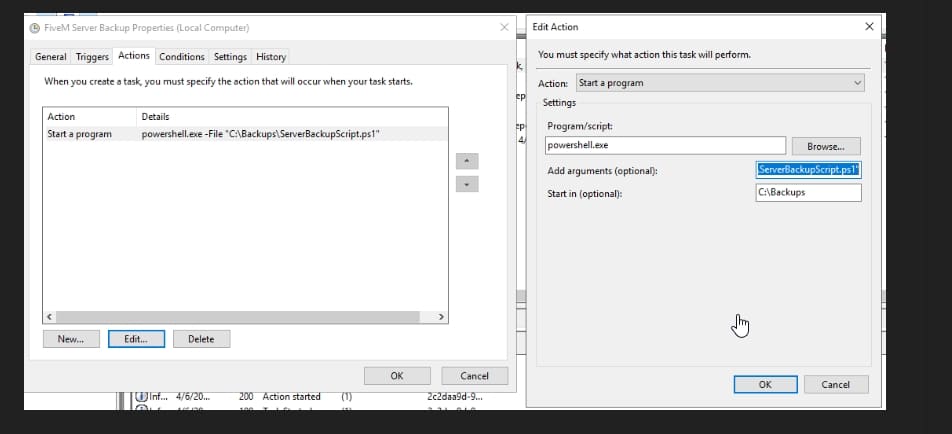
- Set the Action:
- Select Start a Program and click Następne.
- In the Program/script field, type:
powershell.exe - In the Add arguments (optional) field, type:
-File "C:BackupsServerBackupScript.ps1"Adjust the file path if the script is stored elsewhere. - In the Start in (optional) field, type the folder path where the script resides, such as:
C:Backups
- Finish the Task:
- Click Finish to save the task.
Step 4: Test the Task
- Right-click the newly created task in Task Scheduler and select Uruchom.
- Check the output folder (e.g.,
C:Backups) to confirm the backup was created successfully. The backup file or folder should have the current date appended to its name (e.g.,ServerBackup_2024-11-15).
Step 5: Verify Backup Consistency
- Regularly check your backups to ensure all critical files are included.
- Test restoring a backup on a development server to confirm functionality.
Tips:
- Monitor Backup Size: Keep an eye on disk space in your destination folder.
- Retention Policy: Consider a script to delete older backups automatically if storage space is a concern.
- Logs: Add logging to the PowerShell script for easier debugging.
You have now successfully automated backups for your Serwer FiveM!
Practical checklist
Use this guide as a staging checklist before changing a live FiveM server. Confirm the current server artifact version, framework version, resource dependencies, database changes, and any client-side files before you apply the change.
- Back up the affected configuration files and database tables.
- Apply the change on a test server first.
- Watch the server console and client F8 console for errors.
- Check whether the change affects jobs, inventory, vehicles, maps, voice, permissions, or player data.
- Document the exact file, command, or setting you changed so it can be reverted quickly.
Testing before production
After the first test, join with a normal player account and repeat the flow from the player perspective. If the topic involves performance, measure before and after with the same player count, route, and resource set. If it involves admin tools or permissions, verify both allowed and denied users.
Common mistakes
Most FiveM issues come from missing dependencies, stale cache, wrong folder names, framework mismatch, or configuration copied from another server. Avoid changing multiple systems at once; make one change, test it, and then continue.
Powiązane zasoby
For production-ready assets, compare paid resources in the FiveMX shop. For free resources, browse free FiveM scripts and test each resource before using it publicly.
Production rollout notes
Before using this guidance on a live FiveM server, define the exact outcome you expect from the change. For How to Automate FiveM Server Backups, that means checking which resource, setting, command, or workflow is affected and confirming that the change fits your current framework, artifact version, and server rules. Keep the rollout small enough that you can reverse it quickly if players report errors.
Use a staging server with the same framework, database schema, resource order, and key dependencies as production. If the topic changes gameplay, permissions, visuals, voice, vehicles, maps, inventory, or economy behavior, test with at least one admin account and one normal player account. Watch server console output, client F8 logs, and resource timing while repeating the exact player flow that will happen on the live server.
Rollback checklist
- Save the previous configuration file, resource folder, and database state before changing anything.
- Record the resource version, commit, download page, or setting value you tested.
- Restart only the affected resource first when possible, then restart the full server if dependencies require it.
- If errors appear, revert the single changed resource or setting before testing another fix.
Maintenance guidance
Review this setup again after FiveM artifact updates, framework updates, or major resource changes. A configuration that works today can break after dependency updates, renamed exports, changed events, or database migrations. Keep notes with your server documentation so future admins understand what was changed, why it was changed, and how to verify it again.
Ongoing review
Recheck How to Automate FiveM Server Backups after major FiveM artifact updates, framework changes, or resource migrations. Confirm that the advice still matches current server behavior, that any linked source remains available, and that installation steps still match the files a server owner will actually download or configure.
For public servers, keep a short changelog beside your server documentation. Note what was tested, what changed, which accounts were used for verification, and how to roll back. This makes future maintenance faster and prevents old setup notes from becoming unclear or unsafe for players.