







Wymagania wstępne
- txAdmin zainstalowany i skonfigurowany na Twoim serwerze FiveM
- Uprawnienia administratora lub moderatora w txAdmin
- Identyfikator gracza (Steam ID, Discord ID, FiveM ID lub ID w grze)
Metoda 1: Ban przez konsolę na żywo
- Uzyskaj dostęp do panelu txAdmin przez przeglądarkę internetową
- Przejdź do Konsola na żywo w lewym panelu bocznym
- Znajdź gracza na liście podłączonych graczy
- Kliknij nazwę gracza, aby otworzyć menu akcji
- Wybierz Zbanuj gracza
- Wypełnij formularz bana:
- Czas trwania: Wybierz stały lub tymczasowy (określ godziny/dni)
- Powód: Wprowadź jasny powód bana
- Uwaga: Dodaj notatki wewnętrzne (opcjonalnie)
- Kliknij Potwierdź bana
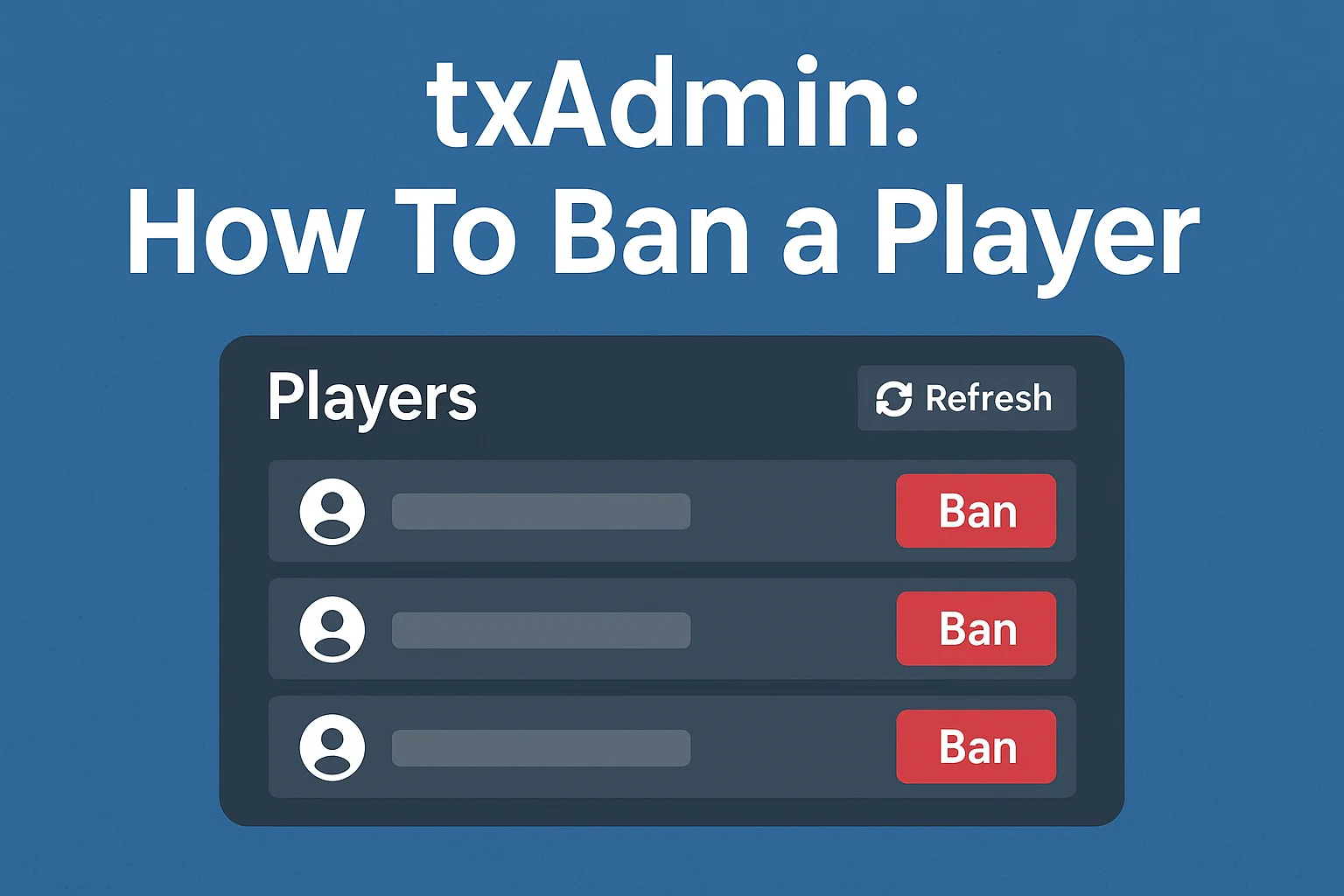
Metoda 2: Ban przez stronę Graczy
- Przejdź do Gracze w lewym panelu bocznym
- Wyszukaj gracza za pomocą:
- Nazwy użytkownika
- Dowolnego identyfikatora (Steam/Discord/Licencja)
- Adresu IP (jeśli włączone)
- Kliknij wiersz gracza, aby otworzyć jego profil
- Kliknij Zbanuj gracza przycisk
- Wypełnij formularz bana jak opisano powyżej
Metoda 3: Banowanie graczy offline
- Przejdź do Gracze → Akcje → Zbanuj gracza
- Wprowadź identyfikator gracza ręcznie:
- Steam:
steam:110000xxxxxxxxx - Discord:
discord:xxxxxxxxxxxxxxxxxx - FiveM:
fivem:xxxxxx - Licencja:
license:xxxxxxxxxxxxxxxx
- Steam:
- Wypełnij szczegóły bana i potwierdź
Metoda 4: Komendy w grze
Wykonaj w konsoli serwera lub na czacie w grze (z odpowiednimi uprawnieniami):
/txaBan [player-id] [duration] [reason]
Przykłady:
/txaBan 247 permanent "Cheating - Aimbot"
/txaBan 32 7d "Toxic behavior - First offense"
/txaBan 105 12h "RDM - Multiple incidents"
Formaty czasu trwania:
- Stały:
permanentLubperma - Godziny:
1h,24h - Dni:
1d,7d,30d
Globalne ustawienia banów
- Przejdź do Ustawienia → Szablony banów
- Konfiguracja:
- Domyślny czas trwania bana
- Predefiniowane powody banowania
- Szablon wiadomości o banicji
- Banowanie po identyfikatorze sprzętowym (jeśli włączone)
Priorytet identyfikatorów banowania
txAdmin domyślnie banuje wiele identyfikatorów:
- Identyfikatory sprzętowe (najskuteczniejsze)
- ID Steam
- Licencja FiveM
- ID Xbox Live
- ID Discord
- Adres IP (opcjonalny, niezalecany)
Sprawdź aktywne bany
- Przejdź do Gracze → Bany
- Wyświetl wszystkie aktywne bany z:
- Identyfikatory gracza
- Powód bana
- Administrator, który nałożył bana
- Data/godzina wygaśnięcia
Cofnij bana
- Przejdź do Gracze → Bany
- Znajdź zbanowanego gracza
- Kliknij Cofnij bana
- Podaj powód cofnięcia bana
- Potwierdź działanie
Zapobieganie obchodzeniu bana
- Włącz Identyfikator sprzętu banowanie w ustawieniach
- Używaj wielu identyfikatorów, gdy to możliwe
- Monitoruj używanie VPN, jeśli bany IP są włączone
- Sprawdź alternatywne konta z wspólnymi identyfikatorami
Dokumentacja bana
Zawsze dołączaj do powodów bana:
- Naruszoną konkretną zasadę
- Rodzaj dowodu (wideo/zrzut ekranu/logi)
- Data/godzina zdarzenia
- Poziom dotkliwości
Przykład: “Zasada 2.1 – VDM – Dowód wideo #4521 – 2024-03-15 14:30 – Drugie naruszenie”
Proces odwoławczy
Skonfiguruj wiadomości o banach, aby zawierały:
- Discord/stronę internetową do odwołań
- ID bana w celach referencyjnych
- Oczekiwany czas odpowiedzi
“Błąd ”Niewystarczające uprawnienia”
- Sprawdź, czy Twoja rola txAdmin ma uprawnienia do banowania
- Sprawdź, czy docelowy gracz ma wyższy poziom odporności
- Upewnij się, że jesteś prawidłowo zalogowany do txAdmin
Ban nie jest stosowany
- Sprawdź, czy gracz rozłączył się przed przetworzeniem bana
- Zweryfikuj, czy wszystkie identyfikatory zostały przechwycone
- Uruchom ponownie monitor zasobów:
/restart monitor - Sprawdź logi txAdmin pod kątem błędów
Gracz ponownie dołącza mimo bana
- Potwierdź, że banowanie na podstawie ID sprzętu jest włączone
- Sprawdź, czy gracz używa VPN/proxy
- Zweryfikuj, czy ban nie został przypadkowo cofnięty
- Przejrzyj listę banów pod kątem duplikatów
Uwagi dotyczące wydajności
- Bany są sprawdzane przy próbie połączenia (minimalny wpływ na serwer)
- Lista banów jest buforowana w pamięci
- Duże listy banów (>10 000) mogą wydłużyć czas ładowania początkowego
- Zalecane regularne czyszczenie listy banów z wygasłych
Odniesienie: Dokumentacja txAdmin v7.0.0