



$ USD
Disable Bridge Element in FiveM Loading Screen
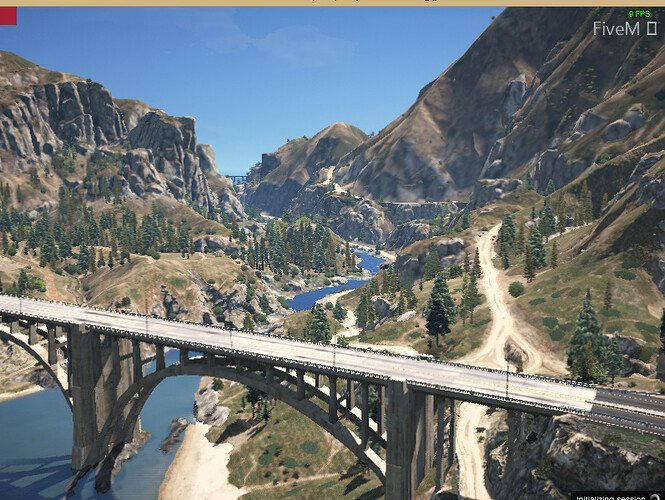
This tutorial explains how to remove the bridge from FiveM server loading screen
by creating or modifying a loading screen resource.
Prerequisites
- FiveM server access with resource modification permissions
- Basic understanding of HTML/CSS
- a Text editor like Notepad++ (or the default notepad of Windows)
Method 1: Create New Loading Screen Resource
Step 1: Create Resource Structure
loadingscreen/
├── fxmanifest.lua
├── index.html
└── style.css
Step 2: Configure fxmanifest.lua
fx_version 'cerulean'
game 'gta5'

author 'YourName'
description 'Custom Loading Screen - Bridge Disabled'
version '1.0.0'

loadscreen 'index.html'
loadscreen_cursor 'yes'

files {
    'index.html',
    'style.css'
}
Step 3: Create index.html
<!DOCTYPE html>
<html>
<head>
    <link rel="stylesheet" href="style.css">
</head>
<body>
    <div id="loading-container">
        <h1>Server Name</h1>
        <div class="progress-bar">
            <div class="progress-fill"></div>
        </div>
    </div>

    <script>
        // Disable bridge overlay
        window.addEventListener('DOMContentLoaded', () => {
            const bridge = document.querySelector('.bridge-overlay');
            if (bridge) bridge.remove();
        });

        // Handle loading progress
        window.addEventListener('message', (e) => {
            if (e.data.eventName === 'loadProgress') {
                const fill = document.querySelector('.progress-fill');
                fill.style.width = e.data.loadFraction * 100 + '%';
            }
        });
    </script>
</body>
</html>
Step 4: Add to server.cfg
ensure loadingscreen
Method 2: Modify Existing Loading Screen
Step 1: Locate Current Loading Screen Resource Check server.cfg for lines starting with ensure or start containing “loading” or “loadscreen”
Step 2: Add Bridge Removal Code Insert into existing HTML file before closing </body> tag:
<script>
    // Remove bridge on load
    document.addEventListener('DOMContentLoaded', function() {
        const bridgeElements = document.querySelectorAll(
            '.bridge-overlay, #bridge, [class*="bridge"]'
        );
        bridgeElements.forEach(el => el.style.display = 'none');
    });

    // Backup removal for dynamically loaded elements
    const observer = new MutationObserver((mutations) => {
        mutations.forEach((mutation) => {
            mutation.addedNodes.forEach((node) => {
                if (node.nodeType === 1 &&
                    (node.classList?.contains('bridge-overlay') ||
                     node.id === 'bridge')) {
                    node.remove();
                }
            });
        });
    });

    observer.observe(document.body, {
        childList: true,
        subtree: true
    });
</script>
CSS Override Method
Add to your loading screen’s CSS file:
.bridge-overlay,
#bridge,
[class*="bridge-"] {
    display: none !important;
    visibility: hidden !important;
    opacity: 0 !important;
}
Troubleshooting
Bridge Still Visible:
- Clear server cache: Delete
cache/folder - Verify resource load order in
server.cfg - Check browser console (F12) for JavaScript errors
Loading Screen Not Appearing:
- Confirm
loadscreendirective in fxmanifest.lua - Verify file paths match exactly (case-sensitive)
- Check server console for resource errors
Technical Notes
- FiveM loading screens run in CEF (Chromium Embedded Framework)
- Bridge element typically injected by default loading mechanisms
- MutationObserver ensures removal of dynamically added elements
Uncertainties
- Exact bridge element class names may vary between FiveM versions
- Some custom frameworks might use different overlay implementations
Summary: Remove FiveM’s bridge overlay by creating a custom loading screen resource with JavaScript that targets and removes bridge elements on page load.
Practical checklist
Use this guide as a staging checklist before changing a live FiveM server. Confirm the current server artifact version, framework version, resource dependencies, database changes, and any client-side files before you apply the change.
- Back up the affected configuration files and database tables.
- Apply the change on a test server first.
- Watch the server console and client F8 console for errors.
- Check whether the change affects jobs, inventory, vehicles, maps, voice, permissions, or player data.
- Document the exact file, command, or setting you changed so it can be reverted quickly.
Testing before production
After the first test, join with a normal player account and repeat the flow from the player perspective. If the topic involves performance, measure before and after with the same player count, route, and resource set. If it involves admin tools or permissions, verify both allowed and denied users.
Common mistakes
Most FiveM issues come from missing dependencies, stale cache, wrong folder names, framework mismatch, or configuration copied from another server. Avoid changing multiple systems at once; make one change, test it, and then continue.
Related resources
For production-ready assets, compare paid resources in the FiveMX shop. For free resources, browse free FiveM scripts and test each resource before using it publicly.
Production rollout notes
Before using this guidance on a live FiveM server, define the exact outcome you expect from the change. For Disable Bridge Element in FiveM Loading Screen, that means checking which resource, setting, command, or workflow is affected and confirming that the change fits your current framework, artifact version, and server rules. Keep the rollout small enough that you can reverse it quickly if players report errors.
Use a staging server with the same framework, database schema, resource order, and key dependencies as production. If the topic changes gameplay, permissions, visuals, voice, vehicles, maps, inventory, or economy behavior, test with at least one admin account and one normal player account. Watch server console output, client F8 logs, and resource timing while repeating the exact player flow that will happen on the live server.
Rollback checklist
- Save the previous configuration file, resource folder, and database state before changing anything.
- Record the resource version, commit, download page, or setting value you tested.
- Restart only the affected resource first when possible, then restart the full server if dependencies require it.
- If errors appear, revert the single changed resource or setting before testing another fix.
Maintenance guidance
Review this setup again after FiveM artifact updates, framework updates, or major resource changes. A configuration that works today can break after dependency updates, renamed exports, changed events, or database migrations. Keep notes with your server documentation so future admins understand what was changed, why it was changed, and how to verify it again.
Ongoing review
Recheck Disable Bridge Element in FiveM Loading Screen after major FiveM artifact updates, framework changes, or resource migrations. Confirm that the advice still matches current server behavior, that any linked source remains available, and that installation steps still match the files a server owner will actually download or configure.
For public servers, keep a short changelog beside your server documentation. Note what was tested, what changed, which accounts were used for verification, and how to roll back. This makes future maintenance faster and prevents old setup notes from becoming unclear or unsafe for players.