Home
Shop
Free Mods
Tools
Bundles
Full Servers
  1. Home
  2. Blog
  3. Tutorials & Guides

How to Install Custom Maps and Vehicles on FiveM

Published on July 25, 2024·by Lars Miller(Founder & Lead Editor)·Credentials·4 min read·Updated on December 24, 2025
Tutorials & Guides

Learn how to install with our step-by-step guide. Includes any modding process, you might encounter a few .... Complete tutorial for 2025.

How to Install Custom Maps and Vehicles on FiveM

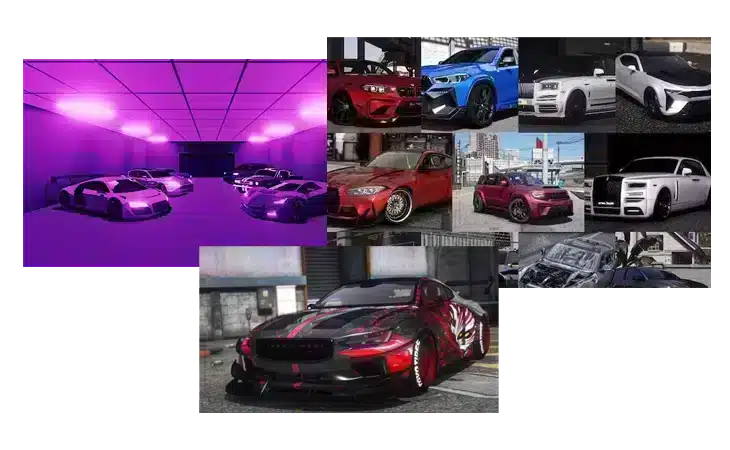
Adding custom maps and vehicles to your FiveM server can take your gameplay experience to a whole new level. From detailed city landscapes to sleek, custom vehicles, these mods enhance the immersive world of FiveM. This detailed guide will walk you through the process of installing these modifications and address common issues you might encounter along the way.

Prerequisites

Before you begin the installation process, ensure you have the following:

  • A running FiveM server.
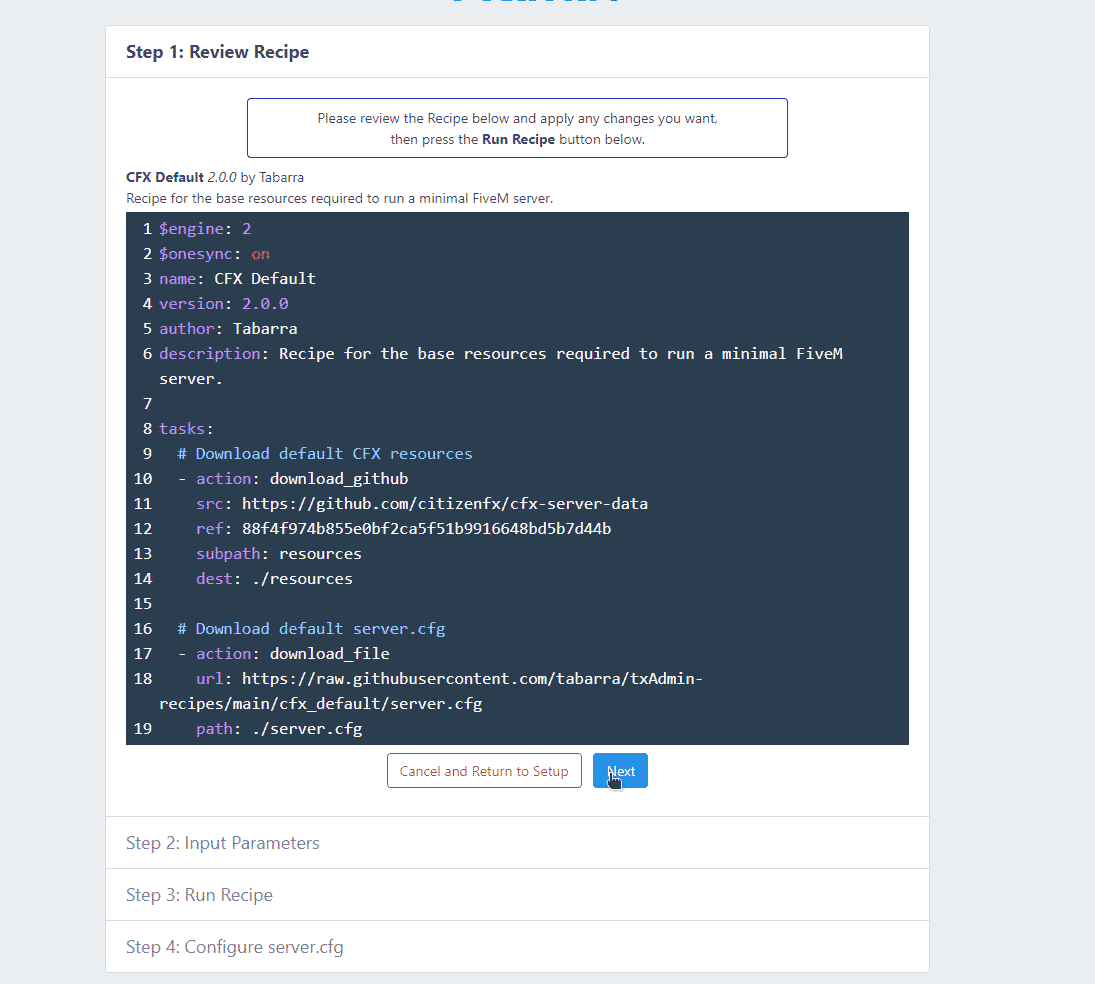
  • The latest version of FXServer.
  • An FTP client such as FileZilla to upload files to your server.
  • Custom Maps and Vehicles downloaded from reputable sources like FiveMX or GTA5-mods.com

Installing Custom Maps

  1. Download the Map Files
    • Get the map files in .ymap or .xml format. Usually, these files come compressed (e.g., ZIP or RAR).
  2. Extract the Files
    • Extract the downloaded files to a folder on your computer.
  3. Prepare the Resource Folder
    • Navigate to your FiveM server directory and open the resources folder. Create a new folder specifically for your map, for example, custommap.
  4. Upload the Map Files
    • Copy the extracted files (.ymap, .meta, or .xml) into the custommap folder. Ensure that all necessary files are present.
  5. Create a Resource Manifest
    • In the custommap folder, create and open a file named fxmanifest.lua.

Start the Resource

  • Open the server configuration file (server.cfg) located in the root directory of your FXServer. Add the following line: start custommap

Then, Restart the Server: Restart your FiveM server. The custom map should now be available in the game.

Installing Custom Vehicles

  1. Download the Vehicle Mod Files
    • Download vehicle files in formats like .ytd, .ytf, .meta, and .xml from reputable modding sites.
  2. Extract the Vehicle Files
    • Extract the files to a folder on your computer.
  3. Prepare the Vehicle Folder
    • Navigate to the resources folder in your FiveM server directory. Create a new folder named customvehicles.
  4. Upload the Vehicle Files
    • Copy the extracted vehicle files into the customvehicles folder. Ensure all necessary files (.ytd, .ytf, .meta) are uploaded.
  5. Create a Resource Manifest
    • In the customvehicles folder, create and open a file named fxmanifest.lua!

Add Commands to Server Config

  • Open the server configuration file (server.cfg). Add the following line to start the vehicle resource: start customvehicles
  1. Spawn the Vehicle
    • Use the console command to spawn the vehicle in-game. The command is usually /spawn .
  2. Restart the Server
    • Restart your FiveM server. The custom vehicles should now be accessible.

Troubleshooting Common Issues

As with any modding process, you might encounter a few issues. Here are some common problems and their solutions:

  1. Resource Not Found
    • Symptom: Server cannot find the resource.
    • Solution: Double-check the folder names and ensure they match exactly with the ones in server.cfg.
  2. Missing Textures
    • Symptom: Vehicles or maps appear incomplete or lack textures.
    • Solution: Verify that all required files are uploaded correctly. Re-upload any missing files and restart the server.
  3. Server Crashes
    • Symptom: Server crashes after adding a new map or vehicle.
    • Solution: Double-check the integrity of the mod files. Corrupted files can cause crashes. Always use mods from reliable sources.
  4. Invalid Data File
    • Symptom: Errors about invalid or corrupted data files.
    • Solution: Ensure the fxmanifest.lua file is correctly configured and all paths are correct.
  5. Vehicle Not Spawning
    • Symptom: Custom vehicles do not spawn.
    • Solution: Verify the vehicle spawn names in the configuration files. Confirm there are no typos, and field values match the mod specification.
  6. Map Objects Not Loading
    • Symptom: Parts of the custom map are not loading.
    • Solution: Ensure all related files (.ymap, .meta) are correctly uploaded. Adjust the draw distance settings if necessary.
  7. Conflicting Mods
    • Symptom: Existing mods conflict with new ones.
    • Solution: Identify and resolve conflicts by disabling one mod at a time to identify the problematic one.
  8. Performance Drops
    • Symptom: Server performance drops after adding maps or vehicles.
    • Solution: Monitor server resource usage. Optimize or remove unnecessary mods to free up resources.
  9. Incorrect Permissions
    • Symptom: Players do not have permission to use the custom vehicles.
    • Solution: Adjust the server permissions configuration to allow access as needed.
  10. Script Errors in Console
    • Symptom: Errors appear in the server console related to scripts.
    • Solution: Check the syntax in the fxmanifest.lua. Ensure all dependencies are correctly installed and referenced.

By following these steps and troubleshooting tips, you can enhance your FiveM server with custom maps and vehicles, providing a richer gameplay experience for your community. Keep your mods organized, document changes, and regularly check for updates to ensure everything runs smoothly.

Previous Article

How to Optimize FiveM Server Performance

Next Article

Boosting Performance: FiveM Optimize Scripts

More on This Topic

How to Stream Custom Clothing in FiveMHow To Install NVE (NaturalVision Evolved) for GTA 5 & FiveMHow to Install ReShade on FiveM: Ultimate 2026 Graphics GuideBest FiveM Loading Screen Scripts 2026 — Custom Screens That ImpressHow To Install FiveM on Windows (10 / 11)

Turn framework research into a launch-ready script stack

Use this guide to narrow the framework decision, then move into the core commercial hubs for verified scripts, curated bundles, and a faster server launch path.

Framework hub

Browse QBCore-ready scripts

Move into the QBCore landing page to compare verified scripts, framework fit, and install-ready products built for modern FiveM servers.

Open QBCore hub

Framework hub

Review the ESX script path

Use the ESX landing page to compare framework-specific resources, launch guidance, and premium products that fit ESX-first servers.

Open ESX hub

Premium catalog

Browse premium FiveM scripts

Move from research into the main shop to compare real products, framework labels, screenshots, and production-ready quality signals.

Open premium shop

Launch faster

Compare curated bundles

Bundles shorten the path from planning to launch by grouping the highest-leverage scripts into a cleaner commercial starting point.

View bundles

Disclosure: Some links below are affiliate links to FiveMX products. We may earn a commission at no extra cost to you.

Related Articles

15 Best FiveM Mods in 2026 — Vehicles, MLOs, Maps & More

15 Best FiveM Mods in 2026 — Vehicles, MLOs, Maps & More

The best FiveM mods in 2026 are an Emergency Vehicle Mega Pack with 50+ marked and unmarked units, a Real-World Vehicle Collection with custom handling, a Modern Police Department…

March 30, 2026
How To Install Custom Cars (FiveM)

How To Install Custom Cars (FiveM)

Learn how to install with our step-by-step guide. Includes production‑ready configs you can copy‑paste. Complete tutorial for 2025.

September 8, 2025
Build a Custom Phone App (NUI + React) for QBCore/ESX

Build a Custom Phone App (NUI + React) for QBCore/ESX

Create a production‑ready in‑game smartphone for FiveM using NUI + React. You will scaffold a resource, wire QBCore/ESX events, persist data in MySQL, and ship a smooth UI that…

October 4, 2025
Secure CheckoutInstant AccessMoney-Back GuaranteeLifetime Updates
FiveMX

Premium FiveM scripts and mods for serious server owners.

Shop

  • Shop
  • QBCore Scripts
  • ESX Scripts
  • FiveM Scripts
  • Free Mods
  • Best Scripts & Mods

Help

  • About
  • FAQ
  • Support
  • Contact
  • Account
  • Affiliate Program

Legal

  • Privacy Policy
  • Terms of Service
  • Refund Policy
  • Cookie Policy
  • GDPR Compliance
  • DMCA
  • Imprint
  • Editorial Policy
© 2026 FiveMX. All rights reserved.·support@fivemx.com

FiveMX is not affiliated with Rockstar Games, Take-Two Interactive, or CFX.re. All trademarks are property of their respective owners.

Flash Sale — Up to 19% off!Flash Sale — 19% off!Shop Now