Home
Shop
Free Mods
Tools
Bundles
Full Servers
  1. Home
  2. Blog
  3. Tutorials & Guides

How to Install ReShade on FiveM: Ultimate 2026 Graphics Guide

Published on June 20, 2024·by Lars Miller(Founder & Lead Editor)·Credentials·6 min read
Tutorials & Guideshow to install reshade on fivem

FiveM has brought thousands of hours of life to Grand Theft Auto V, but let's be honest: the base game's graphics from 2013 are beginning to show their age.

How to Install ReShade on FiveM: Ultimate 2026 Graphics Guide

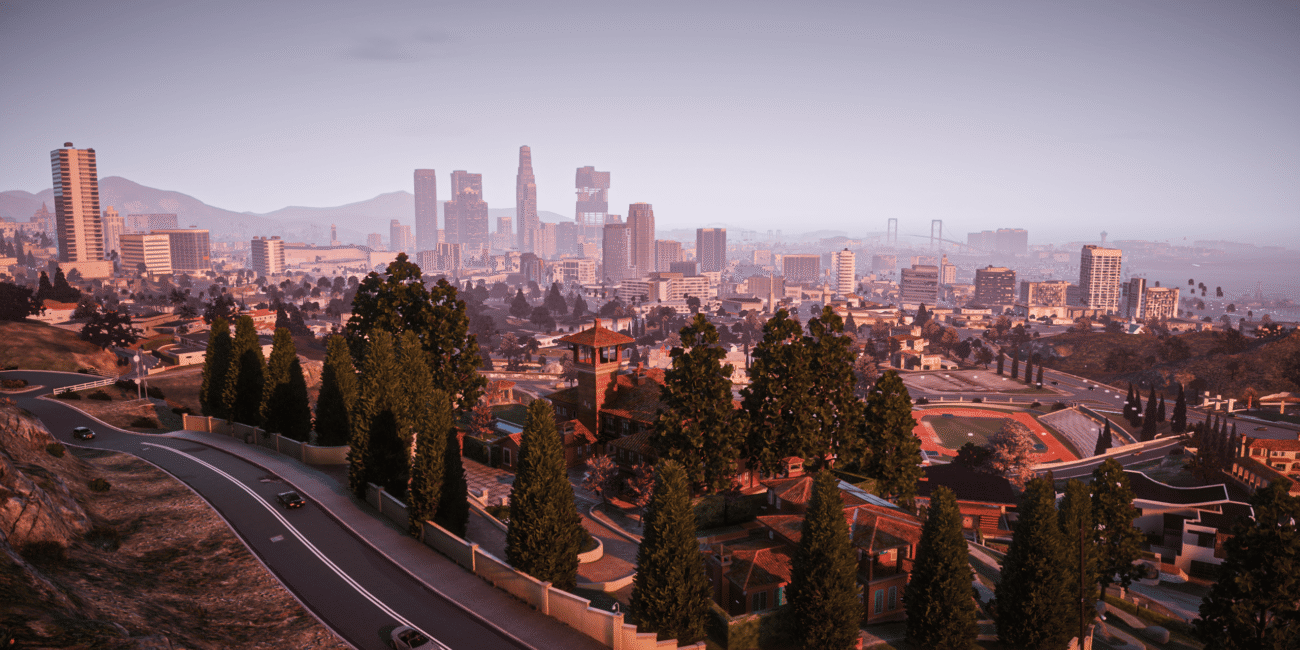
FiveM has brought thousands of hours of life to Grand Theft Auto V, but let's be honest: the base game's graphics from 2013 are beginning to show their age. The lighting is slightly washed out, and the game lacks the vibrant contrast expected of modern titles.

If your PC isn't powerful enough to run heavy volumetric overhauls like NaturalVision Evolved (NVE), your best alternative is ReShade. This lightweight post-processing injector can make your game look incredibly realistic without sacrificing half your frame rate.

This guide details exactly how to securely install ReShade for FiveM in 2026 and how to configure it to avoid common anti-cheat blocks.

What is ReShade?

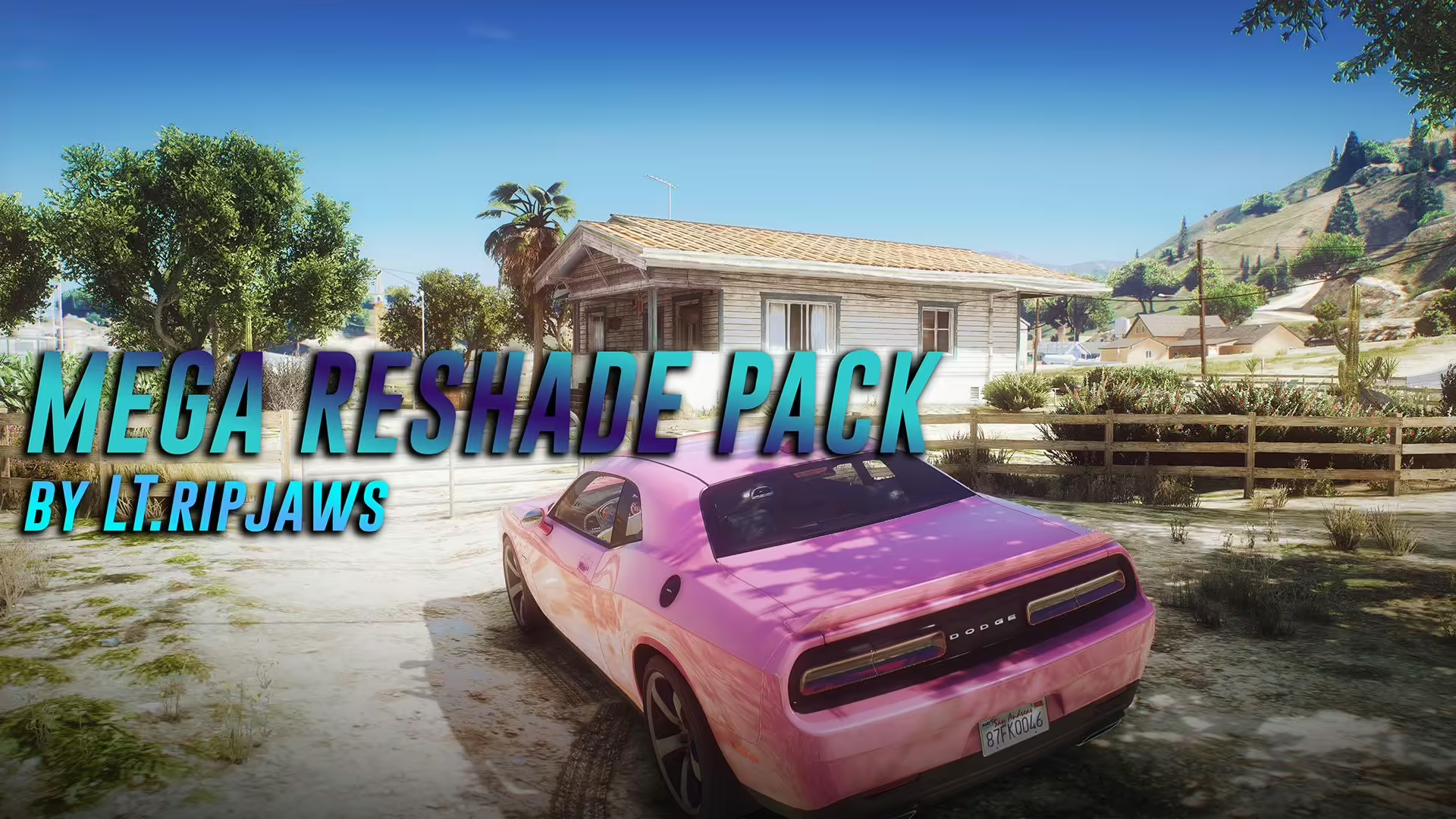
ReShade and NaturalVision Graphics Enhancement for FiveM

ReShade is an advanced, fully generic post-processing injector for games and video software. Essentially, it acts as a filter placed over your screen after the game engine has rendered the frame.

It allows you to apply cinematic effects dynamically, such as:

  • Custom Ambient Occlusion (SSAO)
  • Deep Depth of Field (DoF)
  • Color correction and LUTs (Look-Up Tables)
  • HDR bloom and lens flares
  • Advanced Anti-Aliasing (SMAA)

Because it only processes the final 2D image rather than altering the 3D game models, it has a surprisingly low impact on overall FPS and performance.

Prerequisites Before Installation

Before downloading anything, ensure your FiveM environment is clean and updated:
  1. Clean Installation: Ensure you do not have remnants of old ENBs or graphics packs floating in your GTA V root folder, as these will heavily conflict with ReShade. If necessary, clear your FiveM cache.
  2. Download ReShade: Go to the official ReShade website (reshade.me) and download the latest version. Do NOT download the version with "full add-on support". The add-on version unlocks the depth buffer in multiplayer games, and FiveM's anti-cheat will often flag and ban you for using it. Download the standard version.

Step 1: Installing ReShade to GTA V

Even though we are playing FiveM, ReShade must be injected into the base GTA5.exe executable.

  1. Run the ReShade setup executable you just downloaded.
  2. The installer will present a list of games. Click "Browse".
  3. Navigate to your Grand Theft Auto V root directory. (If on Steam: C:\Program Files (x86)\Steam\steamapps\common\Grand Theft Auto V).
  4. Select GTA5.exe (Not PlayGTAV.exe or GTAVLauncher.exe).
  5. Choose DirectX 10/11/12 for the rendering API.
  6. When prompted to select effect packages, click "Uncheck All" and then "Check All" to download every community filter. Click Next, and let the installation finish.

If you launch regular GTA V singleplayer now, you will see the ReShade banner at the top of the screen.

Step 2: Configuring ReShade for FiveM

FiveM streams from its own application data folder and often blocks external DLL injections to prevent mod menus. We need to tell FiveM that ReShade is allowed.

Finding the FiveM plugins Folder

  1. Right-click your FiveM desktop shortcut and select Open file location.
  2. Open the FiveM Application Data folder.
  3. Look for a folder named plugins. If it does not exist, right-click and create a new folder named exactly plugins.

Extracting the Injector

Because ReShade updates frequently, the traditional method of moving dxgi.dll into the FiveM plugins folder often results in crashing. The modern solution requires modifying the CitizenFX.ini file.

  1. In that same FiveM Application Data folder, locate CitizenFX.ini.
  2. Right-click it and open it with Notepad.
  3. Add the following line to the bottom of the document: Addons=1
  4. Save and close the file.

Now, launch FiveM. When the main menu loads, you should see the gray ReShade overlay banner at the top of your screen indicating a successful hook.

Step 3: Importing Custom Presets

ReShade comes blank by default. You have to combine the effects yourself, which takes hours to perfect. Luckily, the community has created thousands of .ini preset files.

When you download a preset (from GTA5-Mods or Patreon):

  1. Place the .ini file anywhere you want. A good place is the GTA V main directory.
  2. In-game, press the Home (or POS1) key on your keyboard to open the ReShade GUI.
  3. Follow the quick tutorial if this is your first time.
  4. At the top of the ReShade window, click the blue drop-down bar.
  5. Use the file browser to locate your downloaded .ini preset. Select it.
  6. The screen will instantly shift to reflect the new visual style.

Recommended ReShade Effects

If you want to build your own preset, here are the core shaders that provide the biggest visual upgrades with the lowest performance cost:

  • Levels.fx: Instantly removes the gray "fog" over GTA V, crushing the blacks and making shadows deeper.
  • Colourfulness.fx: Gives the game that sunny, Miami/Los Angeles vibe by boosting saturation.
  • SMAA.fx: Far superior anti-aliasing compared to the blurry default FXAA or performance-heavy MSAA.
  • LumaSharpen.fx: Crisps up blurry road textures and license plates, critical for police officers using FiveM CAD/MDT systems.

Troubleshooting: ReShade Not Loading or Crashing

"Failed to initialize DirectX"

Ensure your GTA V settings are set to run on DirectX 11, not DirectX 10 or 10.1. ReShade modern shaders are heavily dependent on DX11 architecture.

ReShade Overlaps with UI/HUD

This happens if you enable Depth of Field (DoF) or Ambient Occlusion. ReShade cannot differentiate between the 3D world and your 2D minimap/inventory. To fix this, look for the UI_Mask shader within ReShade, which allows you to cut out "blind spots" over your menus. Alternatively, use native FiveM Inventory Scripts that have clean, centralized UI to minimize the overlap.

The Server Blocks My ReShade

If you join a server and receive an error stating: Modified game files detected (dxgi.dll) or You are blocked from entering. Pure Mode is enabled, there is nothing you can do locally.

That server owner has enabled sv_pureLevel 1 or 2 in their configuration to explicitly block all graphical injectors as an anti-cheat measure. You must disable ReShade (by removing the Addons=1 line or deleting the DLL) to play there.

Frequently Asked Questions (FAQ)

Is ReShade Bannable on FiveM servers?

While FiveM Global banning does not ban for standard ReShade, individual servers with high pure levels may kick you. Always check your server's Discord rules before injecting graphics mods.

Can I use ReShade and NVE together?

Yes! In fact, most volumetric mods look much better with a ReShade preset layered on top. Just be mindful of your performance overhead.

Conclusion

ReShade is the absolute perfect middle-ground for players who want a beautiful game without buying a $2000 graphics card. By subtly tweaking the colors, sharpening edges, and fixing the lighting contrast, your FiveM RP experience will feel vastly more immersive.

If you are a server owner reading this, consider designing beautiful mapping and custom housing to compliment your community's visual upgrades!

Frequently Asked Questions

Is ReShade Bannable on FiveM servers?

While FiveM Global banning does not ban for standard ReShade, individual servers with high pure levels may kick you. Always check your server's Discord rules before injecting graphics mods.

Can I use ReShade and NVE together?

Yes! In fact, most volumetric mods look much better with a ReShade preset layered on top. Just be mindful of your performance overhead.

What is ReShade?

ReShade is an advanced, fully generic post-processing injector for games and video software. Essentially, it acts as a filter placed over your screen *after* the game engine has rendered the frame. It allows you to apply cinematic effects dynamically, such as: - Custom Ambient Occlusion (SSAO)

Previous Article

How to Show FPS in FiveM (+ Performance Boost)

Next Article

How to Advertise Your FiveM Server

More on This Topic

How to Set Up a FiveM GTA RP Server (2026) — Complete Step-by-Step GuideHow to Install Addon Cars on FiveM: Full GuideHow to Translate FiveM Scripts with AI: The Complete 2026 WorkflowHow to Set Up a Discord Whitelist for Your FiveM Server (2026 Guide)How to Reduce NPC Density in FiveM: Complete Guide

Turn framework research into a launch-ready script stack

Use this guide to narrow the framework decision, then move into the core commercial hubs for verified scripts, curated bundles, and a faster server launch path.

Framework hub

Browse QBCore-ready scripts

Move into the QBCore landing page to compare verified scripts, framework fit, and install-ready products built for modern FiveM servers.

Open QBCore hub

Framework hub

Review the ESX script path

Use the ESX landing page to compare framework-specific resources, launch guidance, and premium products that fit ESX-first servers.

Open ESX hub

Premium catalog

Browse premium FiveM scripts

Move from research into the main shop to compare real products, framework labels, screenshots, and production-ready quality signals.

Open premium shop

Launch faster

Compare curated bundles

Bundles shorten the path from planning to launch by grouping the highest-leverage scripts into a cleaner commercial starting point.

View bundles

Disclosure: Some links below are affiliate links to FiveMX products. We may earn a commission at no extra cost to you.

Premium Scripts You Might Like

QuantV Graphic Mod — FiveM & GTA V

QuantV Graphic Mod — FiveM & GTA V

$19.99

Free Scripts You Might Like

Project X Prompt Sandy Bank Robbery Heist - QB | QBOX | ESX | Custom

Project X Prompt Sandy Bank Robbery Heist - QB | QBOX | ESX | Custom

294 downloads
Realistic Grapple Gun - Nodus Scripts

Realistic Grapple Gun - Nodus Scripts

202 downloads
OP Gangs 3.0 — Most Advanced Gang Script [ESX/QB/QBOX]

OP Gangs 3.0 — Most Advanced Gang Script [ESX/QB/QBOX]

161 downloads
[FREE][QBOX][QBCORE] Pawnshop Script + FREE MLO

[FREE][QBOX][QBCORE] Pawnshop Script + FREE MLO

157 downloads

Related Articles

How To Install NVE (NaturalVision Evolved) for GTA 5 & FiveM

How To Install NVE (NaturalVision Evolved) for GTA 5 & FiveM

NaturalVision Evolved (NVE) is fundamentally the gold standard for visual modifications in Grand Theft Auto V.

August 21, 2024
FiveM & GTA 6: What We Know, What Changes, and How to Prepare

FiveM & GTA 6: What We Know, What Changes, and How to Prepare

With GTA 6 launching in late 2026, every FiveM server owner is asking: what happens next? Here's everything we know about FiveM's future, GTA 6 modding possibilities, and how to prepare your server.

March 4, 2026
How To Install FiveM on Windows (10 / 11)

How To Install FiveM on Windows (10 / 11)

Learn how to install with our step-by-step guide. Includes a pirated copy of GTA V Best Practices Installa.... Complete tutorial for 2025.

June 10, 2025
Secure CheckoutInstant AccessMoney-Back GuaranteeLifetime Updates
FiveMX

Premium FiveM scripts and mods for serious server owners.

Shop

  • Shop
  • QBCore Scripts
  • ESX Scripts
  • FiveM Scripts
  • Free Mods
  • Best Scripts & Mods

Help

  • About
  • FAQ
  • Support
  • Contact
  • Account
  • Affiliate Program

Legal

  • Privacy Policy
  • Terms of Service
  • Refund Policy
  • Cookie Policy
  • GDPR Compliance
  • DMCA
  • Imprint
  • Editorial Policy
© 2026 FiveMX. All rights reserved.·support@fivemx.com

FiveMX is not affiliated with Rockstar Games, Take-Two Interactive, or CFX.re. All trademarks are property of their respective owners.

Flash Sale — Up to 19% off!Flash Sale — 19% off!Shop Now