Set up a Discord ticket system for a FiveM community with support categories, staff roles, transcript handling, permissions, and response workflows.
Share
How To Use/Add a Ticket System for Discord
Managing support and resolving issues efficiently in a FiveM server can often be challenging without a structured system in place. A Discord ticket system provides an organized and easy-to-manage solution for server administrators, helping to handle everything from support queries to reports and suggestions.
In this guide, we'll walk you through the steps required to create a fully functional ticket system for your FiveM server’s Discord community.
1. What is a Discord Ticket System?
Move from research to a production-ready server stack
Once you know the direction, jump into the highest-leverage commercial hubs for verified scripts, curated bundles, and framework-specific buying paths.
Framework hub
Move into the QBCore landing page to compare verified scripts, framework fit, and install-ready products built for modern FiveM servers.
Open QBCore hub
Premium catalog
Move from research into the main shop to compare real products, framework labels, screenshots, and production-ready quality signals.
Open premium shop
Launch faster
Bundles shorten the path from planning to launch by grouping the highest-leverage scripts into a cleaner commercial starting point.
View bundles
Free Scripts You Might Like
Related Articles
The best FiveM housing scripts in 2026 are bcs-housing as the premium feature-complete choice around 40 USD, qs-housing as the polished alternative around 35 USD,…
Gate access to your FiveM server with a Discord role-based whitelist. Covers three implementation approaches (pure Discord, identifier-based, hybrid), step-by-step bot setup, working QBCore and ESX examples, common mistakes that break auth, and security hardening.
Running a high-quality FiveM server costs money. Between VPS hosting, dedicated DDoS protection, and buying premium FiveM scripts, the month-to-month expenses quickly add up.
A Discord ticket system allows users to open support tickets in a dedicated channel, where admins and support staff can respond to their queries. Instead of cluttering general channels with requests for support, players can open a private ticket for more personalized help. These tickets can be managed and archived easily, creating a well-structured communication flow.
2. Benefits of a Ticket System for FiveM Servers
Having a ticket system provides several key advantages, especially for large communities:
Improved Organization: It helps categorize and prioritize issues, keeping general chat channels clean and focused on discussions.
Private Support: Only the admin team and the user can see the conversation, making it easier to handle sensitive issues.
Efficient Moderation: Assigning tickets to staff members ensures that queries get addressed in a timely manner.
Enhanced User Experience: Players appreciate quick responses and the ease of use, enhancing their overall gaming experience on your FiveM server.
3. Prerequisites
Before setting up the ticket system, you will need:
A Discord server linked to your FiveM server.
Administrator permissions to configure the bot and set up roles.
A ticket bot of your choice (check the next step and you'll see which are available)
Discord.js or a similar library if you are coding your own bot.
Choose a Ticket Bot
1. Ticket Tool
Ticket Tool is one of the most widely used and feature-rich ticket bots for Discord. It offers customizable ticket systems, auto-closing tickets, and advanced features like transcripts and ticket logs.
Tickety is a lightweight, easy-to-use ticket bot for Discord. It’s perfect for servers looking for a simple, no-frills solution to handle support queries.
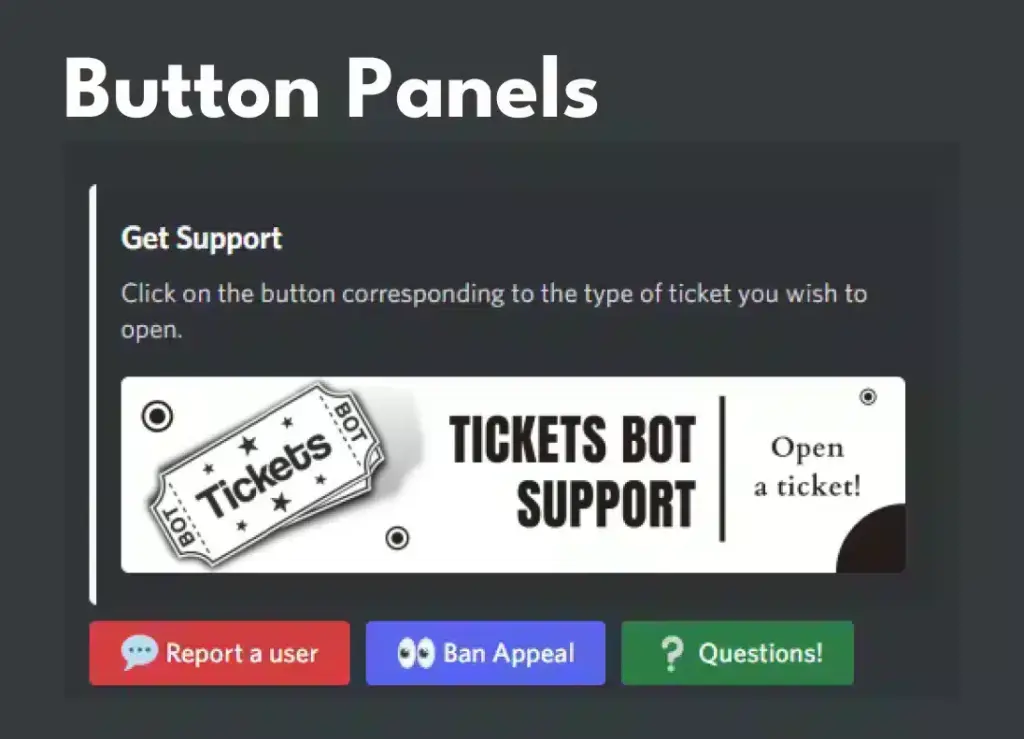
Tickets Bot is another popular option, offering advanced features like ticket categories, auto-assigning tickets to staff, and an intuitive dashboard for easy setup.
Support System is a Discord bot that offers ticket creation, staff role assignment, and customizable commands. It’s a solid choice for those looking for a bot with good support and functionality.
Helper.gg is a versatile Discord bot that not only offers ticket management but also features like customizable forms, automatic ticket assignment, and more. It’s highly customizable and works well for both small and large servers.
Modmail works slightly differently by allowing users to communicate with staff directly through DMs, which then create a private “ticket” in the staff channel. It’s excellent for private discussions and more personalized support.
Dyno Bot is a general-purpose bot but can be set up to manage tickets effectively with its automation features. You can configure Dyno to create tickets, auto-assign them to staff, and close tickets automatically after inactivity.
What’s the simplest ticket bot to use for a small server?
For small servers that don’t need complex features, Tickety or DisTickets are great options. They’re lightweight, easy to set up, and allow users to create tickets with simple commands. Both provide the basic functionalities to handle support tickets without much configuration. Tickety: Tickety Bot DisTickets: DisTickets Bot
Which bot offers the most advanced features for ticket management?
If you need advanced features like ticket categorization, automatic assignment to staff, logging, and integration with other tools, Ticket Tool and Helper.gg are the best options. They offer comprehensive customization and automation features that are perfect for large or professional communities. Ticket Tool: Ticket Tool Helper.gg: Helper.gg
What ticket bot is the most customizable?
Tickets Bot and Ticket Tool are highly customizable. You can configure these bots with different ticket categories, tailor-made forms, auto-closing options, and advanced permissions. They are perfect if you want full control over how tickets are handled on your server. Tickets Bot: Tickets Bot Ticket Tool: Ticket Tool
Can I also code my own Ticket Bot?
Yes. If you know how. But we specialized in using already-existing-solutions.
4. Setting Up Discord Bot for the Ticket System
4.1 Choosing a Bot
There are several pre-built Discord bots available for managing ticket systems, listed above.
4.2 Bot Permissions and Setup
Once you've chosen a bot, the next step is to add the bot to your Discord server. To do this:
Invite the Bot: Visit the bot’s official website or Discord bot directory. Click on the "Invite" button and select your Discord server.
Set Permissions: Ensure that the bot has administrator permissions or at least the following permissions:
Manage Channels
Manage Messages
Read Messages
Send Messages
5. Installing Ticket Bot
5.1 Ticket Tool
For this guide, we'll use Ticket Tool as it is one of the most robust and customizable options available.
Create Ticket Channel: Once the bot is on the server, create a new text channel where players can open tickets, such as #support-tickets.
Configure Ticket Categories: Navigate to Ticket Tool's dashboard, where you can configure categories like "Support," "Reports," and "Suggestions" for your ticket system. These categories will help you organize different types of tickets.
Create Ticket Panel: In the settings, generate a ticket panel message. This is a message that players will interact with to open tickets (e.g., by clicking a button or reacting with an emoji).
6. Customizing Your Ticket System
6.1 Creating Ticket Categories
Creating categories for different types of issues (Support, Reports, Refunds, etc.) ensures that tickets are routed to the right staff members. This can be done directly in the Ticket Tool dashboard by selecting Add Category under ticket settings.
6.2 Auto-Closing Tickets
To prevent tickets from lingering, you can set tickets to auto-close after a certain period of inactivity. This can be done by enabling auto-close in the bot’s settings.
6.3 Adding Custom Commands
You can add custom commands for ticket handling, such as /close to close a ticket or /transfer to assign it to another staff member. This ensures smooth operations and clear instructions for both staff and users.
7. Advanced Features for Ticket Management
7.1 Using Discord Bots like Dyno or Mee6 for Automation
You can also integrate other popular Discord bots like Dyno or Mee6 to automate certain ticket actions, such as assigning roles or sending notifications when a ticket is opened.
7.2 Adding Ticket Logs
For better record-keeping, set up a ticket log channel. Every ticket interaction, including opening and closing, will be automatically recorded in this channel for future reference. This feature is especially useful for resolving disputes or keeping track of common issues.
8. Integrating the Ticket System with Your FiveM Server
8.1 Webhooks for In-Game Integration
For deeper integration, you can set up Discord webhooks to notify your FiveM server when a new ticket is opened. For example, players in the game can be notified of ticket responses in real-time via a custom webhook.
8.2 Discord and FiveM Role Sync
Ensure that certain roles (such as Admins, Mods, or Support) are synced between your Discord server and FiveM server. This way, only authorized staff can manage or respond to tickets.
9. Security and Moderation: Keeping Tickets Private
It is critical that tickets remain private between the player and the admin team. Make sure the permissions for the ticket category channels are set to private, allowing only specific roles to view and respond to the tickets.
Additionally, you can enable two-factor authentication (2FA) for all your admins to further secure the system.
10. Common Issues and Troubleshooting
While setting up the ticket system, you may encounter a few common issues:
Bot Not Responding: Check whether the bot has the correct permissions and whether it is online.
Tickets Not Closing Properly: Ensure that you have configured the auto-close timer correctly and that the bot has permission to manage the channel.
Too Many Open Tickets: If your server has a large player base, consider adding additional ticket bots or creating a queue system to manage ticket flow effectively.
Done - Final words
Setting up a Discord ticket system for your FiveM server will dramatically improve how you handle player support and manage reports. By using a bot like Ticket Tool or similar options, you can create an efficient, organized system for addressing player concerns. The customization options available ensure that you can tailor the system to meet the specific needs of your server. Whether you run a small community or a large server with thousands of members, a ticket system will enhance your operations and improve the player experience.
Now that you have a fully functioning ticket system in place, your Discord server will be better equipped to handle any issue that arises, keeping your FiveM community running smoothly!
Related FiveM resources
Use these internal resources to connect How To Use/Add a Ticket System for Discord with setup, framework, marketplace resources, and server operations.