The FiveM community thrives on creators. Whether you're building immersive roleplay environments, scripting custom gameplay features, or designing stunning interiors, content…
Share
FiveM Content Creation: The Complete Guide for Developers & Creators
Introduction: Building Your FiveM Empire
The FiveM community thrives on creators. Whether you're building immersive roleplay environments, scripting custom gameplay features, or designing stunning interiors, content creation is the backbone of successful FiveM servers. The ecosystem offers multiple entry points for creators at every skill level: from scripting and MLO design to vehicle modding and UI development.
This guide covers the major categories of FiveM content creation, the tools you'll need, and the strategies top creators use to build sustainable projects. You'll learn that content creation isn't just about technical skill—it's about understanding your audience, iterating on feedback, and using modern tools (including AI) to accelerate your workflow without sacrificing quality.
The FiveM creator marketplace has matured significantly. Servers now invest in premium content, custom scripts command premium pricing, and creators who master multiple disciplines earn substantial income. If you're starting now, the opportunity is real, but you'll need to move strategically: pick a niche, build depth, and establish your brand.
MLO & Interior Design: Creating Immersive Spaces
MLO (Map Loader Object) creation is one of the most visible and rewarding FiveM specializations. A well-designed MLO transforms a server's atmosphere, providing players with new venues, hideouts, businesses, and social spaces. MLOs range from simple interiors (nightclubs, offices) to massive explorable areas (casinos, theme parks, underground bases).
The core workflow involves three stages: design conceptualization (sketching, reference gathering), 3D modeling (using tools like Blender or 3DS Max), and technical optimization (collision meshes, lighting, streaming). Most professional MLOs use Blender, which has a thriving FiveM community with freely available tutorials and conversion tools. The technical barrier isn't as high as it once was—free tools exist, and the learning curve is manageable for someone with 2-3 months of dedicated practice.
Turn framework research into a launch-ready script stack
Use this guide to narrow the framework decision, then move into the core commercial hubs for verified scripts, curated bundles, and a faster server launch path.
Framework hub
Move into the QBCore landing page to compare verified scripts, framework fit, and install-ready products built for modern FiveM servers.
Open QBCore hub
Framework hub
Use the ESX landing page to compare framework-specific resources, launch guidance, and premium products that fit ESX-first servers.
Open ESX hub
Premium catalog
Move from research into the main shop to compare real products, framework labels, screenshots, and production-ready quality signals.
Open premium shop
Premium Scripts You Might Like
Free Scripts You Might Like
Related Articles
Learn how to optimize FiveM server loading times by managing resources, using efficient mods, and choosing the right server host to eliminate annoying delays.
Developing engaging and stable FiveM servers requires skill, creativity, and the right set of FiveM Development Tools. Having the proper toolkit can...
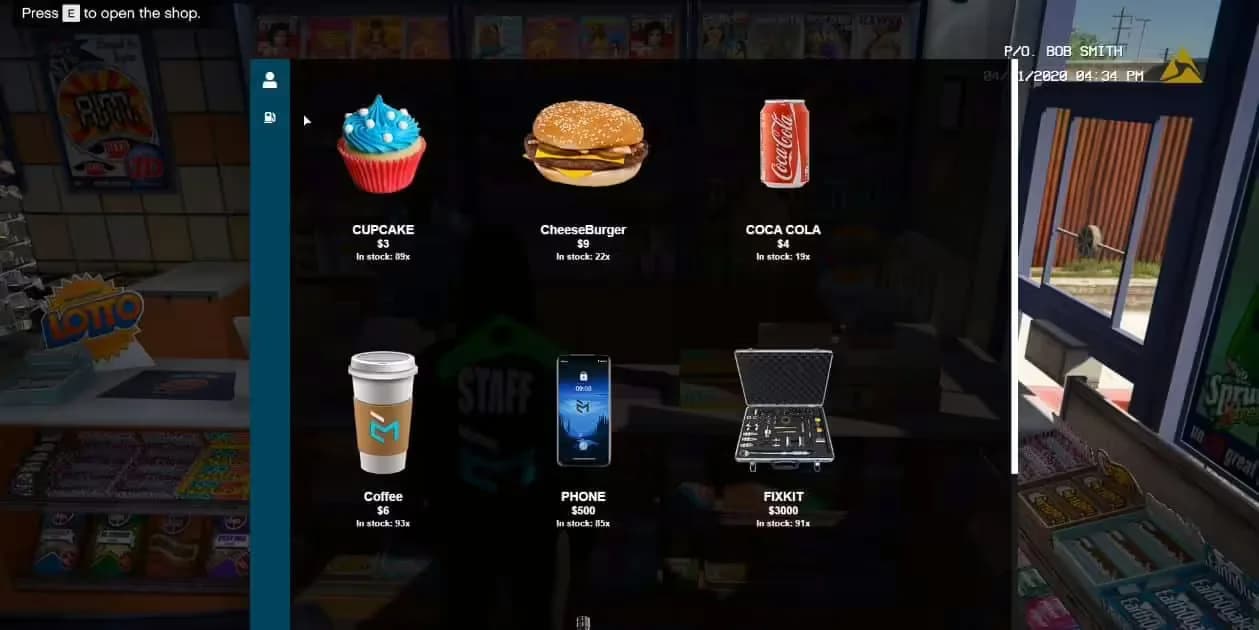
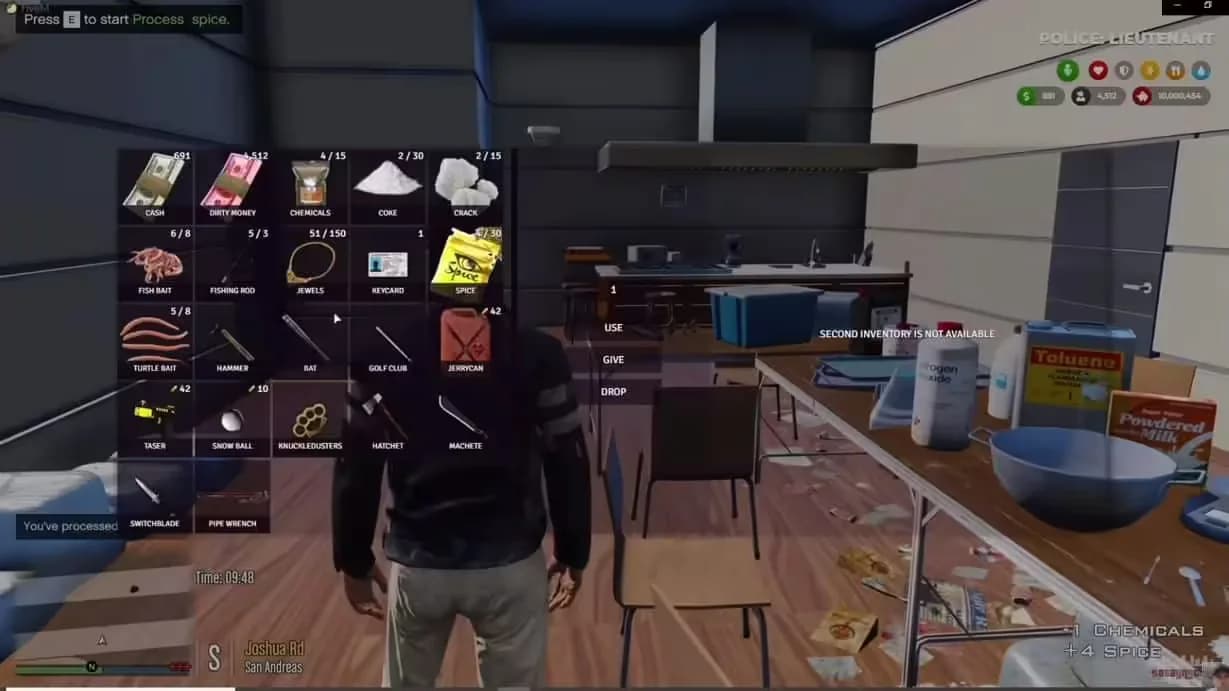
Jobs Creator ships with a flexible toolkit you can compose into any profession—law enforcement, EMS, mechanics, delivery, crime, hospitality, city services, you name it.
Modern MLO creators also apply AI for concept art and design inspiration, allowing you to iterate faster before committing to 3D modeling. AI-generated references can accelerate the design phase by weeks. The final output—a textured, collision-mapped, streaming-optimized interior—represents a complete product that server owners eagerly purchase.
If you're interested in mastering MLO creation, we've compiled detailed guides on the best existing MLOs to study, step-by-step creation tutorials, and free starter packs to reference while you develop your craft. These resources show both the artistic and technical requirements, so you can assess whether MLO design aligns with your skills.
Best FiveM MLOs 2026: Complete Interior Guide — Study professional examples and understand what makes an MLO stand out.
Scripting & Development: The Engine of Custom Gameplay
Scripting is the most diverse and technically demanding discipline in FiveM content creation. Custom scripts power job systems, businesses, minigames, admin tools, and complex roleplay mechanics. Lua is the primary scripting language for FiveM (with JavaScript as an alternative), and mastering it opens doors to creating highly sought-after features.
The scripting landscape breaks into several categories: lightweight gameplay scripts (job systems, crafting), complex frameworks (roleplay systems with persistent state), and specialized tools (admin panels, anticheat systems). Each requires different architectural approaches. A job script might be 200 lines; a complete farming and crafting system could be 2,000+ lines with database integration, networking, and state management.
Modern scripting workflows now incorporate AI assistance. AI tools like ChatGPT and Claude can accelerate your development by generating boilerplate code, helping debug complex issues, and translating scripts between frameworks. The key is knowing how to prompt effectively and validate the output—AI generates functional code, but you still need to understand what you're building and verify it works in context.
Documentation and testing matter enormously. Professional creators version their scripts, maintain changelogs, and provide clear configuration instructions. Scripts that work perfectly but lack documentation create support burdens that outweigh profit. The most successful script creators treat their work like actual software products.
Vehicle & Asset Modding: Customizing the Gameplay Canvas
Vehicle customization and asset streaming represent another major content category. Players want their servers populated with custom cars, realistic handling physics, and branded clothing. Creating these assets requires different skill sets than scripting or MLO design, but the demand justifies the specialization.
Vehicle modding encompasses handling file adjustments (tuning acceleration, braking, weight), visual customization (texture overlays, livery systems), and integration into server shops or job systems. A single well-balanced vehicle handling file can completely change how a server plays. Custom vehicles paired with custom handling create the sensation of a unique, refined gameplay experience.
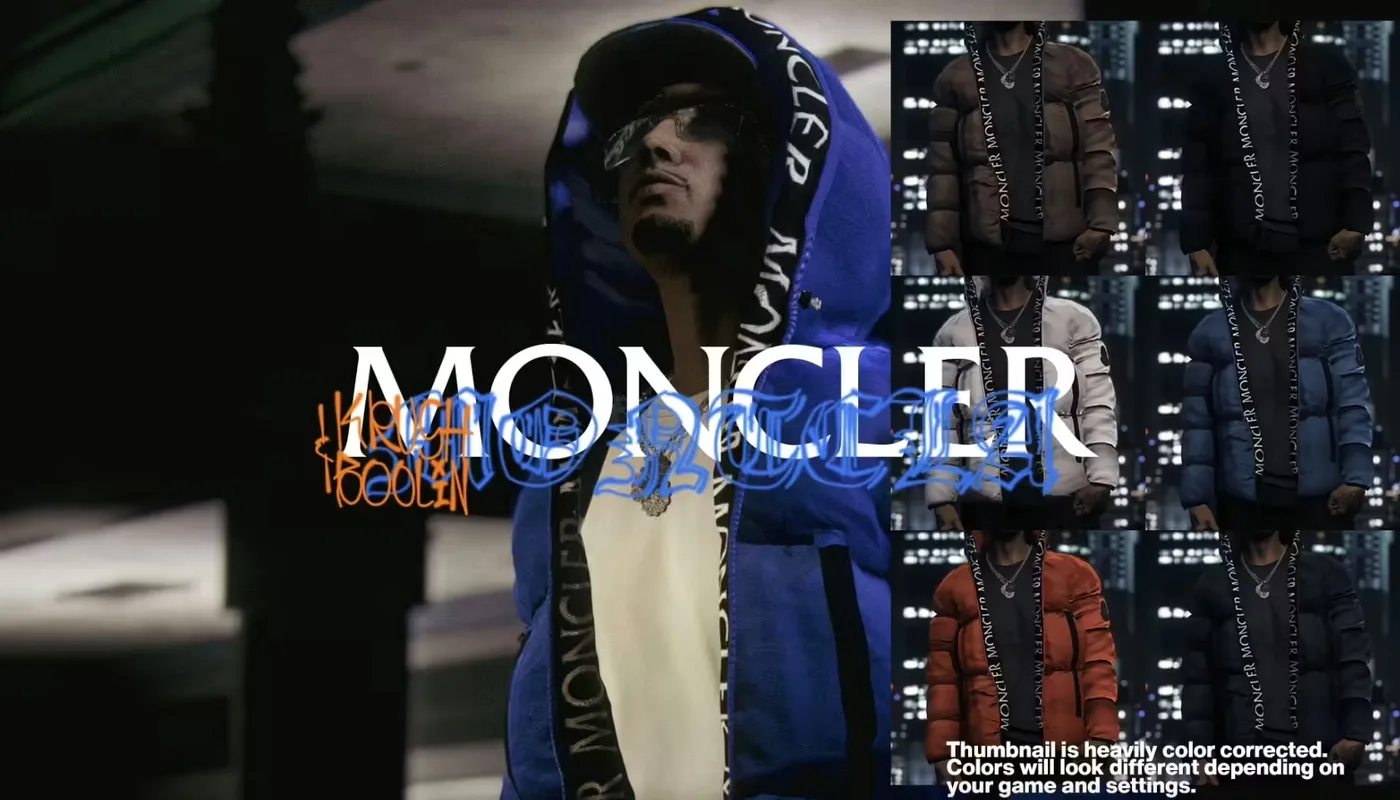
Clothing streaming involves creating or sourcing custom textures and models compatible with GTA V's ped system. This is one of the lower technical barriers to entry in asset creation—many professional clothing creators use existing model libraries and focus on texture design and streaming configuration. The workflow is iterative: create a catalog of designs, test them ingame, refine based on visual and performance feedback.
For creators interested in the full vehicle ecosystem—from handling optimization to custom shop integration—we've prepared guides on handling physics, installation workflows, and advanced streamed clothing systems. We also cover specialized content like drift server setups, which require both custom vehicles and specialized server scripting.
Building Your Creator Brand: From Hobbyist to Professional
Creating content is only half the battle. The other half is establishing yourself as a recognizable creator whose work is trusted and sought after. Building a creator brand means consistency, professionalism, community engagement, and strategic visibility.
Top FiveM creators—those earning full-time income from their work—share common practices: they maintain a portfolio (usually a website or GitHub), they engage with their audience on Discord, they gather feedback and iterate, and they document their process. Some creators share behind-the-scenes content about how they build, which builds loyalty and establishes authority. Others focus purely on the finished product quality and let their work speak for itself.
A creator brand also involves specialization. Instead of being "a generalist who scripts and models," successful creators become known for something specific: "the handling expert," "the NUI UI specialist," "the luxury roleplay MLO designer." This clarity makes you memorable and searchable. When a server owner needs that specific expertise, your name comes to mind first.
Distribution channels matter too. Successful creators sell through established marketplaces (like FiveMX), maintain Discord communities for support, and build relationships with server communities. The best creators aren't just selling products—they're building ecosystems where their content enhances the user experience and earns loyalty.
We've profiled the top FiveM creators in the community to understand what separates successful projects from the rest. Their insights cover everything from technical excellence to marketing strategy to long-term planning.
Best FiveM Creators: 2026 Edition — Learn from top creators, their specializations, and how they build sustainable projects.
Tools & Workflow: Your Creator Toolkit
Professional FiveM creators maintain a refined toolkit that combines industry-standard software with FiveM-specific utilities. The core tools vary by discipline, but several are universal.
For MLO Design: Blender (free, industry standard for 3D modeling), CodeWalker (GTA V asset viewer and exporter), and specialized collision tools like zap-hosting's collision optimizer. Many creators also use Photoshop or GIMP for texture creation and adjustment.
For Scripting: A code editor (VS Code is standard), Git for version control, and local testing environments. Many creators use Docker to spin up isolated FiveM server instances for testing. AI coding assistants (ChatGPT, Claude) have become standard for accelerating development and debugging.
For Asset Streaming: OpenIV for GTA V asset management, specialized streaming calculators to optimize performance, and ingame testing frameworks to verify your content works under load.
Universal Best Practices: Use version control (Git/GitHub) from day one, maintain a changelog, document your code thoroughly, and establish a testing workflow before releasing. The most successful creators treat their work like actual software products, not hobby projects.
Testing workflow deserves special attention. Professional creators test their work in multiple environments: single-player, small group, and high-load scenarios. They verify compatibility with popular frameworks, test on various client hardware, and gather feedback from trusted beta testers before public release. This rigor prevents embarrassing post-launch bugs and builds reputation for reliability.
FAQ: Your Content Creation Questions Answered
What's the best programming language for FiveM scripting?
Lua is the de facto standard for FiveM scripting and remains the best choice for new creators. It has the largest community, the most tutorials, and the most mature frameworks. JavaScript exists as an alternative through the JS runtime, but Lua dominates in adoption and resource availability. If you already know JavaScript, the JS runtime is viable, but Lua is recommended for anyone starting fresh.
How long does it take to learn MLO creation?
With dedicated practice (20+ hours per week), you can create your first functional MLO in 6-8 weeks. However, reaching professional quality—comparable to commercially available MLOs—typically requires 3-6 months of consistent learning. The learning curve is steep initially (understanding Blender's interface, grasping 3D space reasoning) but flattens once you grasp the fundamentals. Access to tutorials and a supportive community accelerates this significantly.
Can AI write FiveM scripts for you?
AI can absolutely accelerate scripting, but it can't replace your understanding. AI tools are excellent for generating boilerplate code, suggesting implementations, and debugging specific issues. However, they can generate plausible-sounding code that doesn't actually work in the FiveM context. The effective workflow is: you understand the architecture, you use AI to accelerate implementation, and you test thoroughly. AI is a force multiplier, not a replacement for skill.
How do you actually sell FiveM mods?
Primary channels: marketplace platforms (FiveMX, ready-made script stores), direct sales through your own website, and community-based distribution. Most creators use marketplaces because they handle payment processing, provide visibility, and attract large audiences. Building a direct sales operation (your own website, payment processing, support infrastructure) requires significant overhead but allows you to keep 100% of revenue. Most successful creators use a hybrid approach: marketplace for reach, direct sales for premium customers.
Do you need to know 3D modeling to create MLOs?
Not necessarily. You can create functional MLOs by combining and modifying existing Rockstar models, using community-created asset libraries, and focusing on lighting and composition rather than building everything from scratch. However, knowing 3D modeling dramatically increases your creative ceiling. Many successful creators start by adapting existing models, then gradually learn modeling as they grow. It's a gradual skill progression, not a binary requirement.
What tools do the top FiveM creators actually use?
For MLOs: Blender, CodeWalker, and collision optimization tools are near-universal. For scripting: VS Code or other modern editors, Git for version control, and AI coding assistants for acceleration. For vehicles: handling editors, texture software, and streaming optimization utilities. The common thread: these creators use professional-grade tools, they version their work, and they test rigorously. They also invest in learning—courses, tutorials, and community knowledge are constant investments.
Conclusion: Your Path to FiveM Content Creation Success
FiveM content creation is a genuine opportunity for creators with technical skill, artistic vision, or both. The barrier to entry has dropped significantly thanks to free tools like Blender, abundant tutorials, and AI assistance. The market has matured—servers now expect professional-quality content and are willing to pay for it. If you've been on the fence about starting, now is the time.
Your next step depends on where your interests lie. If you're drawn to visual design and 3D space, start with MLO creation. If you're a programmer at heart, Lua scripting opens immediate opportunities. If you like creative optimization, vehicle and asset modding is your lane. The FiveM ecosystem is large enough that multiple specializations coexist profitably.
Start small, build depth, and establish your reputation. The most successful creators didn't start as complete packages—they became excellent at one thing, then expanded from there. Focus on quality over quantity, document your work professionally, and engage with your community. These principles apply across every content category.
Ready to explore premium FiveM content? Browse our marketplace to see what professional creators are building. Or start your free mod journey at Free Mods to understand what the community needs. The FiveM creator economy needs people like you—creators willing to learn, iterate, and build something excellent.