












Installation
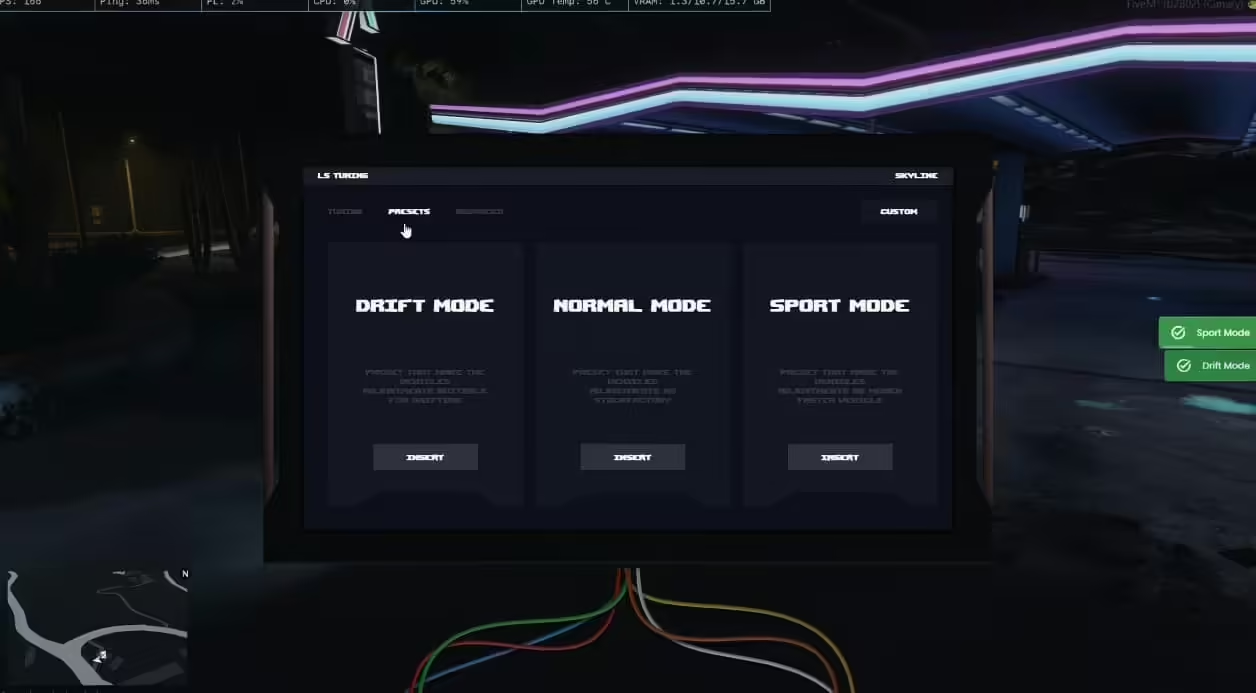
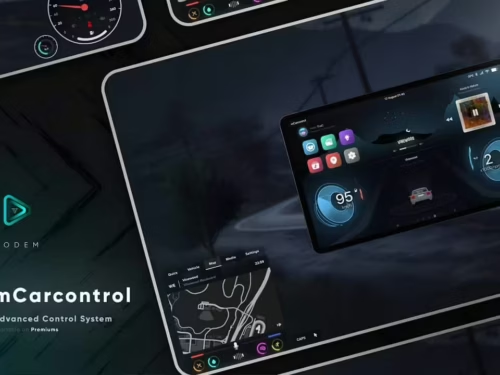
Installation de la ressource mTuningchip
ÉTAPE 1 – Glisser-déposer
Faites glisser et déposez le « réglage m" dans votre dossier de ressources.
ÉTAPE 2 – Insertion SQL
Insérez le fichier SQL dans votre base de données.
ÉTAPE 3 – Démarrer le script
Démarrer le script sur serveur.cfg.
Fichier de configuration
Config = {}

Config.Framework = "QBCore" -- QBCore, ESX
Config.Database = "oxmysql" --oxmysql, ghmattimysql , mysql-asnyc

Config.ItemControl = false -- If true you can only open menus with items, if false only with commands
Config.TabletItemName = "tunertablet" -- Tuner Tablet Item Name
Config.CheckerItemName = "tunerchecker" -- Tuner Checker Tablet Item Name
Config.OpenCommand = "tablet" -- Tuner Tablet Command
Config.TunerChecker = "tunercheck" -- Tuner Checker Tablet Command

Config.DriftModeLimit = true
Config.MPH = false -- true = MPH , false = KMH
Config.MaxDriftSpeed = 50 -- If it is higher than the number you enter here, it cannot drift

Config.JobAuthorize = { 'sasp', 'sherrif', 'police' } -- Professions that can use the tuner checker tablet
Config.AdvancedAuthorize = true -- If true, the advanced page is not visible to users, only to the following authorized usersif true, the advanced page is not visible to users, only to the following authorized users
Config.AdvancedAuthorizedGroup = {  'god', 'admin' }  -- Authorizations with access to advanced page

Config.SportModeSettings = { -- Sport Mode Handling Settings
    ["fInitialDriveMaxFlatVel"] = 100 * 20,
    ["fDriveInertia"] = 2.000000,
    ["fClutchChangeRateScaleUpShift"] = 8,
    ["fClutchChangeRateScaleDownShift"] = 8,
}



Avis
Il n’y a pas encore d’avis.