Troubleshooting: 'FXServer is Not Responding' Error (How to Fix)
When managing a FiveM server, few things induce panic quite like glancing at your txAdmin panel and reading “FXServer is not responding!”

When managing a FiveM server, few things induce panic quite like glancing at your txAdmin panel and reading “FXServer is not responding!”
This error signifies a critical breakdown in communication: the txAdmin overlay is completely failing to communicate with the underlying FXServer game process. This generally results in the server showing as "Offline" to the public and automatically restarting in an endless loop.
This guide provides systematic, technical troubleshooting steps for FiveM server administrators to isolate and resolve txAdmin and FXServer connectivity failures.
Cause 1: Port Configuration Mismatch
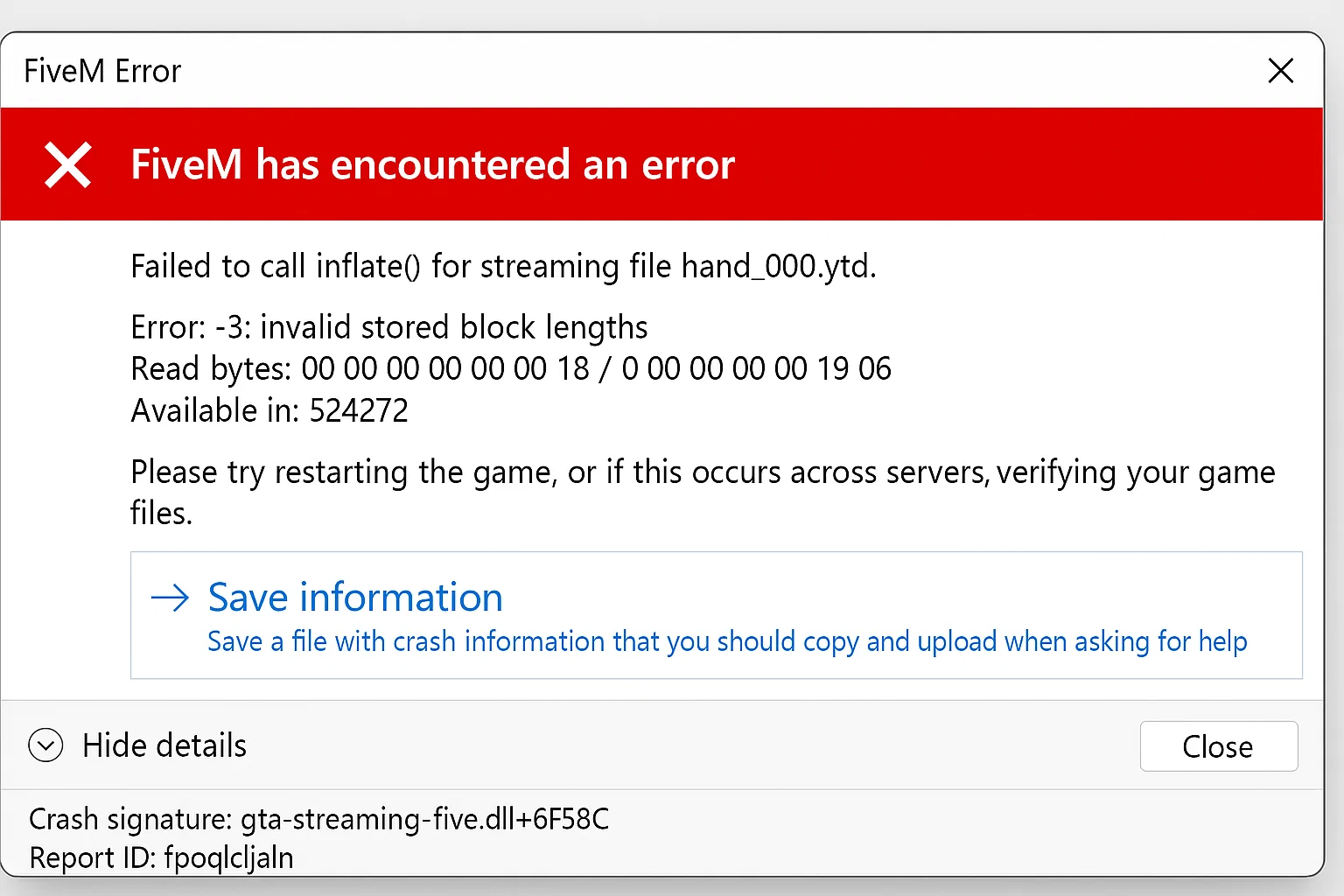
The absolute most common trigger for the "FXServer is not responding" warning is a basic misconfiguration of networking ports in your main server configuration file.
The Issue
txAdmin requires specific TCP and UDP ports to talk to the server instance. If these do not match your host’s assigned ports, or if there is a conflict in the file, txAdmin loses its connection string.
The Fix
Verify your server.cfg contains matching TCP and UDP endpoints. Open your config and locate the following lines (usually right at the top):
endpoint_add_tcp "0.0.0.0:30120"
endpoint_add_udp "0.0.0.0:30121"
Replace the default port numbers (30120 / 30121) with the specific allocated ports given to you by your VPS or Game Server hosting provider.
Validation Steps:
- Open up txAdmin Settings > FXServer.
- Check the configured ports in the web UI.
- Compare them explicitly against your
server.cfgendpoint declarations. - Restart the server cleanly via console.
Cause 2: Stuck Resources Blocking the Main Thread
FXServer operates largely on a single main thread. If a broken fxmanifest.lua or an incredibly heavy while true do loop in a script "hangs" that thread, the server stops responding to txAdmin's heartbeat checks.
The Issue
A poorly optimized FiveM script (like an un-optimized garage or HUD) runs an infinite loop without a Wait(0), stalling the entire server process.
The Fix
You must isolate the offending resource. Start the server with a minimal configuration and increment from there.
- Create a minimal startup file bypassing your core frameworks.
- Check your live console for "Hitch Warning" messages right before the crash. If you see
server thread hitch warning: timer interval of 6000ms, a script is throttling the CPU. - Check the txAdmin logs for specific script errors immediately prior to the connectivity loss.
- Remove or systematically turn off resources until the core server remains stable.
Cause 3: Launching Arguments Conflict
The Issue
Some older tutorials tell users to launch the FiveM server using hardcoded +exec flags directly in their .bat or shell file. When using txAdmin, this creates a race condition.
The Fix
Never use +exec server.cfg arguments when utilizing txAdmin.
txAdmin strictly requires FXServer to run in "monitor mode" and handles the execution of the configuration file internally based on the profile it loads.
Correct Launch Command (Windows):
./FXServer.exe
Correct Launch Command (Linux):
./run.sh
Cause 4: Antivirus and Firewall Interference (Windows Servers)
The Issue
If you host on a Windows VPS or Home Node, Microsoft Defender Antivirus frequently scans the FXServer directory. When a new player joins (or txAdmin tries to write a log file), Defender intercepts the file operation, causing severe startups lags and connectivity timeouts.
The Fix
Add the entire FXServer directory to the Microsoft Defender exclusion list via PowerShell. Run PowerShell as an Administrator and execute:
Add-MpPreference -ExclusionPath "C:\FXServer\"
(Replace the path variable with your actual FXServer artifact directory location).
Furthermore, ensure your Windows Firewall allows inbound/outbound communication for FXServer.exe on both TCP and UDP.
Advanced Network Configuration Issues
If you are hosting locally or behind strict commercial routing, Network Address Translation (NAT) policies might block the UDP source ports.
Network Fix Checklist:
- Hard-forward your TCP and UDP ports directly inside your router's administration panel to the local IPv4 address running the server.
- Confirm your hosting provider (like OVH or AWS) doesn't have an external firewall blocking port
30120from the outside by default. - Test local internal connectivity via command line to see if it is a port issue:
telnet localhost 30120.
If the terminal clears and shows a black screen, the port is open locally. If it fails to connect, the server itself has not properly bound to the port.
Step-by-Step Resolution Priority
In a state of panic, follow this exact triage list:
- Verify Ports: Check
endpoint_add_tcpandendpoint_add_udpinserver.cfg. - Launch Flags: Remove custom execution flags. Start via the standard
run.shorFXServer.exe. - Artifact Update: Download the latest FiveM Server Artifacts as outdated files frequently break txAdmin monitor logic.
- Isolate Scripts: Rename your
[resources]folder to[resources]_oldand start the server totally vanilla. If it works, a custom script is crashing the heartbeat thread.
Most “FXServer is not responding” errors resolve within five minutes once you correct the port mismatches or clear out a broken script hanging the game thread. Keeping your server environment clean and monitoring txAdmin logs actively will drastically minimize these anxiety-inducing alerts.
Practical launch checklist for Troubleshooting: 'FXServer is Not Responding' Error (How to Fix)
Use this section as a release checklist before you apply the change on a live FiveM server. Start by copying the current configuration, listing the resources touched by the change, and checking whether the topic depends on your framework, database, inventory, jobs, Discord roles, or txAdmin permissions. Many FiveM problems are not caused by the feature itself. They come from the wrong startup order, missing dependencies, inconsistent item names, or unclear staff permissions.
After the first restart, read the server console before inviting players to test. Warnings about missing exports, missing items, unknown job names, failed SQL queries, or duplicated resources should be solved immediately. If you are changing several things at once, test each resource separately with a fresh character and with an admin account. That makes it easier to tell whether the issue is inside the resource, inside an ESX/QBCore/QBox bridge, or inside your server configuration.
A production server also needs a rollback plan. Keep the previous script or config version, note the database tables involved, and decide when you will revert instead of debugging live. A practical rule is simple: if players cannot join, interact, or keep their items normally after ten minutes, roll the change back and continue on a staging server. Stability matters more than shipping one extra feature during peak hours.
Common mistakes to avoid
The most common mistake is testing only with administrator permissions. Many systems work for admins but fail for normal players because of ACE permissions, job grades, Discord role checks, or inventory metadata. Test at least three roles: normal player, staff member, and full admin. Write down which commands, items, menus, or map markers should be available to each role before you call the setup finished.
Another common mistake is ignoring monitoring after the change. Watch resmon, txAdmin warnings, client console errors, and Discord feedback for the first play session. If a resource constantly uses too much time or creates repeated client errors, it lowers server quality even when the feature appears to work. Larger changes should go through a short maintenance window with a clear testing checklist.
Related FiveM resources
- FiveM server setup
- server.cfg
- txAdmin Discord setup
- Discord whitelist
- server backups
- rules generator
These resources help you treat Troubleshooting: 'FXServer is Not Responding' Error (How to Fix) as part of the full server stack instead of an isolated fix. The better your setup, framework, rules, marketplace resources, and monitoring work together, the fewer support issues you will have after launch.
Frequently Asked Questions
What does the "FXServer is not responding!" error in txAdmin mean?
This error indicates a failure in communication between the txAdmin panel and the FXServer game process. It typically means txAdmin can no longer 'ping' or receive status updates from the server. As a result, the server often appears offline and might be stuck in a restart loop.
My server.cfg has endpoint TCP and UDP ports defined. How do I know if they are causing the "FXServer is not responding" error?
First, find the `endpoint_add_tcp` and `endpoint_add_udp` lines in your `server.cfg` file. Compare the port numbers specified there directly to what's configured in your txAdmin settings under FXServer. Any mismatch, even by one digit, can be the cause. Ensure the ports match your VPS or hosting provider's allocated ports. After correcting any mismatches, restart your server from the console to apply the changes.
Could a faulty or unoptimized script cause the "FXServer is not responding" error?
Yes, a poorly written script with issues like an infinite loop or a broken `fxmanifest.lua` can freeze the main thread of the FXServer. This prevents the server from responding to txAdmin's status checks, triggering the error. Debugging your resources and ensuring they are properly optimized is crucial to avoid this.
I've checked my ports and script resources, but the error persists. What else could be the problem?
If port configurations and resource issues have been ruled out, investigate whether your VPS or hosting provider has any firewall rules blocking communication on the specified TCP and UDP ports. Also, verify that txAdmin and FXServer are running with the necessary permissions to access the network. If you are running FXServer in a container, ensure networking is set up correctly for the container.