



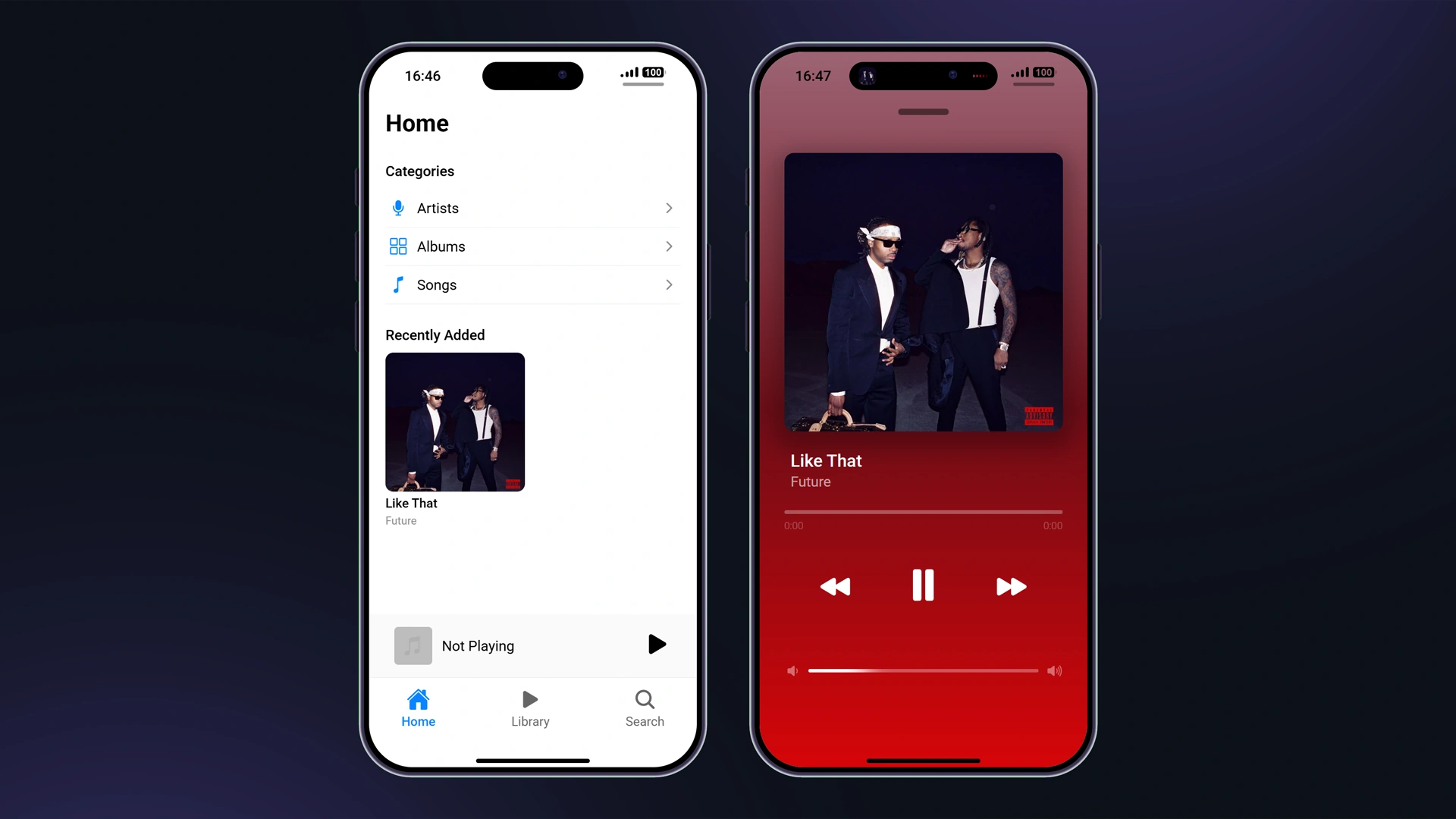
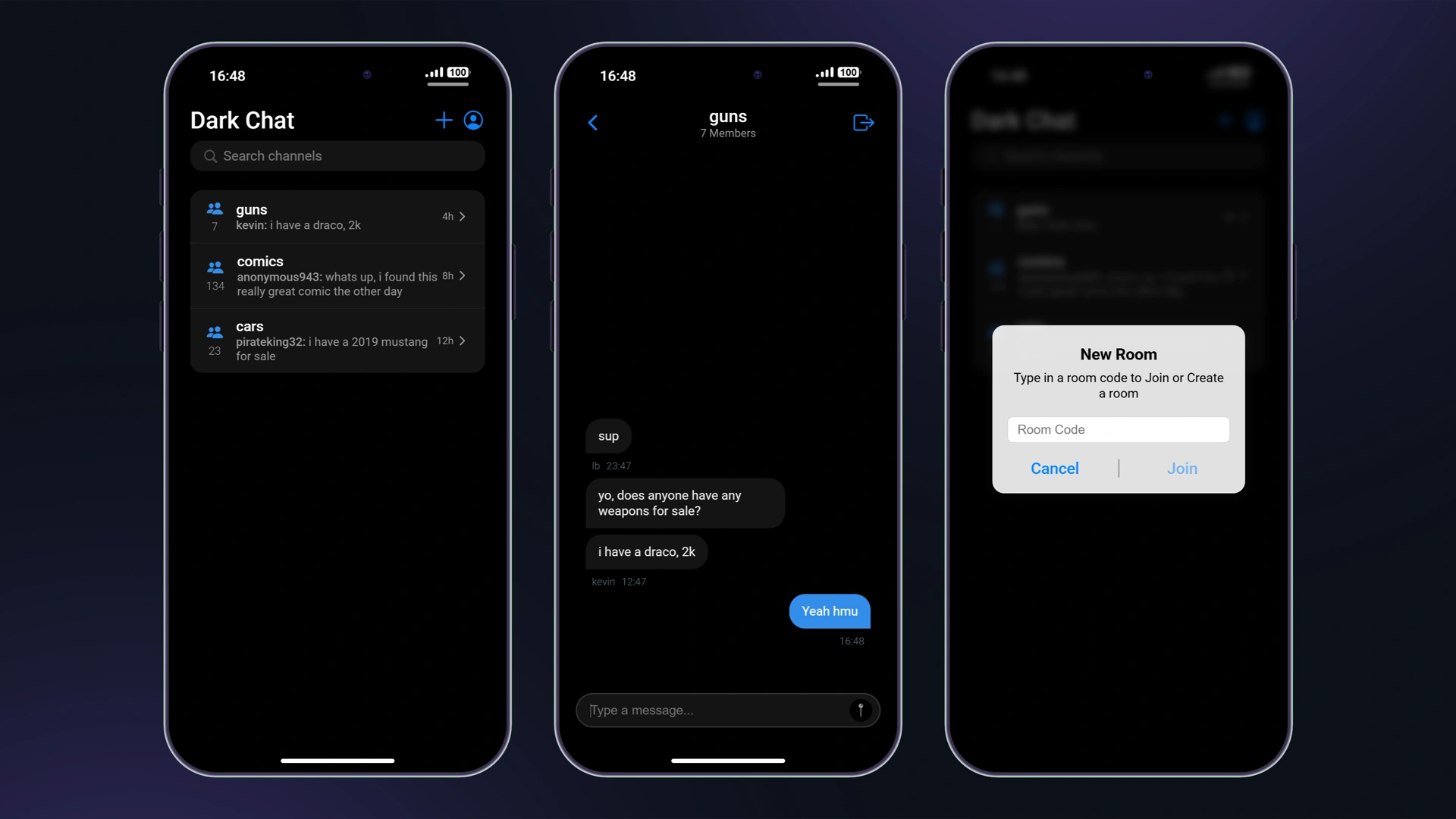
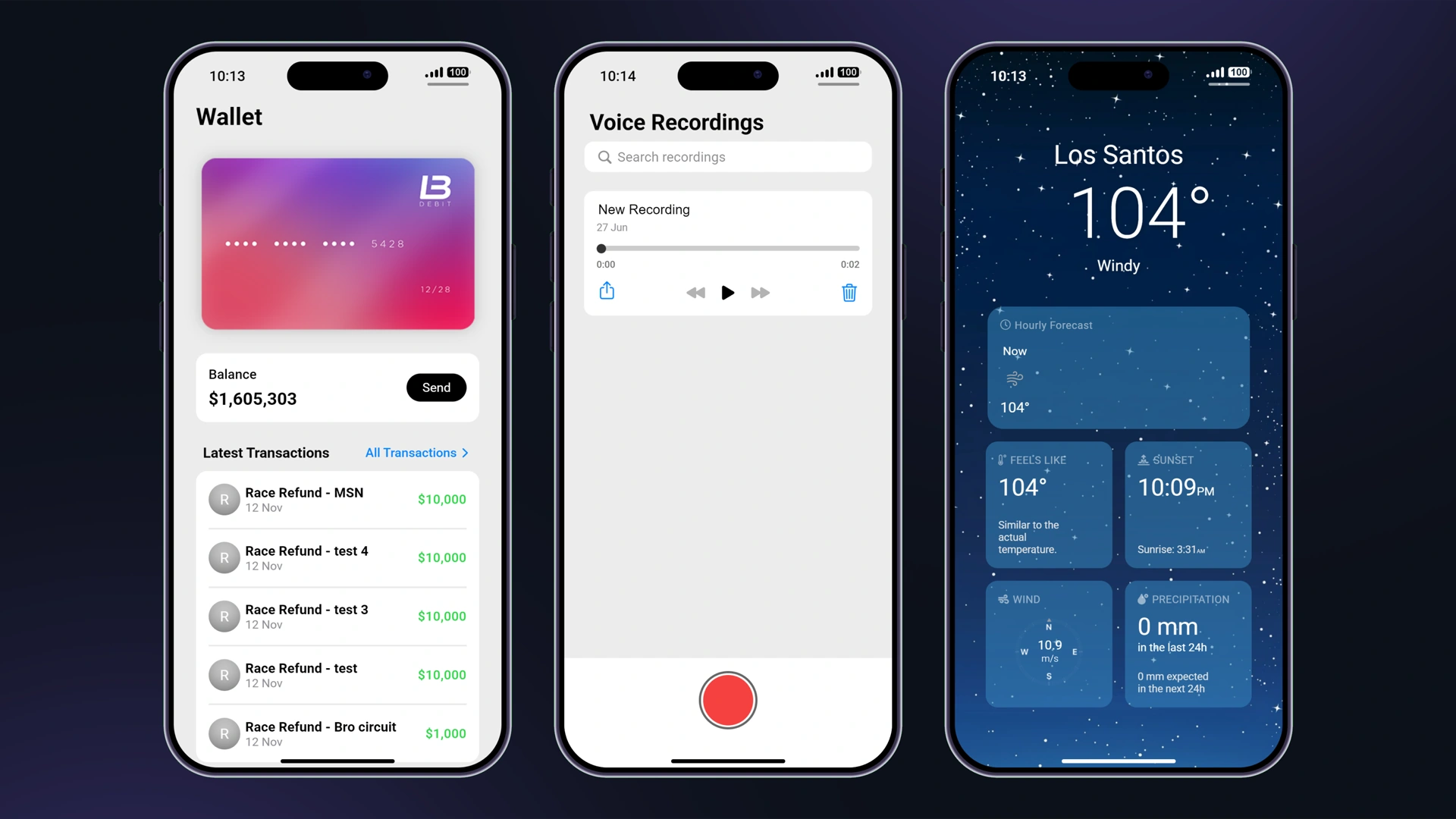







Aplicaciones personalizadas
LB Phone te permite agregar aplicaciones que tienen un UI o simplemente activan funciones al abrir la aplicación. Para agregar una aplicación que activa una función al abrirla, ve a lb-phone/config/config.lua y añade la aplicación Config.CustomApps tabla, así:
Config.CustomApps = { ["app_identifier"] = { -- A unique identifier for the app, not shown to the user name = "App Name", -- The name of the app, shown to the user description = "App Description", -- The description of the app, shown to the user developer = "LB Phone", -- OPTIONAL the developer of the app defaultApp = true, -- OPTIONAL if set to true, app should be added without having to download it, game = false, -- OPTIONAL if set to true, app will be added to the game section size = 59812, -- OPTIONAL in kB images = { "https://example.com/photo.jpg" }, -- OPTIONAL array of images for the app on the app store ui = "resource-name/ui/index.html", -- OPTIONAL icon = "https://cfx-nui-" .. GetCurrentResourceName() .. "/ui/icon.png", -- OPTIONAL app icon price = 0, -- OPTIONAL, Make players pay with in-game money to download the app landscape = false, -- OPTIONAL, if set to true, the app will be displayed in landscape mode keepOpen = true, -- OPTIONAL, if set to true, the app will not close when the player opens the app (only works if ui is not defined) onUse = function() -- OPTIONAL function to be called when the app is opened -- do something end, onServerUse = function(source) -- OPTIONAL server side function to be called when the app is opened -- do something end }}Aplicaciones personalizadas usando UI
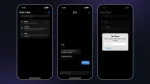
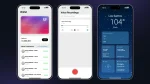
Si deseas usar un UI personalizado para tu aplicación, necesitas crear un script separado y proporcionar la ruta del archivo HTML y enviarlo como ui.
La forma recomendada de crear una aplicación con UI es crearla utilizando exports. Tenemos aplicaciones de plantilla que puedes usar como referencia.
Si el usuario tiene el modo oscuro activado, data-theme se establecerá en dark. De lo contrario, se establecerá en light.
Agregar la aplicación
Para agregar la aplicación, usa AgregarAplicaciónPersonalizada export.
Eliminar la aplicación
To remove the app, use the RemoveCustomApp export.
Enviando un mensaje a UI
Para enviar un mensaje al UI, necesitas usar el SendCustomAppMessage export en lugar de usar SendNUIMessage. Escucharías de la misma manera en el frontend.
Componentes e importar funciones
Cuando la aplicación se carga en el teléfono, se importan varias funciones en la globalThis objeto.
| Nombre | Tipo | Descripción |
|---|---|---|
| nombreRecurso | string | El nombre del recurso que agregó la aplicación personalizada |
| appName | string | El nombre de la aplicación |
| ajustes | objeto | La configuración del teléfono |
| components | objeto | Útil components para la aplicación |
Componentes
Los siguientes componentes se pueden acceder a través de globalThis.components. Puedes ver un archivo de declaración TypeScript en lb-reactts/ui/src/components.d.ts.
createGameRender
Crea un renderizado de juego, que renderiza el juego en un lienzo. Esto se utiliza para crear una cámara en tu aplicación y debe usarse con el camera exports.
const gameRender = components.createGameRender(canvas) // set the aspect ratiogameRender.resizeByAspect(9 / 16) // pause the renderinggameRender.pause() // unpause the renderinggameRender.resume() // take a photoconst blob: Blob = await gameRender.takePhoto() // take a videoconst recorder = gameRender.startRecording((blob: Blob) => { const video = URL.createObjectURL(blob)}) await new Promise((resolve) => setTimeout(resolve, 5000)) recorder.stop() // destroy the game rendergameRender.destroy()uploadMedia
Sube medios y devuelve una promesa con la URL.
// Upload type can be 'Video' | 'Image' | 'Audio'const url = await components.uploadMedia('Video', blob)saveToGallery
Guarda una URL en la galería y devuelve una promesa con el ID
const id = await components.saveToGallery(url)setColorPicker
components.setColorPicker({ onSelect(color) {}, onClose(color) {}})setPopUp
components.setPopUp({ title: 'Popup Menu', description: 'Confirm your choice', buttons: [ { title: 'Cancel', color: 'red', cb: () => { console.log('Cancel') } }, { title: 'Confirm', color: 'blue', cb: () => { console.log('Confirm') } } ]})setContextMenu
components.setContextMenu({ title: 'Context menu', buttons: [ { title: 'Phone Notification', color: 'blue', cb: () => { sendNotification({ title: notificationText }) } }, { title: 'GTA Notification', color: 'red', cb: () => { fetchNui('drawNotification', { message: notificationText }) } } ]})setContactSelector
components.setContactSelector({ onSelect(contact) { components.setPopUp({ title: 'Selected contact', description: `${contact.firstname ?? '??'} ${contact.lastname ?? ''} ${contact.number}`, buttons: [ { title: 'OK' } ] }) }})setShareComponent
Ver el Exportación de AirShare para qué datos enviar.
components.setShareComponent({ type: 'image', data: { isVideo: false, src: 'https://docs.lbscripts.com/images/icons/icon.png' }})setEmojiPickerVisible
components.setEmojiPickerVisible({ onSelect: (emoji) => { components.setEmojiPickerVisible(false) components.setPopUp({ title: 'Selected emoji', description: emoji.emoji, buttons: [ { title: 'OK' } ] }) }})setGifPickerVisible
components.setGifPickerVisible({ onSelect(gif) { components.setPopUp({ title: 'Selected GIF', attachment: { src: gif }, buttons: [ { title: 'OK' } ] }) }})setGallery
components.setGallery({ includeVideos: true, includeImages: true, allowExternal: true, multiSelect: false, onSelect(data) { components.setPopUp({ title: 'Selected media', attachment: { src: Array.isArray(data) ? data[0].src : data.src }, buttons: [ { title: 'OK' } ] }) }})setFullscreenImage
components.setFullscreenImage('https://docs.lbscripts.com/images/icons/icon.png')establecerHomeIndicatorVisible
components.setHomeIndicatorVisible(true)Funciones
fetchNui(event, data, scriptName?)
fetchNui('test', { foo: 'bar'})onNuiEvent
Escuchar mensajes NUI enviados vía SendCustomAppMessage
onNuiEvent('test', (data) => { console.log(data)})onSettingsChange
Escuchar cambios en la configuración
onSettingsChange((newSettings) => { console.log(newSettings)})createCall
createCall({ number: '1234567890', // you can send `company` instead of `number` to call a company videoCall: false, hideNumber: false})