How to Install FiveM Mods: Step-by-Step Guide
Installing FiveM mods is a breeze—just download the zip, drag the folder into your resources, and add its name to server.cfg. Then, restart your server and you’re ready to roll!
FiveM Must-Have Installation Guide: Effortless Mods
Introduction: Why "FiveM Mod Installation" Is a Game-Changer
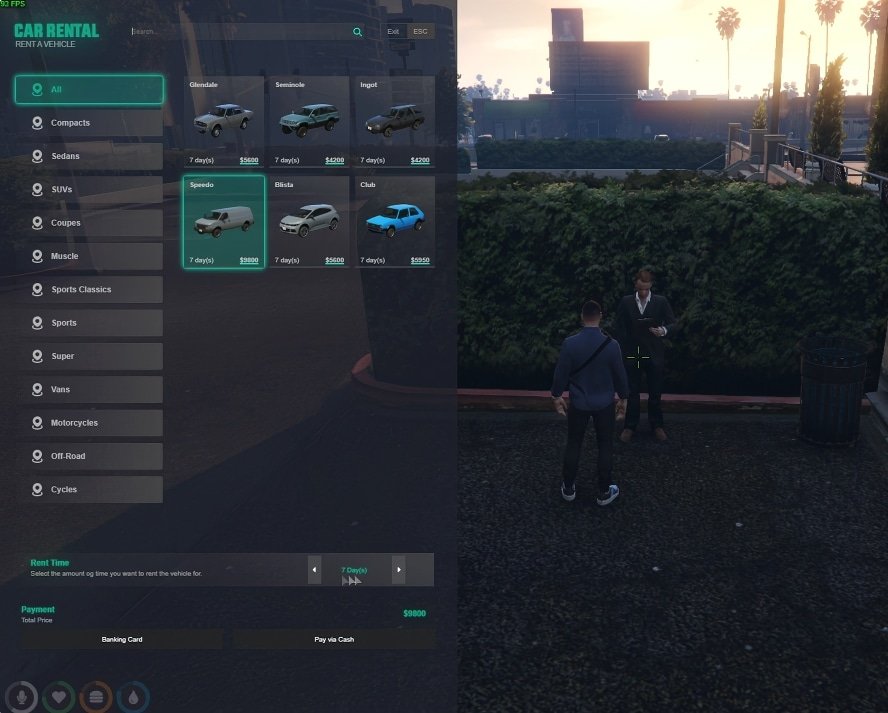
If you've ever wanted to transform your FiveM server into a thriving hub of custom gameplay, the answer lies in mastering the art of installing FiveM mods. With the tools provided by fivemx.com, adding new resources and scripts to your server is quick, reliable, and user-friendly.
This comprehensive guide walks you through the process step-by-step, ensuring that anyone—from an amateur server owner to a seasoned developer—can boost their server's functionality and appearance with minimal hassle.
Step 1: Locate and Download Your FiveM Mod
Choose the Right Package
Begin by browsing the thousands of mods available on fivemx.com or any other reputable FiveM resource repository. When you find a mod that meets your needs, click the download button. The download will usually come in a compressed format such as .zip or .rar.
Extract the Files
After downloading, extract the archive to a temporary folder on your computer. Inside the extracted folder, you'll see a sub-folder dedicated to the script (e.g., eclipse_cad). This inner folder contains all the necessary files that the server will recognize and run.
Step 2: Move the Mod Folder into Your Server's "resources" Directory
- Open Your Server Directory
Navigate to the root directory of your FiveM server installation. Double-click on the resources folder—it should contain all of your existing scripts and mods. - Drag and Drop
Drag the newly extracted folder (for example,eclipse_cad) into the resources directory. This action places the mod in the location where FiveM looks for scripts to load at startup.
Step 3: Configure Your Server to Recognize the New Mod
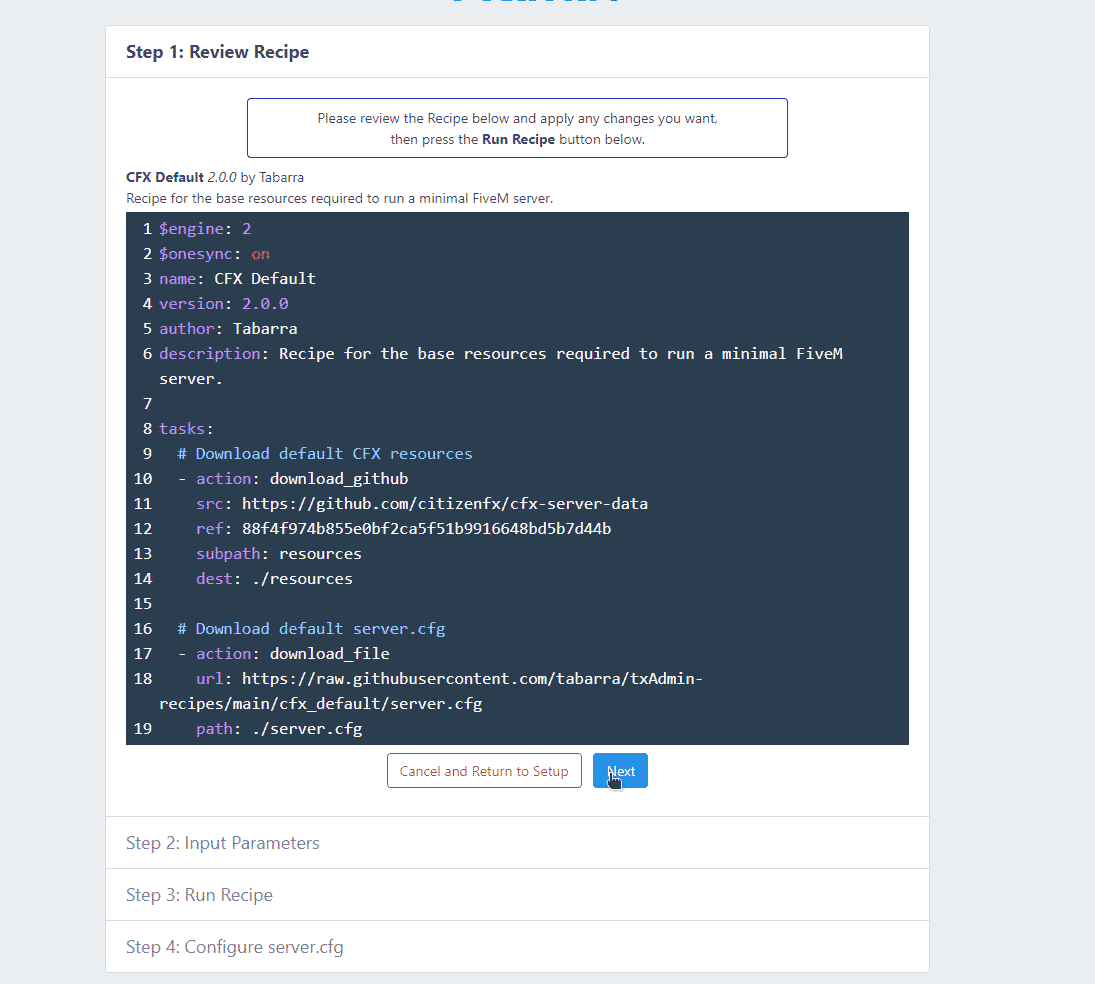
Edit the server.cfg File
Open the server.cfg file located in the root of your server directory with a text editor (notepad, VS Code, Sublime, etc.).
Add the following line, replacing scriptname with the exact folder name of your mod:
start eclipse_cad
Your server.cfg should look something like this after the addition:
# Basic Server Configuration
sv_hostname My Awesome Server
endpoint_add_tcp 0.0.0.0:30120
endpoint_add_udp 0.0.0.0:30120
# Resources
ensure mysql-async
start
Important: If the mod requires a .sql file, import it into your database after copying the file to your hosting account. Most hosting services provide a simple "Import SQL" tool.
Step 4: Restart Your FiveM Server
Once you've updated the configuration and imported any required SQL data, it's essential to restart your server so that the new mods can load properly. A brief restart ensures all changes are applied and that the server environment reflects the updated scripts.
Installing Custom Scripts and Maps: A Quick Overview
If you need to install an entirely new map or script that comes as a standalone package, follow these steps:
- Download the Script – Zip or RAR file available on the mod's webpage.
- Unpack the Archive – Place the extracted folder in a safe location like your Desktop.
- Import SQL – If there's a
.sqlfile, run the import in your database management tool. - Upload to Server – Drag the whole folder into your server's resources directory.
- Update
server.cfg– Add astartline for the script. - Restart – Restart your server to finalize the installation.
Working with FiveM Server Templates
For users buying complete server presets from our shop, the deployment process is even simpler:
- Extract all files from the resources folder in the template package and upload them to your hosting account's resources directory.
- Open the included
.sqlfile with a text editor and replace every instance of "essentialmode" with your actual database prefix (e.g.,zap-xxx123). - Import the modified SQL file into your database.
- Edit the
server.cfgto retain only thestartorensurelines that activate the provided resources. - Launch the server via your host's control panel.
If you run into any difficulties, refer to our detailed template installation tutorial or reach out for help.
Frequently Asked Questions
Q: What if my server doesn't recognize a newly added mod?
A: Verify that the folder name matches the one listed in your server.cfg. Also, ensure that any dependencies (like mysql-async) are properly started before the mod.
Q: How do I troubleshoot a mod that fails to load?
A: Check the server console for error messages. Common issues include missing files, permission errors, or corrupted archives. Re-download the mod if necessary.
Q: Can I install mods directly via FTP instead of using a web interface?
A: Absolutely. FTP clients like FileZilla let you drag and drop files into the appropriate directories, then you can edit server.cfg remotely.
Conclusion: Seamless FiveM Mod Installation Made Simple
Mastering the process of installing FiveM mods unlocks a world of possibilities for server owners and developers alike. By following this easy, step-by-step guide, you'll have fresh features, custom scripts, and new maps up and running in no time.
Remember: Always keep your configuration files backed up and maintain a clean folder structure to avoid future headaches. With the right preparation, your FiveM server can stay updated, secure, and continuously engaging for your community.