How to Stream Custom Clothing in FiveM: Folder Setup, YMT Limits & Optimization
Set up custom FiveM clothing correctly with stream folders, fxmanifest entries, YTD/YDD/YMT files, addon vs replacement logic, optimization, and common fixes.

Custom Clothing Best Must‑Have Guide for FiveM Servers
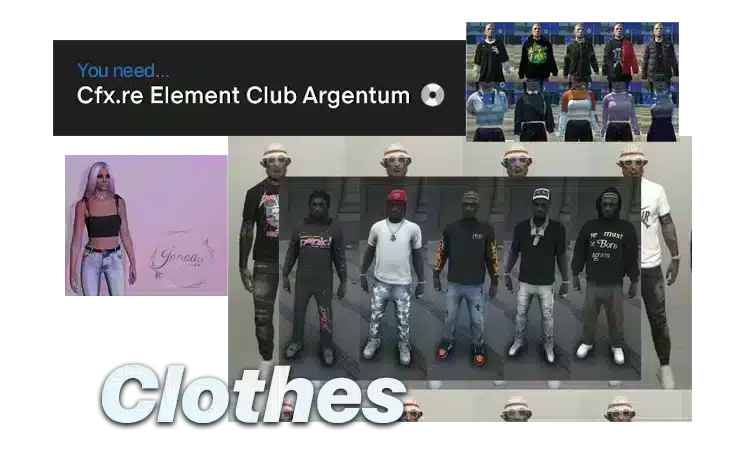
Custom clothing is more than a visual upgrade. It defines police uniforms, gang identities, EMS gear, business outfits, and the everyday style players associate with your server.
This guide explains how to stream clothing files correctly in FiveM: where to place .ydd, .ytd, .ymt, and .ymf files, how to structure the resource, when to use addon clothing instead of replacement clothing, and how to avoid texture loss or long join times. If you want ready-made assets instead of building every pack yourself, compare FiveM clothing and appearance resources after the setup section.
This guide is part of our complete FiveM content creation guide, covering everything from MLO design to scripting, vehicle modding, and building your creator brand.
Why Streaming Custom Clothing Matters
– Player Engagement: Fresh looks give users a reason to return each day.
– Role‑Play Depth: Uniforms and themed attire create authentic scenarios and lore.
– Monetization: Premium packs can be sold through subscriptions or in‑game stores.
– Server Identity: A unique wardrobe reinforces your server’s branding.
In 2026, over 30 000 FiveM servers are active and collectively serve more than 3 million players each month. Custom clothing remains the most popular mod category, with a staggering 68 % of servers adding new outfits seeing measurable lifts in daily active users.
—
1. Prerequisites Checklist
| Item | Description |
|——|————-|
| FiveM Server | Latest stable build (1.3.0+ recommended). |
| Patreon Licence | Argentum tier or higher; know how to add a key. |
| File Management Skills | Ability to unzip archives, edit text files, and navigate Windows or Linux. |
| Text Editor | VS Code, Notepad++, or Sublime Text. |
| Optional – Git | For version control of custom packs. |
—
2. Understanding Custom Clothing
2.1 What Is Custom Clothing?
Custom clothing packs in FiveM consist of `.ytd` (texture) and `.ytyp` (model) files that replace or extend the vanilla GTA V wardrobe. Unlike the limited default options, these packs can introduce thousands of outfits, dynamic textures, and brand‑new clothing lines.
2.2 Why It Matters
| Benefit | How It Helps |
|———|————–|
| Player Retention | Fresh outfits keep players logged in daily. |
| Role‑Play Depth | Uniforms and themed apparel create believable worlds. |
| Monetization | Premium packs can be sold via subscriptions or stores. |
| Community Identity | Unique clothing reinforces server lore and branding. |
2.3 Legal & Licensing Basics
FiveM’s Patreon licence requires a valid key stored in `server.cfg` or as an environment variable, strict adherence to the FiveM Terms of Service (no unlicensed copyrighted content), and a documented ledger of paid packs. Non‑compliance can lead to bans or legal action.
—
3. Preparing Your Server Environment
3.1 Minimum Hardware Requirements
– RAM: 4 GB (8 GB recommended for servers >200 players).
– CPU: Dual‑core 2.5 GHz or better.
– Storage: SSD for fast asset streaming.
– Network: 10 Mbps upload for 200 players (~1 Mbps per 20 players).
3.2 FiveM Version Compatibility
Always use the latest stable release unless you have a very specific downgrade requirement. Older builds may lack new streaming APIs and can trigger load errors.
3.3 Adding a Patreon Key
1. Create a CFX portal account and purchase your desired tier.
2. Open `server.cfg` and add:
“\lua
# Patreon key
set sv_patreon YOUR_PATREON_KEY
“\
3. Save and restart the server.
3.4 Organizing the File System
Keep a clean `resources` directory. Each pack should live in its own clearly named folder.
“\
server/
├─ resources/
│ ├─ admin_staff_vests/
│ ├─ backpack_collection/
│ └─ be_eazy_clothing_pack_v5/
├─ server.cfg
“\
—
4. Sourcing Clothing Packs
4.1 Paid Resources
| Pack | Price | Link |
|——|——-|——|
| Admin Staff Vests | $9.99 | View clothing packs |
| Backpack Collection | $9.99 | View clothing packs |
| Be Eazy Clothing Pack V5 | $24.00 | View clothing packs |
Paid packs usually offer full documentation, support, and higher quality textures.
4.2 Free Resources
– Cyberpunk Glasses – 3‑pack set
– Benny’s Workwear Set – 2‑pack set
– Bandana with Physic – 1‑pack set
Always verify the license; some free packs require attribution.
4.3 Quality Assessment Checklist
1. Texture size < 2 MB each.
2. Consistent naming (e.g., `helmet_01.ytd`).
3. Complete `.ytyp` files with model IDs.
4. Documentation of `.meta` files if needed.
5. Clear license statement.
4.4 Managing Multiple Packs
Track each pack in a spreadsheet: name, source, license type, release date, expiry. Use Git for version control.
—
5. Installing and Configuring Clothing Packs
5.1 Folder Structure & Naming
1. Unzip the pack into a temporary folder.
2. Rename the folder to a lowercase, underscore‑separated name (e.g., `admin_staff_vests`).
3. Copy the entire folder into `resources/`.
5.2 Resource Manifest Basics
| If the pack lacks a manifest, create a new `fxmanifest.lua`: | “\lua
fx_version ‘cerulean’ |
|
Frequently Asked Questions
2.1 What Is Custom Clothing?
Custom clothing packs in FiveM consist of \.ytd (texture) and \.ytyp (model) files that replace or extend the vanilla GTA V wardrobe. Unlike the limited default options, these packs can introduce thousands of outfits, dynamic textures, and brand‑new clothing lines.
How do I optimize Stream Custom Clothing in FiveM?
– Streaming – Assets load when a player is within a 200‑meter radius. – Preloading – All assets load at server start, raising RAM usage. Recent packs use streaming; include the streaming flag in your xmanifest.lua if not present: