







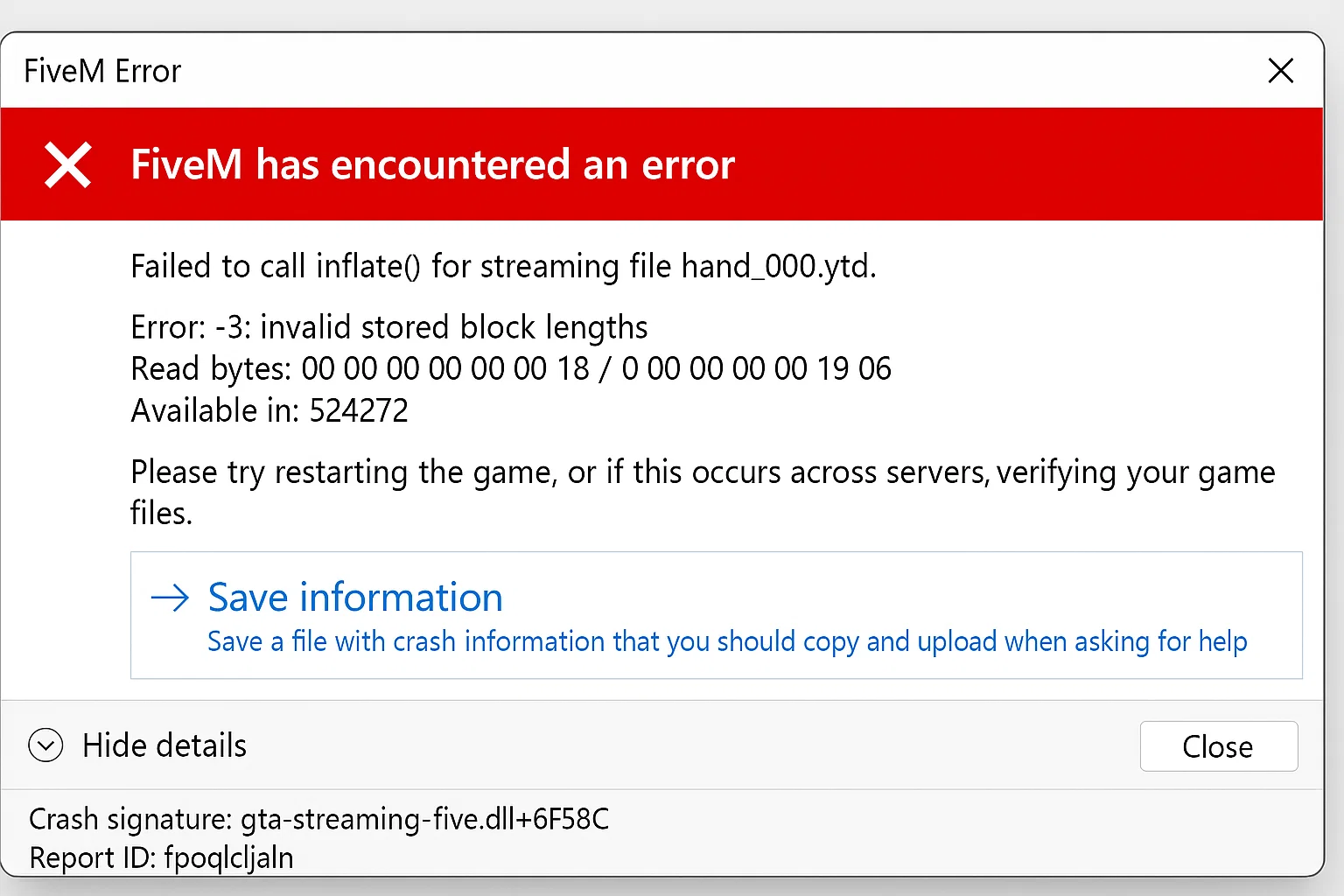
Wanneer uw FXServer “niet reageert”-fouten weergeeft, heeft u meestal te maken met een van de vijf kernproblemen. Deze handleiding biedt systematische stappen voor probleemoplossing voor FiveM serverbeheerders die connectiviteitsfouten ervaren tussen txAdmin en FXServer.
Primaire oorzaak: Poortconfiguratie-mismatch
Probleem: txAdmin kan geen verbinding maken met FXServer vanwege een onjuiste poortconfiguratie in server.cfg
Oplossing: Controleer of uw server.cfg overeenkomende TCP/UDP-eindpunten bevat:
endpoint_add_tcp "0.0.0.0:30120"
endpoint_add_udp "0.0.0.0:30121"
Vervang poortnummers door uw toegewezen poorten. Als de poortnummers niet overeenkomen met uw primaire toewijzingspoort, treden er verbindingsfouten op.
Validatiestappen:
- Controleer txAdmin-instellingen → FXServer voor geconfigureerde poorten
- Vergelijk met server.cfg-eindpuntdeclaraties
- Herstart de server via console na correcties
Secundaire oorzaak: txAdmin Monitor-connectiviteit
Probleem: txAdmin:Monitor kan geen verbinding maken met FXServer, wat leidt tot “FXServer reageert niet!”-berichten
Hoofdoorzaken:
- FXServer reageert niet op TCP-eindpunt (resource vastgelopen)
- FXServer en txAdmin delen dezelfde TCP-poort
- FXServer luistert niet naar lokale interface
Oplossing: Start FXServer in monitormodus:
# Windows
./FXServer.exe

# Linux
./run.sh
Kritiek: Gebruik geen +exec-argumenten bij het starten van txAdmin. txAdmin vereist dat FXServer in monitormodus draait.
Antivirus-interferentie (Windows)
Probleem: Microsoft Defender Antivirus dat de FXServer-map scant, veroorzaakt trage opstarttijden en connectiviteitstime-outs
Oplossing: Voeg de FXServer-map toe aan de uitsluitingslijst:
# Run as Administrator
Add-MpPreference -ExclusionPath "C:FXServer"
Vervang 'pad' door de daadwerkelijke locatie van uw FXServer-map.
Netwerkconfiguratieproblemen
Probleem: NAT/gateway maskeert UDP-bronpoorten of onjuiste poortdoorsturing
Controlelijst voor oplossingen:
- Open TCP- en UDP-poorten in router/firewall
- Controleer of Windows Firewall FXServer.exe toestaat
- Controleer NAT-configuratie op behoud van UDP-poorten
- Test lokale connectiviteit:
telnet localhost 30120
Resource blokkeert opstarten
Probleem: Vastzittende resources voorkomen dat FXServer reageert op health checks
Diagnostische aanpak:
- Start server met minimale resources
- Voeg resources stapsgewijs toe om de boosdoener te identificeren
- Controleer console op resource-foutmeldingen
- Verwijder of repareer problematische resources
Server.cfg testconfiguratie:
# Minimal startup for testing
ensure mapmanager
ensure chat
ensure spawnmanager
# Add other resources one by one
Geavanceerde probleemoplossing
Health check-fouten: Monitor toont “HealthCheck request error: connect ECONNREFUSED” wat wijst op volledig verlies van connectiviteit.
Verificatiestappen:
- Bevestig dat FXServer-proces actief is:
tasklist | findstr FXServer - Controleer poortbinding:
netstat -an | findstr :30120 - Controleer txAdmin-logboeken op specifieke foutpatronen
- Test met een schone server.cfg met behulp van standaard FiveM configuratie
Onzekerheidsnotitie: Sommige connectiviteitsproblemen kunnen voortkomen uit netwerkconfiguraties van de hostingprovider of regionale firewallbeleid die niet direct zichtbaar zijn in serverlogboeken.
Configuratievalidatie
Vereiste server.cfg-elementen:
# Essential for server listing
sets sv_projectName "Your Server Name"
sets sv_projectDesc "Your Server Description"

# Correct endpoint configuration
endpoint_add_tcp "0.0.0.0:30120"
endpoint_add_udp "0.0.0.0:30121"

# Enable txAdmin integration
start txAdmin
Servers geven fouten weer als sv_projectName en sv_projectDesc niet zijn ingesteld.
Prioriteit voor oplossing
- Eerste: Controleer poortconfiguratie in server.cfg
- Tweede: Start FXServer zonder +exec-argumenten
- Derde: Voeg antivirusuitsluitingen toe
- Vierde: Controleer netwerk-/firewallinstellingen
- Vijfde: Isoleer problematische bronnen
De meeste fouten met “FXServer reageert niet” worden opgelost door poortmismatches tussen server.cfg-endpoints en txAdmin-configuratie te corrigeren, gevolgd door het waarborgen van de juiste monitor-modus opstartprocedures.
Gerelateerde resources
Officiële verwijzingen en vervolgstappen
Gebruik deze officiële verwijzingen om de technische stappen te verifiëren voordat u een live FiveM-server wijzigt.
Gerelateerde FiveMX-gidsen: