Install a FiveM HUD resource with dependency checks, fxmanifest setup, server.cfg ordering, NUI troubleshooting, and framework compatibility tips.
Share
How To Install FiveM HUD – Tutorials & Guides
FiveM HUDs (Heads-Up Displays) are integral to providing players with an engaging interface that displays critical information like health, armor, money, and other stats. A custom HUD enhances gameplay and makes your server more personalized, whether you use QBCore or ESX frameworks. In this comprehensive guide, we’ll walk you through the process of installing a HUD for both frameworks, troubleshoot common issues, and offer insights into choosing between free and paid HUDs.
A custom HUD isn't just a cosmetic improvement; it can significantly enhance your server's functionality and appeal:
Turn framework research into a launch-ready script stack
Use this guide to narrow the framework decision, then move into the core commercial hubs for verified scripts, curated bundles, and a faster server launch path.
Framework hub
Move into the QBCore landing page to compare verified scripts, framework fit, and install-ready products built for modern FiveM servers.
Open QBCore hub
Framework hub
Use the ESX landing page to compare framework-specific resources, launch guidance, and premium products that fit ESX-first servers.
Open ESX hub
Premium catalog
Move from research into the main shop to compare real products, framework labels, screenshots, and production-ready quality signals.
Open premium shop
Premium Scripts You Might Like
Free Scripts You Might Like
Related Articles
Install FiveM on PC with a legitimate GTA V copy, launcher setup, account requirements, first-server join steps, and common client fixes.
When a HUD script breaks on your FiveM server, every player sees it within seconds. This guide walks through the 12 most common HUD failures — invisible HUDs, broken speedometers, framework mismatches, FPS drops — with diagnostic steps and copy-paste fixes for ESX, QBCore, and QBox.
Install a FiveM server template in 1–2 hours: extract archive, import SQL, configure server.cfg, start txAdmin, validate the gameplay loop. Complete 7-step guide with troubleshooting and customization checklist.
Improve Player Experience: Offer players a clean and intuitive interface that simplifies gameplay.
Brand Your Server: Customize the look to match your server’s unique theme and style.
Convey Critical Information: Display stats like health, armor, hunger, and money prominently, keeping players informed without cluttering their screens.
How to Install a HUD for QBCore
QBCore is renowned for its modularity and developer-friendly design. Follow these steps to seamlessly integrate a HUD:
1. Download a Compatible HUD
Search for a HUD that supports QBCore. Browse trusted sources like forums, GitHub, or reputable modding websites to avoid issues with malware or incompatible files. Choose a HUD that matches your server's style and player needs.
2. Extract the Files
After downloading, use tools like WinRAR or 7-Zip to extract the contents of the compressed file.
3. Add the HUD to Your Resources Folder
Locate the resources folder in your FiveM server directory.
Copy the extracted HUD folder into this directory.
Ensure the folder contains a __resource.lua or fxmanifest.lua file, as these are critical for FiveM compatibility.
4. Update Your server.cfg
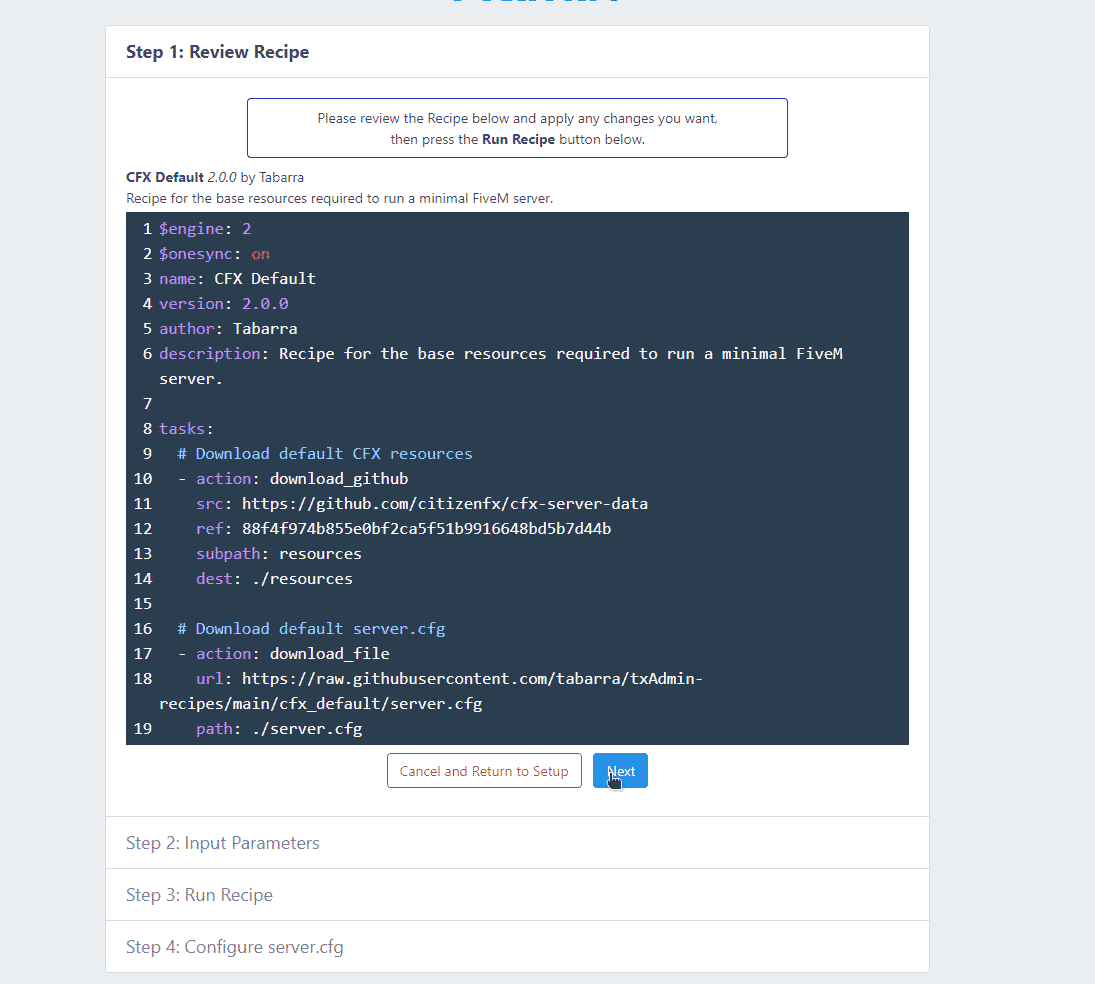
Open your server’s server.cfg file with a text editor.
Add the following line at the end:sqlCode kopierenstart hudFolderName Replace hudFolderName with the exact name of your HUD folder.
5. Restart Your Server
Save your changes and restart your server. Players will see the new HUD interface when they log in.
How to Install a HUD for ESX
The process for ESX, a framework known for its vast ecosystem of scripts, is similar to QBCore but with a few framework-specific nuances:
1. Download a Compatible HUD
Search for HUDs designed specifically for ESX. Ensure compatibility with your version of ESX and always download from reputable sources.
2. Extract the Files
Extract the downloaded archive using extraction tools like WinRAR or 7-Zip.
3. Add the HUD to Your Resources Folder
Place the HUD folder into the resources directory of your FiveM server.
4. Edit Your server.cfg
Open the server.cfg file in your main server directory.
Add this line to activate the HUD: start hudFolderName
Ensure hudFolderName matches the exact name of your HUD folder.
5. Restart Your Server
Restart the server to load the new HUD. The interface will be available immediately.
Troubleshooting Common Issues
Even after following these steps, problems may arise. Here’s how to address them:
HUD Not Appearing
Verify the folder name in your server.cfg matches the actual folder name in the resources directory.
Ensure the HUD is listed as start and not ensure if the latter causes issues.
Console Errors on Server Start
Check for missing dependencies or errors in the console log.
Review the HUD documentation for required scripts or libraries.
Compatibility Problems
Confirm the HUD supports your exact version of QBCore or ESX. Older HUDs may not work with newer framework updates.
Free vs. Paid HUDs
When choosing a HUD, you'll often find both free and premium options. Here’s how they compare:
Free HUDs
Pros: Cost-effective, easy to find, and often community-supported.
Cons: Limited features, less customization, and variable support.
Paid HUDs
Pros: Professional-grade designs, frequent updates, and dedicated support.
Need extra guidance? Watch this video tutorial for a step-by-step installation guide.
Conclusion
Installing a custom HUD on your FiveM server is a quick and impactful way to elevate gameplay and enhance the player experience. Whether you use QBCore or ESX, the process is straightforward. With the troubleshooting tips in this guide, you can resolve common issues and get your HUD running smoothly.
Customizing your server’s interface not only improves functionality but also sets your server apart, making it memorable for players. Take the first step to transform your server today!
Practical launch checklist for How To Install FiveM HUD – Tutorials & Guides
Use this section as a release checklist before you apply the change on a live FiveM server. Start by copying the current configuration, listing the resources touched by the change, and checking whether the topic depends on your framework, database, inventory, jobs, Discord roles, or txAdmin permissions. Many FiveM problems are not caused by the feature itself. They come from the wrong startup order, missing dependencies, inconsistent item names, or unclear staff permissions.
After the first restart, read the server console before inviting players to test. Warnings about missing exports, missing items, unknown job names, failed SQL queries, or duplicated resources should be solved immediately. If you are changing several things at once, test each resource separately with a fresh character and with an admin account. That makes it easier to tell whether the issue is inside the resource, inside an ESX/QBCore/QBox bridge, or inside your server configuration.
A production server also needs a rollback plan. Keep the previous script or config version, note the database tables involved, and decide when you will revert instead of debugging live. A practical rule is simple: if players cannot join, interact, or keep their items normally after ten minutes, roll the change back and continue on a staging server. Stability matters more than shipping one extra feature during peak hours.
Common mistakes to avoid
The most common mistake is testing only with administrator permissions. Many systems work for admins but fail for normal players because of ACE permissions, job grades, Discord role checks, or inventory metadata. Test at least three roles: normal player, staff member, and full admin. Write down which commands, items, menus, or map markers should be available to each role before you call the setup finished.
Another common mistake is ignoring monitoring after the change. Watch resmon, txAdmin warnings, client console errors, and Discord feedback for the first play session. If a resource constantly uses too much time or creates repeated client errors, it lowers server quality even when the feature appears to work. Larger changes should go through a short maintenance window with a clear testing checklist.
These resources help you treat How To Install FiveM HUD – Tutorials & Guides as part of the full server stack instead of an isolated fix. The better your setup, framework, rules, marketplace resources, and monitoring work together, the fewer support issues you will have after launch.